1
KOMPAS-3D V9. User manual.
✔
Aligning columns of numbers by the decimal point;
✔
Formatting text;
✔
Modifying text attributes - weather for the current or for selected paragraphs;
✔
Automatic division of technical specifications into several pages, or merging;
✔
Automatic numbering of lists of different nesting depth (for example, when
entering technical specifications);
✔
Creating and editing arbitrary tables;
✔
Using all functions of a text processor when entering any annotations in the
drawing field and various symbolic notations;
✔
Exchanging text and graphics information with design drafting editor of
KOMPAS-3D system, inserting drawings and fragments into a text
document;
✔
Importing text in the RTF, ANSI and ASCII formats;
✔
Outputting ready documents to a plotter or printer.
Creating Text Document. Managing its display
To create a new a text document, call the command File - New.
A dialog will be displayed, in which you need to specify the document type.
To create a document based on a template, switch to the Templates tab and select
the desired one.
After selecting the document or template type, click the OK button.
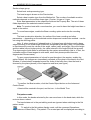
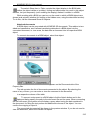
The new text document window will be displayed: a blank area with a dotted
rectangular frame - the border of the text edit area.
The Property Bar and the Compact bar display control elements and buttons for
calling text management commands.
Just like when working with a drawing, you can use the Zoom In and Zoom Out
buttons on the View bar to change the displayed scale of a text document.
Additionally, two special buttons are provided on this panel for controlling the text
document scale.
Upon clicking the Zoom to Page Width button, the system will automatically pick
the document display scale, which makes the document width equal to that of the
window, while after clicking the Zoom to Page Height button; the document height
becomes equal to the window height.
Just like when working with a drawing, scroll bars appear if the image is zoomed in.
Using the vertical scroll bar, you can move from one page of a text document to
another ("flip pages" of a multipage document). To go to the desired page, you can also
use the Current Page field.
Selecting Layout. Filling Title Block
The layout style of a text document, like a drawing layout, includes the title block, the
outer and inner format frames.
245