1
KOMPAS-3D V9. User manual.
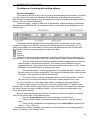
Property Bar handling techniques
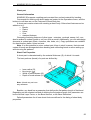
Property bar may includes different controls: fields for entering or selecting numerical
values, radio groups, lists, panes, etc. You work with interface items using familiar
techniques - activating radio switches, entering values in editable fields and table cells,
selecting values from combo box lists or by stepper controls.
Additional working techniques are described in the sections that follow.
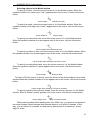
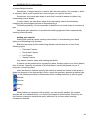
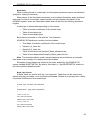
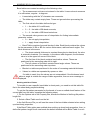
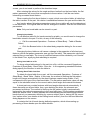
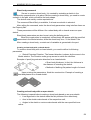
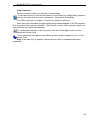
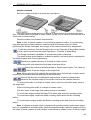
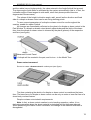
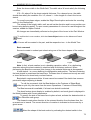
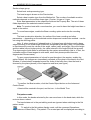
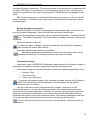
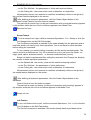
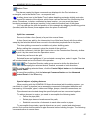
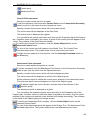
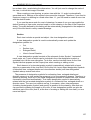
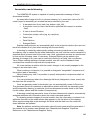
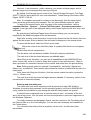
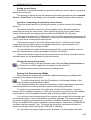
Activating parameters
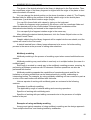
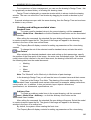
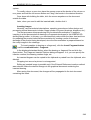
Fixing parameters
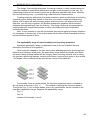
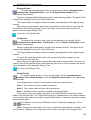
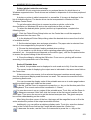
Releasing parameters
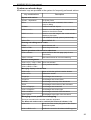
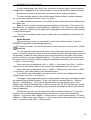
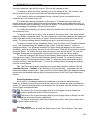
You can use the keyboard to work with Property Bar controls. The main actions and the
keys used to perform them are shown in the table.
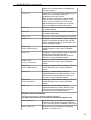
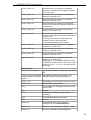
Actions
Keys
Jumping from one control to another
<Tab> (in the forward direction)
<Shift>+<Tab> (backward)
Picking over list values
<Down arrow>, <Up arrow>
Picking over switches in a radio group
<Right arrow>, <Left arrow>
Activating the switch focused on
<Space>
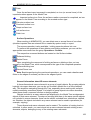
Rounding parameter values
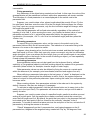
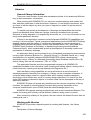
When working with KOMPAS documents you can turn On rounding of linear values.
This function is used in various commands creating and editing graphical and threedimensional objects.
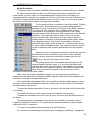
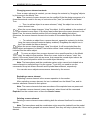
Switching On and Off the Rounding mode in the current document window
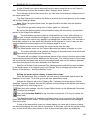
(windows) is done by the Rounding button on the Current Status bar or by the F7 key.
When On, parameter values are rounded to the nearest value - a multiple of the
cursor current step. The value is rounded to the smaller one if the difference between the
value and the nearest multiple is less than half the cursor step; otherwise it is rounded to
the greater one.
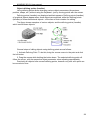
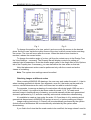
Let's review working in the rounding mode in detail based on a rectangle creation
example. For this, do the following.
1. Create a new graphic document.
2. Make sure the rounding mode is turned Off. If not so, switch it off.
3. Set the cursor step equal to 5 mm.
4.
Call the Rectangle command.
5. Specify the first rectangle's vertex position.
6. Move the cursor and watch the values in the Height and Width fields on the
Property Bar.You will see values in these fields displayed with decimal digits to the
precision specified at the time of the Number scheme setup.
7.
Click the Rounding button.
8. Make sure the Height and Width fields now display integer values multiple of 5,
that is, the rectangle dimensions change in increments with the step equal to the
cursor step.
9. Change the cursor step from 5 to 2.
10. Make sure the rectangle's dimensions became a multiple of 2.
24