1
Modifying Device Configuration Setting
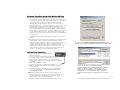
8). Click on the “Modify device configuration setting” button.
Make sure the Hardware ID shown is “Fw1256H” and Product ID
is “Shining CitiDISK HDV”.
The configuration setting comes preset and there is usually no
need to change it except the “User Config” sub-menu.
Camera Controlled Recording
• Set the camera to “Camera” mode; insert a
non-blank tape to camera.
• Press “REC” button of the camera once to start recording. The RED
light of the CitiDISK HDV will turn to solid RED, blinking means signal
is not delivered yet; and the “PowerAccess” light will change to color
PURPLE in active recording.
• Press the “REC” button of the camera once again to stop recording.
The RED light goes off and the “PowerAccess” light turns solid BLUE.
• Unintentionally power off the unit while in recording will trigger the
unit to close current recording video, next to power off the unit.
• Each start & stop will generate one clip in the “Media” folder, named
as “CLIPXXYY.ZZZ” or “CLPXXXYY.ZZZ”. If the recording is longer
than 9-minute, one or more new sub-clip(s) will be created. The
“XXX” is clip number, “YY” is the sub-clip number and “ZZZ” is the
file extension name.
Note: To allow the CitiDISK HDV to completely close just recorded
video, a 3-second gap before next recording started is compulsory.
Recording Video Manually
• Set the HDV camera to “Camera” mode.
• Press “REC” button on the CitiDISK HDV once to start recording.
The RED light of the CitiDISK HDV will turn to solid RED, blinking
means signal is not delivered yet; and the “PowerAccess” light will
change to color PURPLE in active recording.
• Press the “REC” button of the CitiDISK HDV once again to stop
recording. The RED light goes off and the “PowerAccess” light
turns solid BLUE.
Recording Tape Video
Click on “User Config” will display the next screen.
• Set the camera to “VCR” mode. Insert a tape.
• Play the tape content.
• Press the “REC” light on the CitiDISK HDV. The RED light blinks
and the CitiDISK HDV waits to be fed.
• The RED light of the CitiDISK HDV changes to solid RED indicating
recording is in progress, and the “PowerAccess” light changes color
between BLUE and light PURPLE.
• Stop DV recording by pressing the “REC” button of the CitiDISK
HDV and then stop tape playing. The RED light goes off and the
“PowerAccess” light turns solid BLUE.
P14
P7
Shining Technology CitiDISK HDV Quick Usage Guide v11.0
Shining Technology CitiDISK HDV Quick Usage Guide v11.0