Download SDSStudentHelp
Transcript
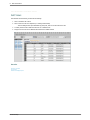
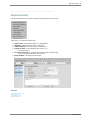
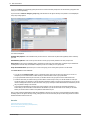
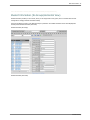
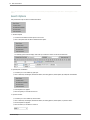
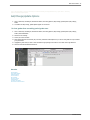
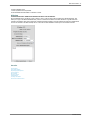
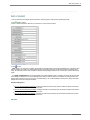
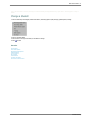
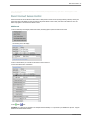
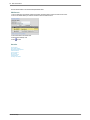
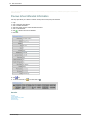
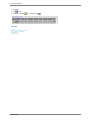
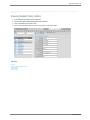
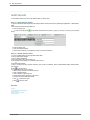
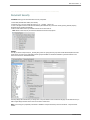
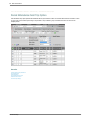
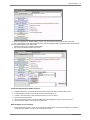
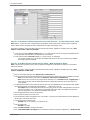
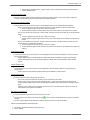
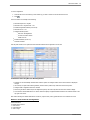
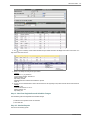
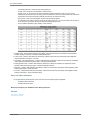
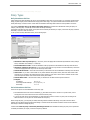
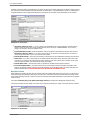
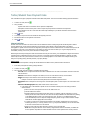
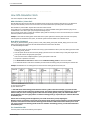
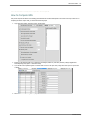
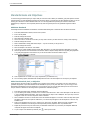
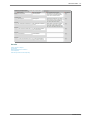
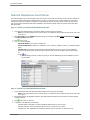
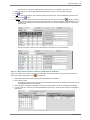
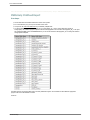
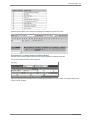
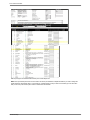
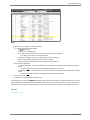
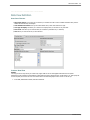
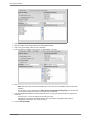
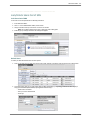
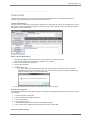
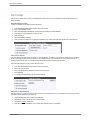
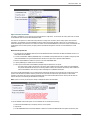
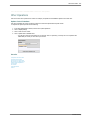
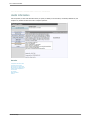
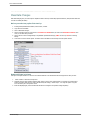
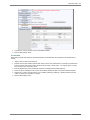
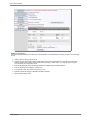
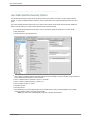
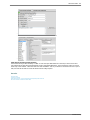
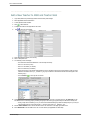
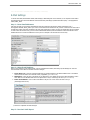
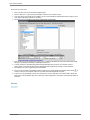
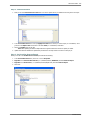
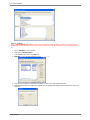
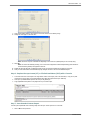
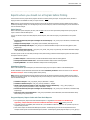
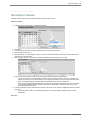
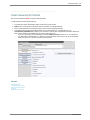
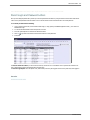
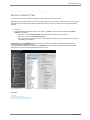
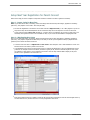
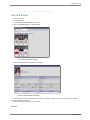
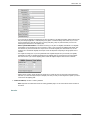
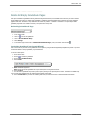
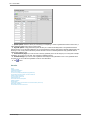
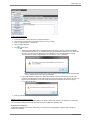
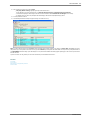
198 . Web School Office Home > Web School Office > Processing Center > Data Exchange State and Federal Reporting > Illinois > ELL ELL This file format pertains to the data submitted to ISBE SIS Early Childhood. For more information on the state’s requirements on SIS reporting, use this link to access the state’s website: http://www.isbe.net/sis/ You will need to have fields in your database to enter all the state required values into for this report. Many of these fields already exist in your database. If you need to add fields to your database to house state reporting data, follow the instructions below. It is recommended that you check with your district computer technician or database administrator prior to adding fields. 1. Open Processing Center|Data Exchange, State & Federal Reporting 2. Choose Illinois 3. Choose ELL 4. Assign an SDS Field to each of the state fields listed in the Descriptive Field Name column 1. Click the Export Design Options button 2. Select the appropriate table from the drop box in area #2: Select a Table to Store Data. 3. Select the appropriate data field from the selected table in area 2 to match to a field in the grid below this area. 4. Click the yellow button in the “Assign” column next to the appropriate state field to match the field you selected in step “c” to it. 5. The field from SDS will then be listed in the column “SDS field name” and the source table will be listed in the column “SDS table name”. 6. Leave any state fields for which you don’t have fields in your database setup unassigned. 5. Click the yellow triangle button under #1 to create fields in your database for the unassigned fields. 1. You will need to have all users out of the program prior to clicking this button. 2. Database fields will be created in the table selected in #2 and assigned to the state fields. Once you have all the necessary fields in your database, state required data values need to be entered in the state reporting fields for students. This is done in the All Demographics Fields data entry screen in Data Entry and Changes |Student Information. To make data entry easier for this, you might want to use Data View Definition in Administrative Utilities to create a view containing just the state reporting fields. If there are fields where the data to be entered is the same for the majority of your students, you have the option of leaving those fields blank for all students except those who require a value different from the majority. Then on the Data Exchange, State and Federal Reporting screen, you would fill in the data value for the majority of the students in the Default if Blank Field. For example, if all but 10 of my students require a value of 01 in Title_III_Status, I would fill in the Title_III_Status field in Student Information with the required value for those 10 students but leave it blank for the rest of the students. Then when creating the export file, on the Data Exchange, State and Federal Reporting screen, I would match the state’s Title_III_Status field to the SDS Title_III_status field and enter 01 in the Default if Blank box. When the program creates the export file, the 01 will be placed in the Title_III_Status position for the students where the Title_III_Status field is blank. To create your report for the state: 1. Open Processing Center|Data Exchange, State & Federal Reporting 2. Choose Illinois 3. Choose ELL 4. Assign an SDS Field to each of the state fields listed in the Descriptive Field Name column 1. Click the Export Design Options button 2. Select the appropriate table from the drop box in area #2: Select a table to store data. 3. Select the appropriate data field from the selected table in area 2 to match to a field in the grid below this area. 4. Click the yellow button in the “Assign” column next to the appropriate state field to match the field you selected in step “c” to it. 5. The field from SDS will then be listed in the column “SDS field name” and the source table will be listed in the column “SDS table name”. 6. In the column “Default if Blank”, enter a value to be exported for ALL students who have blank data in the selected field. 7. Placeholder fields should be left un-assigned. 5. Complete the Basic Report Information 1. Click the Basic Report Information button to open the basic information area. SDSStudentHelp