1
Web School Office . 111
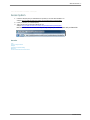
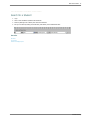
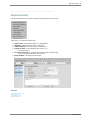
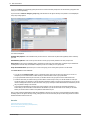
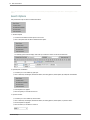
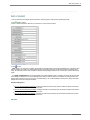
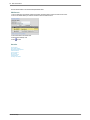
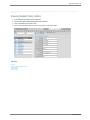
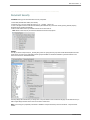
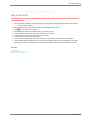
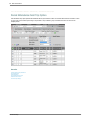
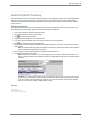
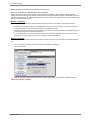
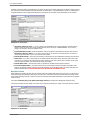
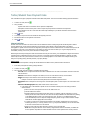
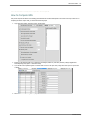
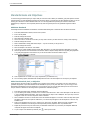
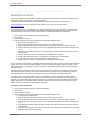
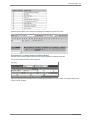
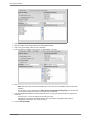
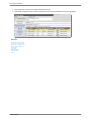
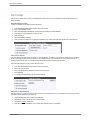
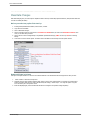
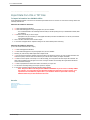
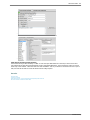
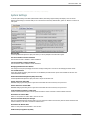
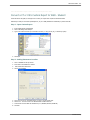
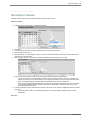
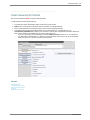
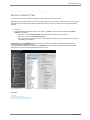
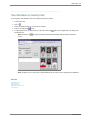
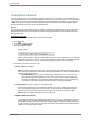
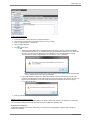
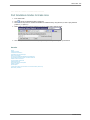
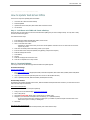
4. Click in the radial button for “Replace All Data in Column”. This will activate table selection and the Mass Change area.
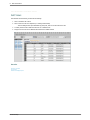
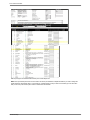
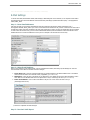
5. Select “Demographics” in the Table Selection drop down. After the Demographics table is selected all students will be displayed.
The “Open Selection Definition Area” button will be
activated and sequencing of students is made available.
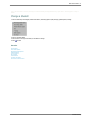
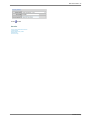
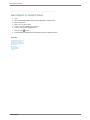
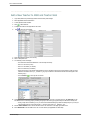
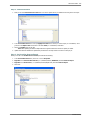
6. Click on the “Open Selection Definition Area” button.
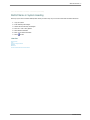
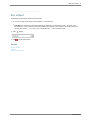
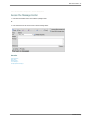
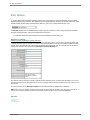
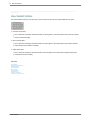
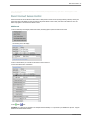
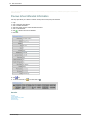
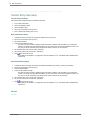
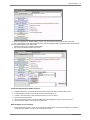
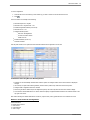
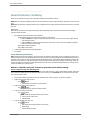
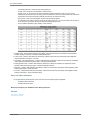
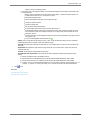
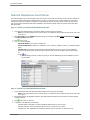
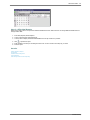
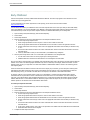
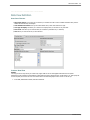
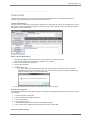
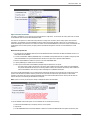
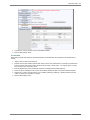
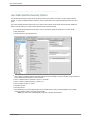
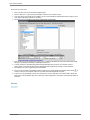
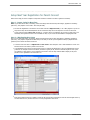
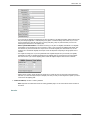
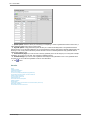
The Selection Definition/Query Builder choices are:
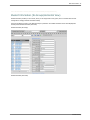
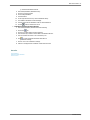
1. Field Name drop down (in the example above the choice is the “Grade_Year” field to select this year’s seniors.)
2. Compare Operation drop down (in the example above the choice is “Equal to [=]).
3. Compare to Value drop down (in the example above the value is “12” for all seniors).
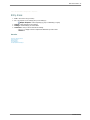
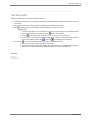
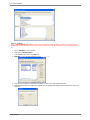
4. Click the “Add to Formula” button.
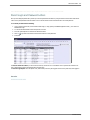
5. Click the “Save Formula” button. The selection definition/query will be displayed in the box. Verify that it is correct.
6. Click the “Finished” button to return to the mass change screen.
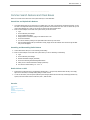
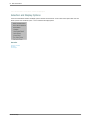
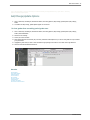
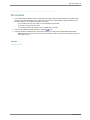
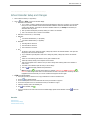
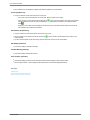
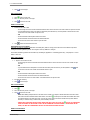
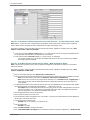
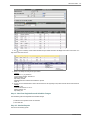
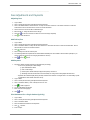
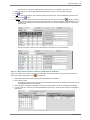
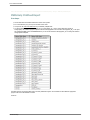
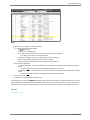
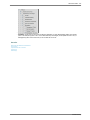
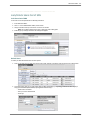
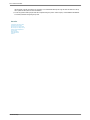
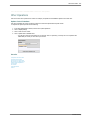
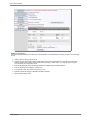
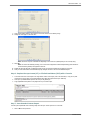
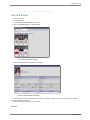
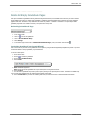
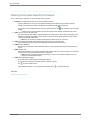
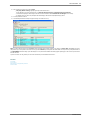
When the display screen is refreshed:
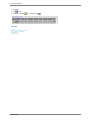
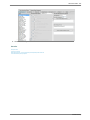
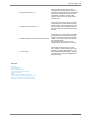
1. Verify that the query selection is correct. (In this example only students who are seniors should be displayed. The “Number of
records that will be affected = 34” reflects the correct number of seniors).
SDSStudentHelp