1
Web School Office . 309
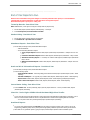
Step 3 - Table Verification
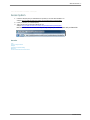
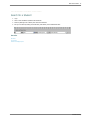
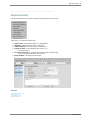
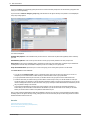
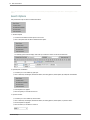
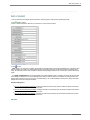
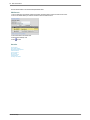
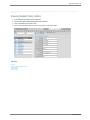
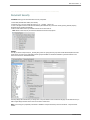
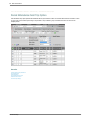
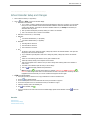
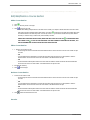
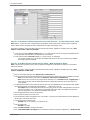
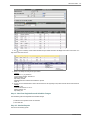
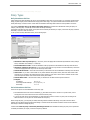
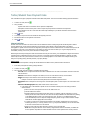
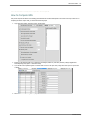
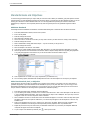
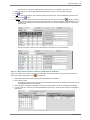
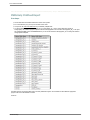
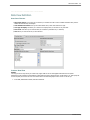
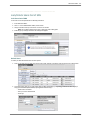
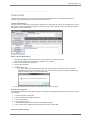
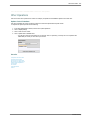
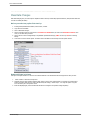
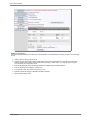
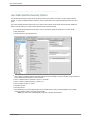
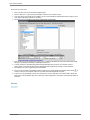
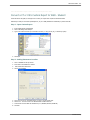
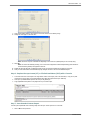
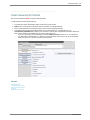
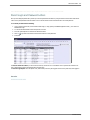
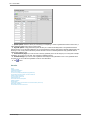
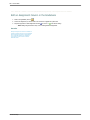
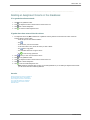
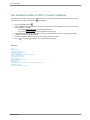
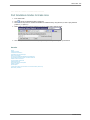
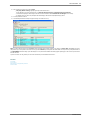
1. While you are still in Set Datasource Location we now need to update each of your tables that are being used in the report.
❍
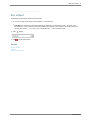
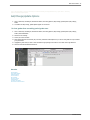
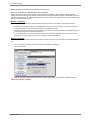
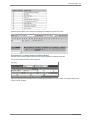
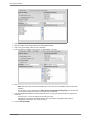
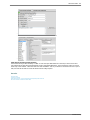
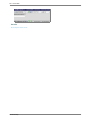
2. In the Current Data Source box at the top highlight one table that is used in your custom report (i.e. CourseMaster). Then
go down to the Replace with box and click on the same table (i.e. CourseMaster) used above.
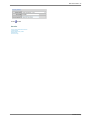
3. Click on the Update button on the right.
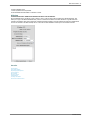
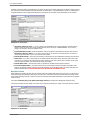
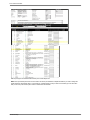
❍ Note: When updating the tables if a Map Fields screen appears click OK and continue to update your tables.
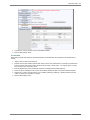
4. Update each table until all tables are updated then proceed to the next step. Please do not click on Close just yet.
Step 4 - Set Location Same as Report
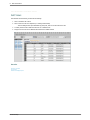
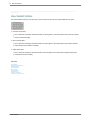
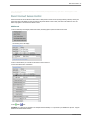
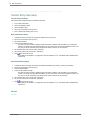
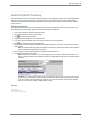
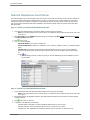
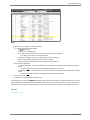
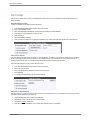
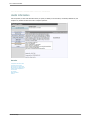
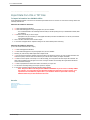
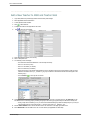
While you are still in the Set Data Source Location proceed with the following:
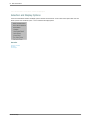
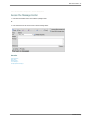
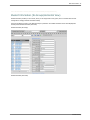
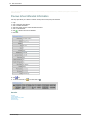
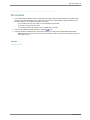
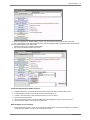
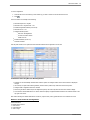
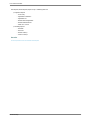
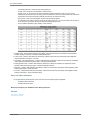
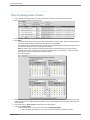
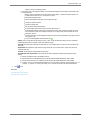
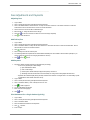
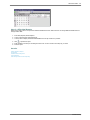
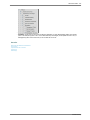
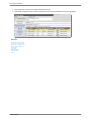
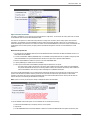
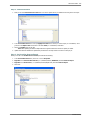
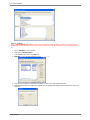
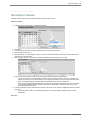
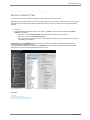
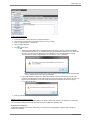
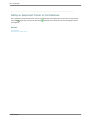
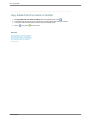
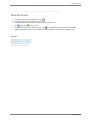
1. In the Current Data Source box, click on the + next to Properties
2. Right click on the Microsoft Data Link File (i.e. c:\sdsadmin\student\ sdsV8S.udl) and select Same as Report.
3. Right click on the Data Source (i.e. c:\sdsadmin\student\sdsxplan.mdb) and select Same as Report.
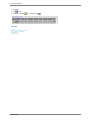
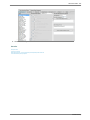
4. Click Close.
SDSStudentHelp