1
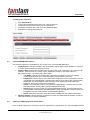
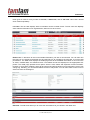
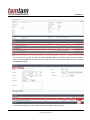
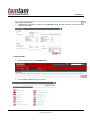
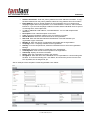
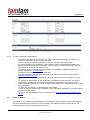
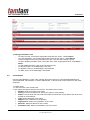
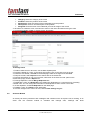
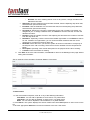
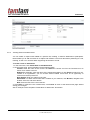
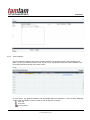
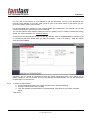
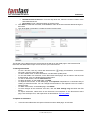
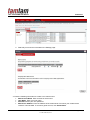
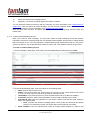
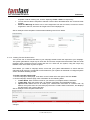
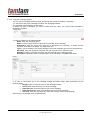
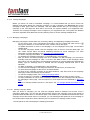
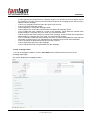
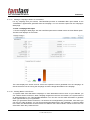
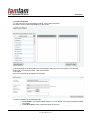
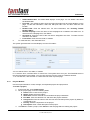
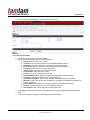
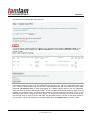
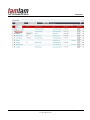
Title: TamTamCRM User Manual Confidential Related Document Revision. From the drop-down list, select the revision number of the associated document. Description. Enter a brief description of the document. 3. Click Save to create the document; click Cancel to return to the document list without saving the document. 4. Look at the filled in example of “Create Document” herein below: The file will now be displayed in the documents list as well as on the detail page in the Download File field. Click the attachment to open it or to save it to your local machine. To manage documents - - To sort a list view, click any column title which has the 38.png icon beside it; to reverse the sort order, click the column title again. To edit or delete some or all the documents, use the Mass Update panel. To view the details of a document, on the Documents home page, click its name in the list; links to attachments, if any, are displayed below Description. To view an attachment, click the attachment link. To edit a document, on the detail page, click Edit. To duplicate a document, on the detail page, click Duplicate. Duplication is a convenient way of creating a similar document. You can change the information in the duplicate record to create a new document. To delete a document, on the detail page, click Delete. To track changes to the document over time, click the View Change Log link below the Edit button. To export documents, select them in the Document List sub-panel on the Documents Home page, click the Export icon, and export them as described in “Exporting Data”. To update an attachment 1. In the Document Revisions sub-panel of the document’s detail page, click Create: Page: 48/76 © TAMTAMCRM, 2012