1
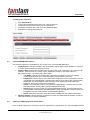
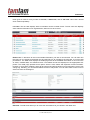
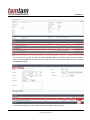
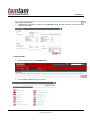
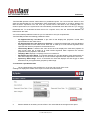
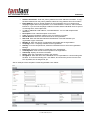
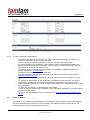
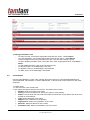
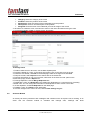
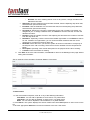
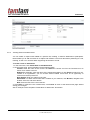
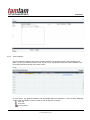
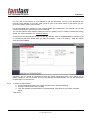
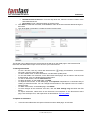
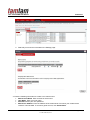
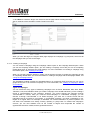
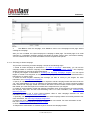
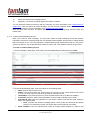
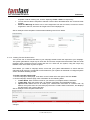
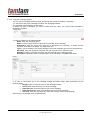
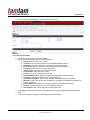
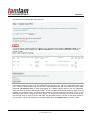
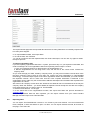
Title: TamTamCRM User Manual Confidential template or edit an existing one, click the adjoining Create or Edit link respectively. You will need to edit the template to add the Tracker URLs described below into Text and HTML formats. Send This Message to. Select one or more target lists from the box below; to send it to all the target lists in the box, select the All Target Lists in the Campaign box. See an example of the completed “Create email marketing record” form below: 3. To save the record, click Save; click Cancel to exit the page without saving your changes. 5.12.5. Creating Tracker Redirect URLs You can use one or more tracker URLs in your campaign emails to track the response to your campaign. The system generates a unique key for each URL and for each recipient and associates it with the email template. When recipients open the email and click on a URL link, the system, using the unique key identifier, track each action by each recipient. Note: Before you create a campaign email, check with your system administrator to ensure that the outbound email process is configured to send email from your system as described in Configure System section and Mass Emailing section. To create a tracker redirect URL 1. On the Campaign’s detail page, scroll down to the Tracker URLs sub-panel, and click Create. 2. On the Campaign Trackers page, enter information for the following fields: Tracker Name. Enter a tracker name for your reference; use alpha-numeric characters. Tracker URL. Enter the tracker URL; for example, http://www.TamTamCRM.com/trial. Opt-out Link? Select this box to embed your “Unsubscribe” instructions in a tracker URL. By default, the system uses the removeme.php file which contains these instructions, and displays this file name in the Tracker URL field. See an example of the completed field below: 3. To create the campaign tracker, click Save; click Cancel to exit the page without saving your changes. Page: 61/76 © TAMTAMCRM, 2012