1
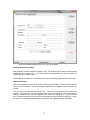
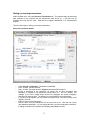
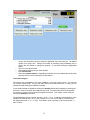
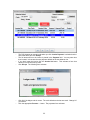
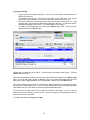
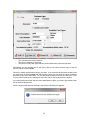
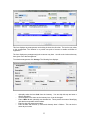
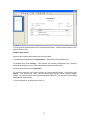
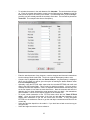
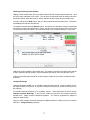
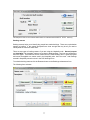
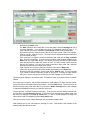
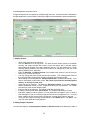
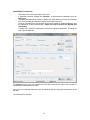
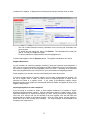
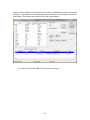
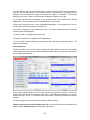
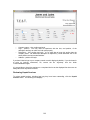
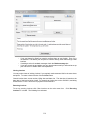
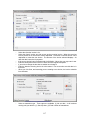
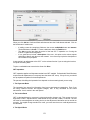
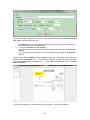
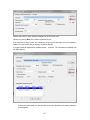
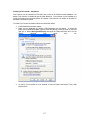
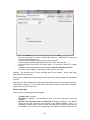
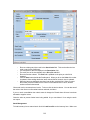
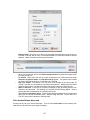
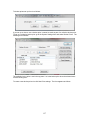
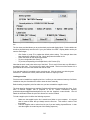
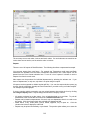
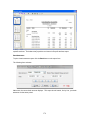
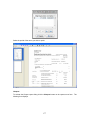
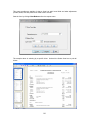
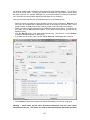
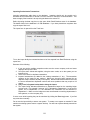
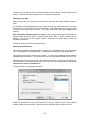
4. Find the drive of the PC Retail Business is installed on by clicking the Browse button. If
you cannot find it the connection to the PC may have been dropped. The workstation PC
may have to be shut down and restarted. Or repair the connection if using XP, Vista,
Windows 7 or 8.
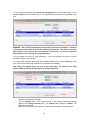
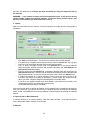
Warning – don't map to the folder the Base System database is on. The network will not be able
to connect consistently if you do that. Map to the C: drive only. Or whichever drive the database
has been installed on if you are running in a server-based environment.
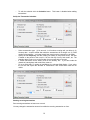
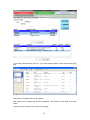
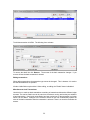
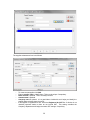
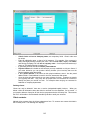
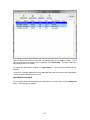
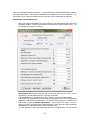
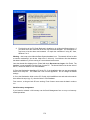
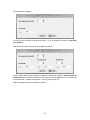
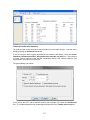
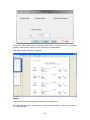
Once the shared drive displays in the Folder field check Reconnect on Logon, click Finish. The
database is now accessible from the Front Counter PC. The shared folder must be the drive of
the PC, not the full folder as in C:\PSL\Database.
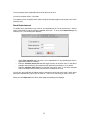
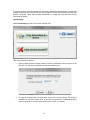
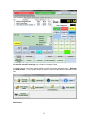
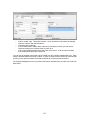
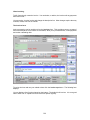
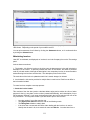
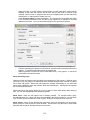
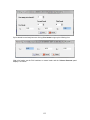
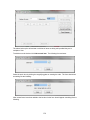
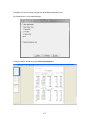
5. Place the Workstation installation CD in the PC. If the installation does not start automatically
double click Setup.exe. This installs the Front Counter application. Do not change the default
settings.
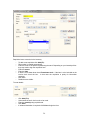
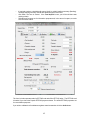
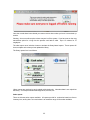
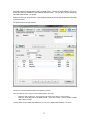
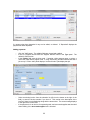
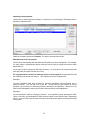
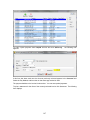
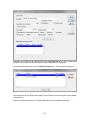
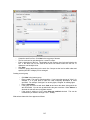
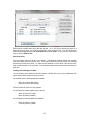
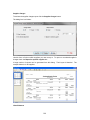
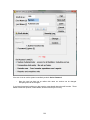
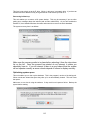
6. Go to the Workstation folder on the CD. Double click InstallWkstn.exe and select the network
drive defined in step 4 (eg. G:) then the folder C:\PSL\Database.
From now on, so long as both PCs are running, Front Counter can access the data it needs to
run.
Stock/Inventory management
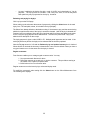
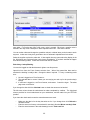
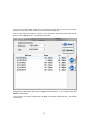
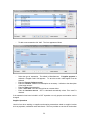
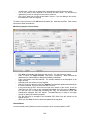
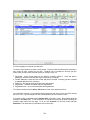
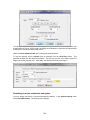
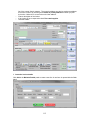
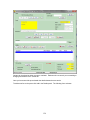
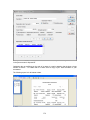
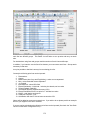
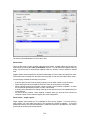
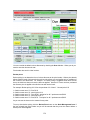
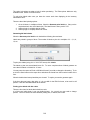
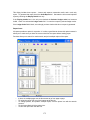
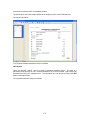
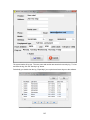
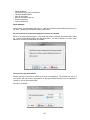
If you intend to maintain a full inventory use the Stock Management form to carry out inventoryrelated operations.
138