1
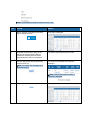
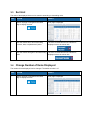
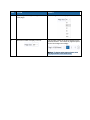
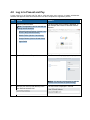
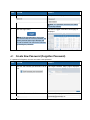
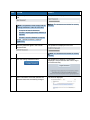
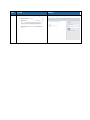
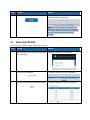
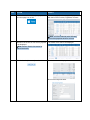
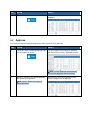
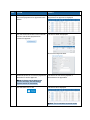
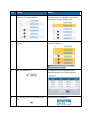
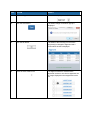
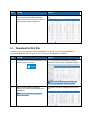
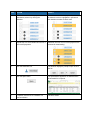
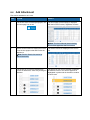
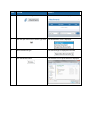
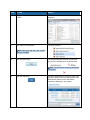
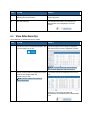
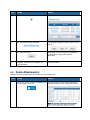
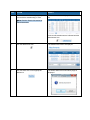
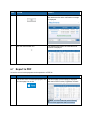
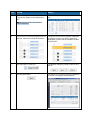
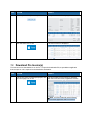
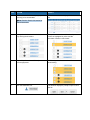
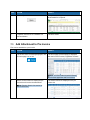
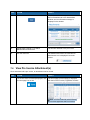
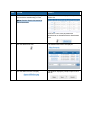
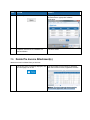
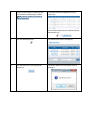
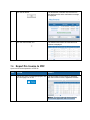
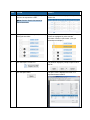
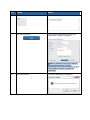
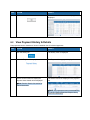
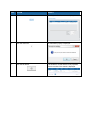
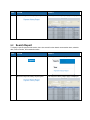
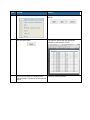
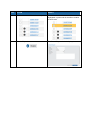
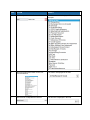
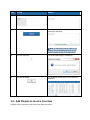
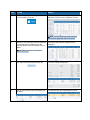
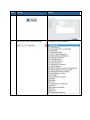
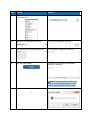
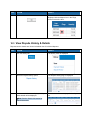
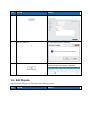
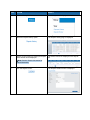
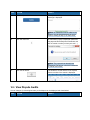
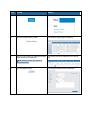
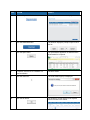
STEP ACTION RESULT 20. Click the Finish button. The registration process is finalized and the confirmation page is displayed. Note: The administrator must approve the user before Present and Pay can be accessed. The user is notified via an email message that the user account has been approved (or rejected). 5.2 View User Profile The profile of the currently logged in user can be viewed. STEP ACTION RESULT 1. Click the Payer Analyst link (upper right-hand side of the page). The Payer Admin menu is displayed. 2. Click the User Profile link. The profile of the current user is displayed. 3. Click the View link in the Entitlement column. The User Entitlements Window is displayed.