1
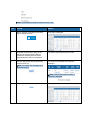
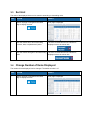
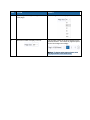
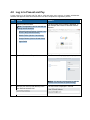
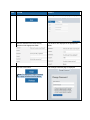
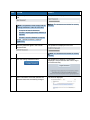
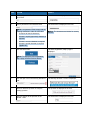
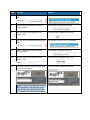
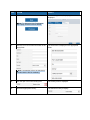
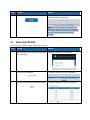
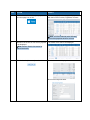
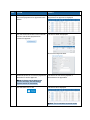
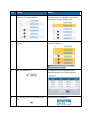
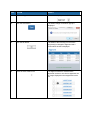
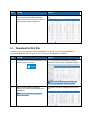
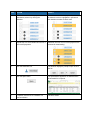
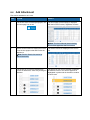
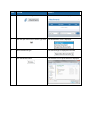
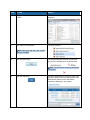
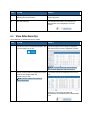
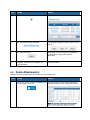
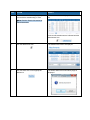
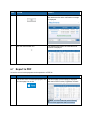
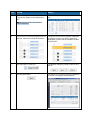
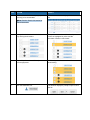
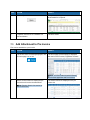
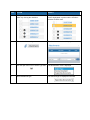
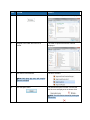
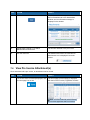
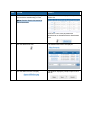
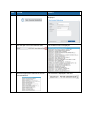
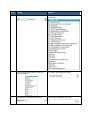
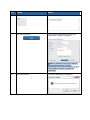
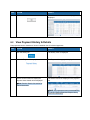
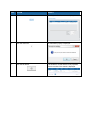
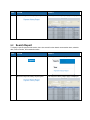
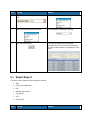
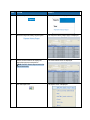
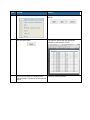
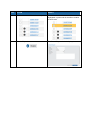
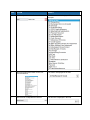
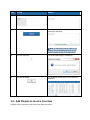
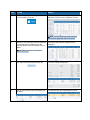
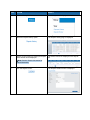
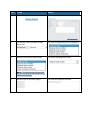
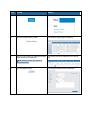
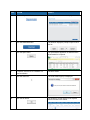
STEP ACTION RESULT 1. If the invoice list is not already displayed, click the Home page icon or link. The home page (Invoices page) is displayed with the list of all invoices, regardless of status. Note: This list includes all items including Non Invoices payments and Pre Invoices. 2. Search for Invoices with a status of Approved or use other search methods to find the invoice(s) where a line item dispute is to be added. All invoices with a status of Approved are displayed. Note: See the Search List section for search instructions. 3. Click the invoice (document) number link. The invoice detail is displayed. 4. Click on the line item where the dispute is to be added. The selected line item is highlighted in yellow.