1
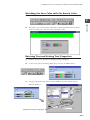
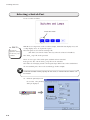
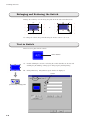
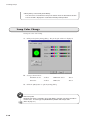
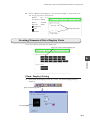
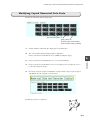
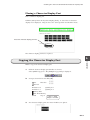
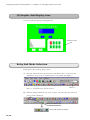
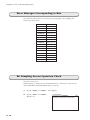
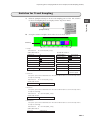
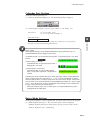
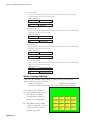
Calendar Display
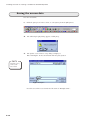
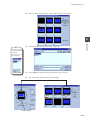
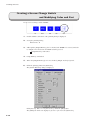
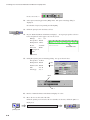
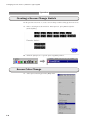
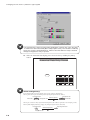
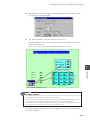
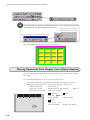
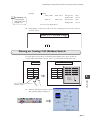
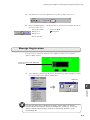
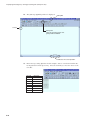
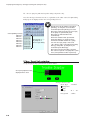
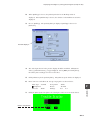
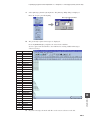
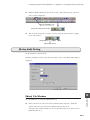
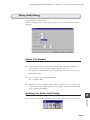
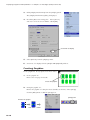
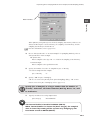
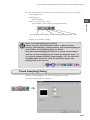
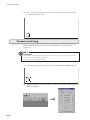
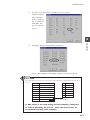
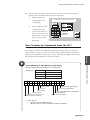
(5) Click the "X" button in the upper right corner of the [OPEN Macro Edit] window.
The window is closed, and the [Screen Edit] window appears.
ZM-80 Operation Check
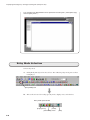
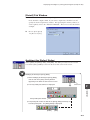
Save the created screen.
While referring to "Chapter 3 Screen Data Transference", transfer the created screen
data to ZM-80 and check that ZM-80 operates correctly.
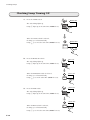
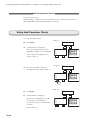
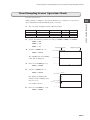
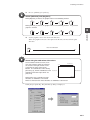
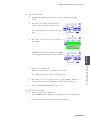
1.
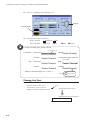
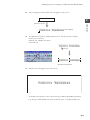
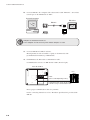
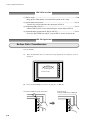
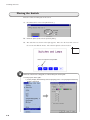
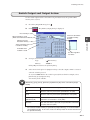
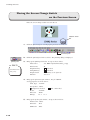
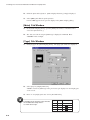
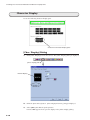
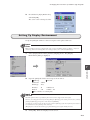
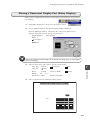
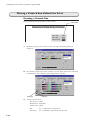
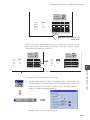
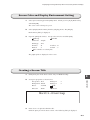
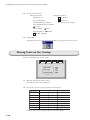
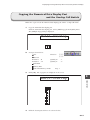
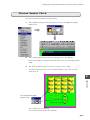
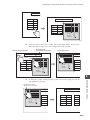
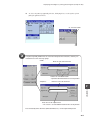
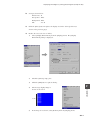
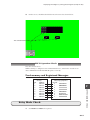
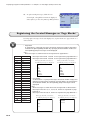
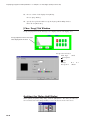
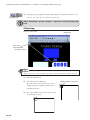
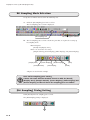
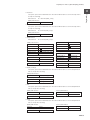
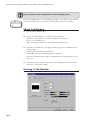
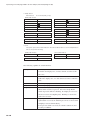
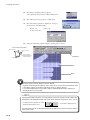
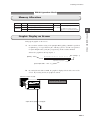
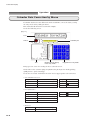
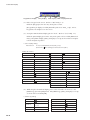
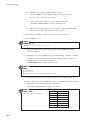
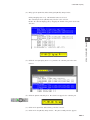
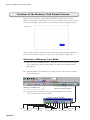
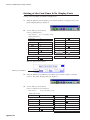
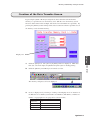
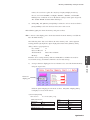
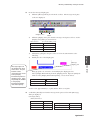
Open the "Calendar Correction" screen. The calendar part indicates the calendar
data from PLC.
2.
14
ZM-80 Operation Check
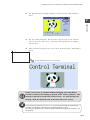
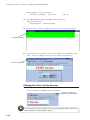
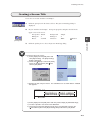
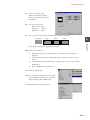
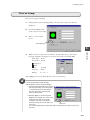
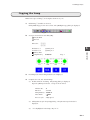
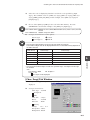
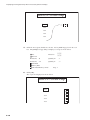
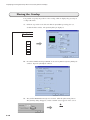
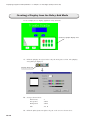
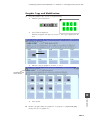
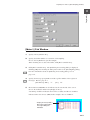
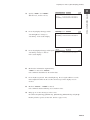
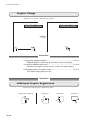
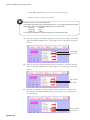
Change the day.
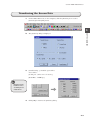
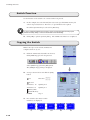
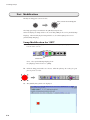
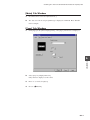
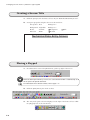
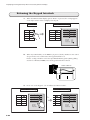
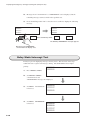
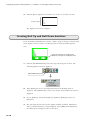
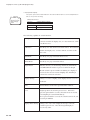
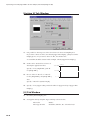
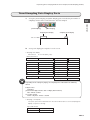
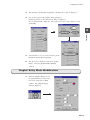
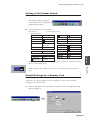
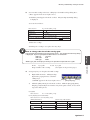
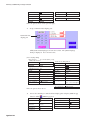
Move the cursor to the part of "Day" by pressing the "▼" key on the keypad. In
this example, enter "10" for "Day".
Likewise, enter "16" for "Hour", "50" for "Minute", and "10" for "Second".
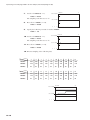
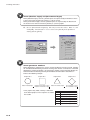
3.
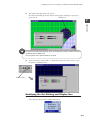
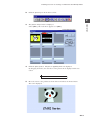
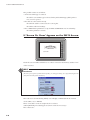
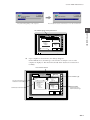
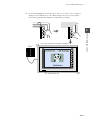
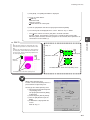
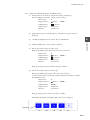
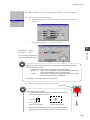
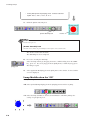
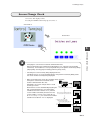
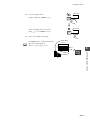
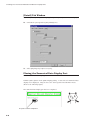
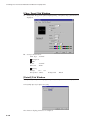
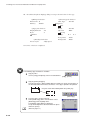
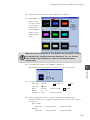
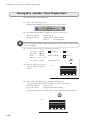
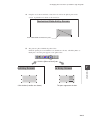
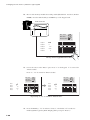
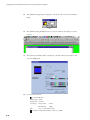
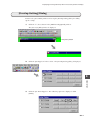
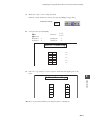
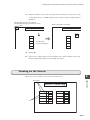
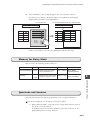
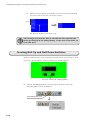
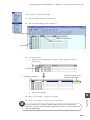
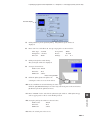
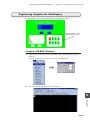
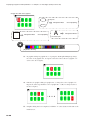
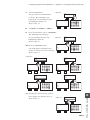
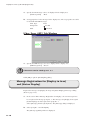
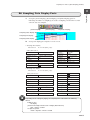
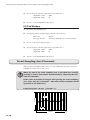
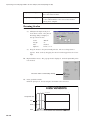
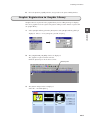
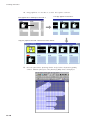
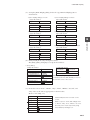
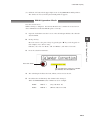
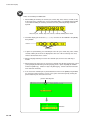
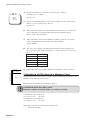
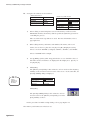
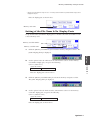
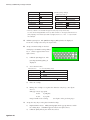
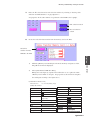
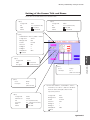
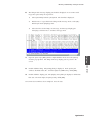
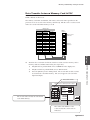
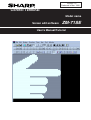
Press the switch for ON macro.
Press this switch.
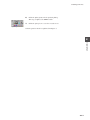
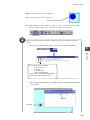
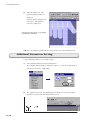
On execution of the macro, this calendar
part indicates the corrected time.
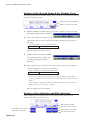
4.
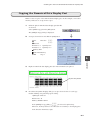
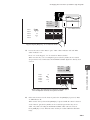
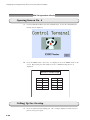
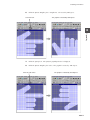
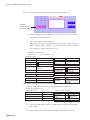
The calendar part indicates the hour, minute, and second as entered.
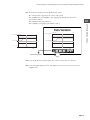
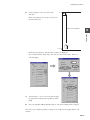
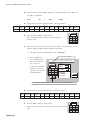
5.
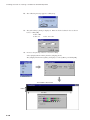
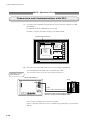
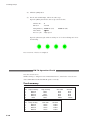
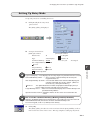
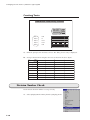
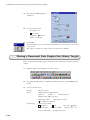
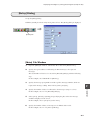
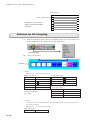
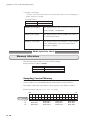
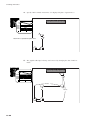
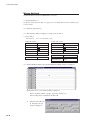
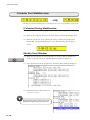
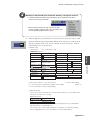
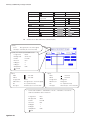
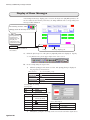
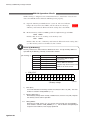
Check that the clock memory data of PLC is also changed.
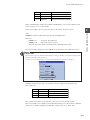
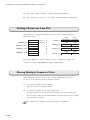
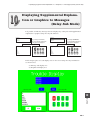
When the MITSUBISHI series A PLC is used, for example:
D9026
D9027
H1016 ->
H5010 ->
(Day: 10, Hour: 16)
(Minute: 50, Second: 10)
14-9