1
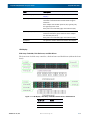
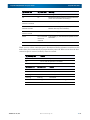
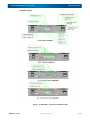
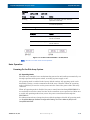
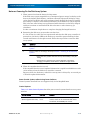
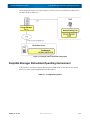
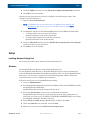
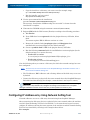
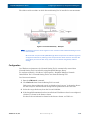
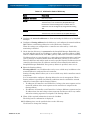
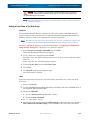
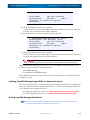
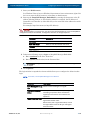
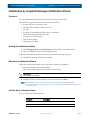
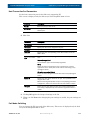
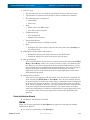
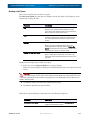
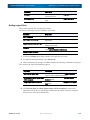
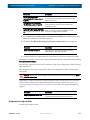
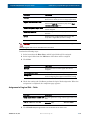
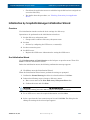
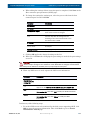
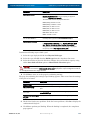
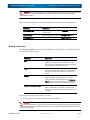
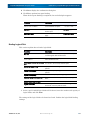
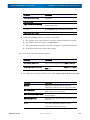
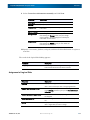
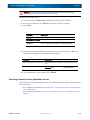
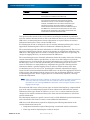
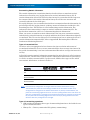
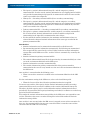
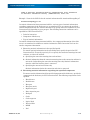
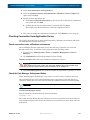
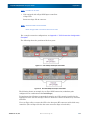
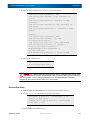
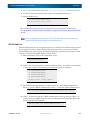
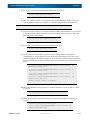
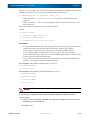
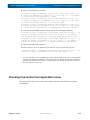
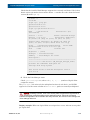
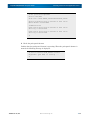
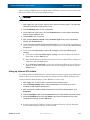
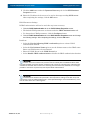
SnapSAN 3000/5000 Disk Array User Guide Initialization by SnapSAN Manager Initialization Wizard Binding a Hot Spare This section explains how to bind a hot spare. The Hot Spare Bind page has the view display and the list display. The displays can be switched by clicking the tabs. Parameter Description List By default, the List view is displayed. The List view displays a list of physical disks available to bind a spare. Select the specified check box of the physical disk for which hot spare will be bound. View Click this tab for the visual display of physical disks available to bind a spare. Select the specified check box of the physical disk for which hot spare will be bound. Pool list Select a physical disk to create a hot spare. When you select the physical disk for hot spare binding, Enabled is displayed under the Enable Hot Spare field of the Pool list. Pools that are enabled by a newly bound hot spare are shown in bold. Enable the copy back mode Select this option to enable copy back mode. When a faulty disk is replaced by a new disk, copy back mode automatically copies back the data to the new disk. Perform the following steps to bind a hot spare: 1. Select one or more physical disks for hot spare binding. When you select the physical disks, pools with Enable Hot Spare are displayed in bold letters. CAUTION: For slots having no physical disks, the slot names and check boxes are grayed out in the view display, and the slots are not listed in the list display. For physical disks for which a pool has been bound, the check boxes are grayed out in the view display, and the disks are not listed in the list display. 2. Click Set to display the following confirmation message. 3. Click Yes to perform hot spare binding. When the hot spare binding is completed, the result dialog box appears. 10400386-001 07/2012 Parameter Description Bind another hot spare Click this hyperlink to reopen the Hot Spare Bind page to bind another hot spare. ©2012 Overland Storage, Inc. 3-9