1
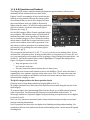
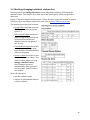
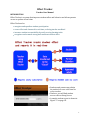
2.2 Checking/changing individual student data You may review and change the scores of any individual student by clicking on the student’s name. This may be done from any of the Data Reports’ tables except Effort Achievers. Figure 17 shows a sample student report. This is the same report the student or parent would see after entering the student’s access code at www.e4effort.com/access. The student report has four sections: • Overall Effort averages scores in all Effort Categories to give an Overall % • Effort Award Ledger shows the dates for which the student was up for an Effort Award and whether or not it was given (Y = Yes, N= No) • Current Bonus Status shows the student’s current bonus total from the Effort Award and Effort Achiever programs. • Scores by Date lists effort scores from most recent to oldest. This is one location where you may change a student’s score. Score changes are saved automatically when you move to a new page -‐ don’t look for a save button. Select the edit tab to: • edit the student’s name • remove or add students from/to a class or subject Figure 17 18