1
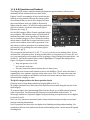
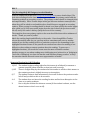
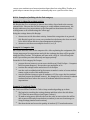
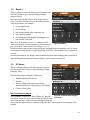
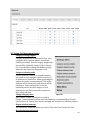
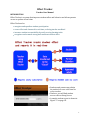
1.2 On Task Utilizing Effort Tracker’s On Task category can reduce your correcting workload, increase student accountability, and aid in overall class management. See example scenarios in Box 4 below. The settings button (located on center bar) for On Task allows you to (see Figure 4): A. Title the learning event or classify the leaning event as general B. Raise or lower the normal 10-‐point scoring scale C. List student names in an ordered or random mode Figure 4, Pressing the settings button (circled) will lead to the screen at right where you may choose to change the: title, scale multiplier, or student order A. Title the learning event or classify the leaning event as general You may choose to assign On Task scores under a general designation or as a Titled Event. Titled Events are listed in a separate table in Data Reports (see section B below). Whether On Task scores are given a title or classiCied as general, the data becomes part of the student’s On Task percentage. Teachers choose to assign a title to a learning activity when they plan to score all students and want to be able to trace On Task scoring to a particular learning event or activity. Click on the settings button to reveal the list of options for the On Task category (see Figure 4). Figure 5, Title setting options To create a New Title, select New from the top bar (Figure 4). This can be done from a smart phone, 9