1
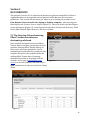
Quick Reference
11
1
2
10
3
9
4
5
8
6
7
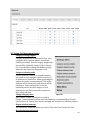
Item #
Function
1
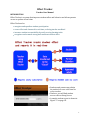
Lists current class/subject. Touch this button to get back to your list of classes/subjects.
2
This row shows the choice buttons for the five Categories. On-task is currently selected.
3
The highlighted student will be scored when you make a selection from the scorepad (#7).
4
Numbers after student names represent their assigned seat (group 7 seat 1).
5
Pressing the reset button will produce a random list of all students in the current class.
6
When you are done scoring students, touch the save button to send the data to the “cloud”.
7
The scorepad showing your scoring options. Your selection will appear on the right side
(see #10) and highlighter will drop down to the next student. To change your scorepad
options, go to Setup/Settings/Scorepad values (do this from a laptop or desktop computer).
8
Selecting filldown will give the previous score to the remaining unscored students.
9
Use to keep track of how often students are absent when their turn occurs.
10
Pending or saved scores are shown here. To change a score before saving, touch the
studentʼs name and the highlighter will relocate to that student.
11
The settings button. Touch to see choices available for the current category
3