1
384
Tussman Program Release 10
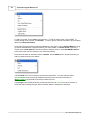
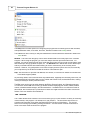
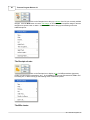
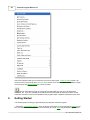
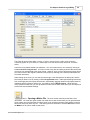
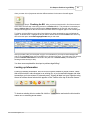
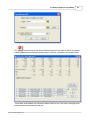
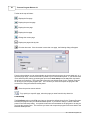
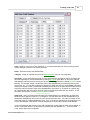
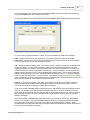
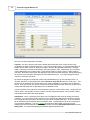
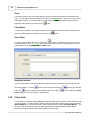
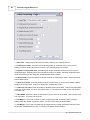
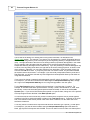
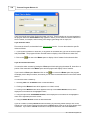
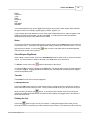
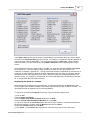
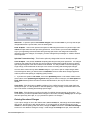
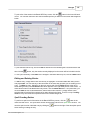
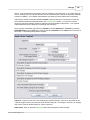
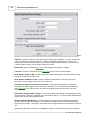
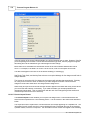
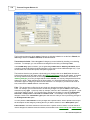
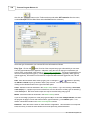
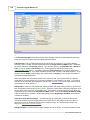
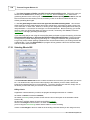
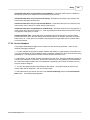
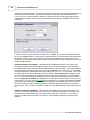
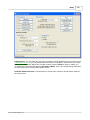
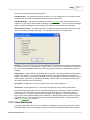
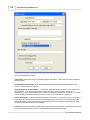
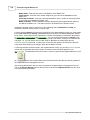
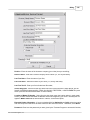
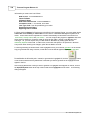
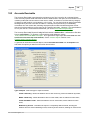
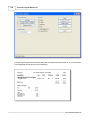
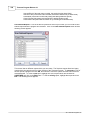
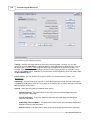
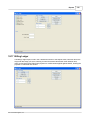
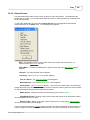
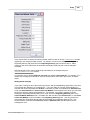
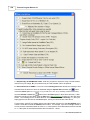
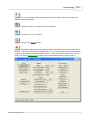
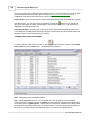
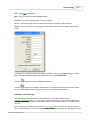
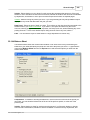
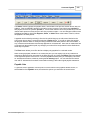
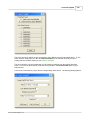
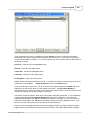
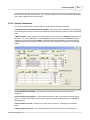
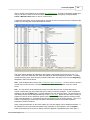
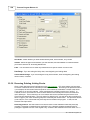
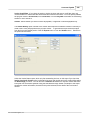
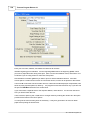
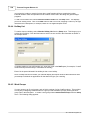
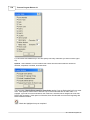
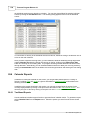
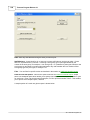
Click on ALL BILLING FILES to reindex all the files used by the billing program. This includes all the
files listed in lower case, which you do not have to reindex separately if you have selected ALL
BILLING FILES.
Click on DICTIONARY FILES to reindex just the files used by the spell check function. These files are
not included when you click on ALL BILLING FILES.
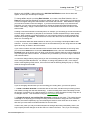
Click on GENERAL LEDGER to reindex just the files used by the General Ledger Program. You must
then enter the company number, which will default to the currently selected company. If you are
using more than one company, you will have to reindex the files for each company separately.
Click on CALENDAR to reindex just the files used by the Calendar Program.
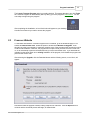
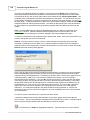
When reindexing, you must wait until you receive a "Reindexing Completed" message to know that it
has completed successfully. If you are running the program on a network, you must be the only
person using the program, including the Remote Entry Program, if it is operating in Local Mode, in
order to reindex. Otherwise, you will receive a "Files In Use" message. If no one else is using the
program and you still receive a "Files In Use" message, close the program and then reopen it and try
again. If you still receive a "Files In Use" message, it probably means that your network server
incorrectly thinks a file in the Tussman Program is still open. To correct this, you will have to either
reboot the server, or go to the server and close any open files in the Tussman Program folder. To do
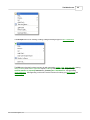
the latter, go to the server desktop, click My Computer,
Go to Manage and click the manage line, then click on Shared files or Shared Folders. The
open files should be listed there, and you can then right click on each one to close them.
These instructions may be different depending on what operating system you are using on
your server.
19.2
Backup/Restore Data
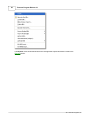
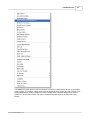
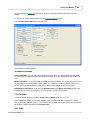
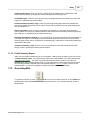
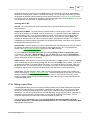
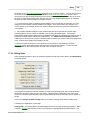
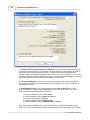
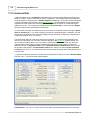
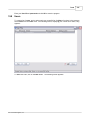
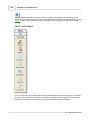
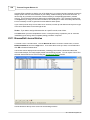
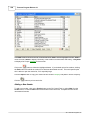
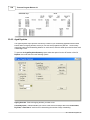
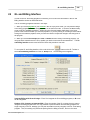
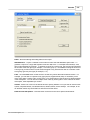
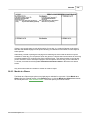
To perform a backup or restore click on Backup/Restore from the Tools menu.
Backing Up
It is extremely important to back up your Tussman Program data files on a regular basis. Otherwise, if
you suffer a computer crash, or if your computer is stolen or destroyed, you will have no way of
recovering your data.
There are many ways to perform a backup. Most firms which are running the program on a Local Area
Network should have a regular procedure which backs up all the information on your server. If this
function is working correctly, it should backup the data in the Tussman Program as well. However, for
the backup to be successful it may be necessary for all Tussman users to be out of the program.
Thus, it is a good idea to always close the program completely when you leave the office, as very often
these backup procedures are performed at night.
It is also possible to create a backup by simply copying the entire Tussman program folder to an
external hard drive or to a memory stick. All Tussman Program data is stored in the same folder as
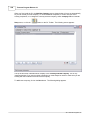
the program itself. You can identify the name of the folder where the program is located by selecting
About the Tussman Program from the Help menu. The name of the folder where the program is
installed appears on the Directory line. You can then copy that folder to your external media using the
My Computer function on your Windows desktop.
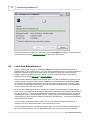
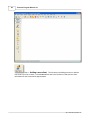
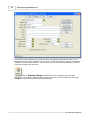
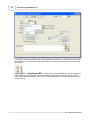
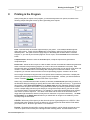
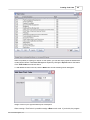
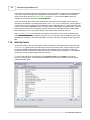
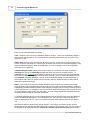
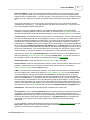
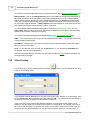
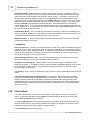
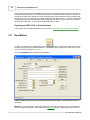
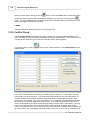
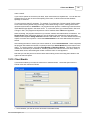
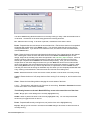
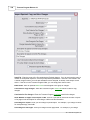
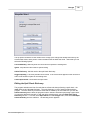
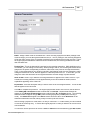
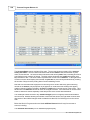
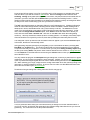
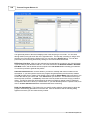
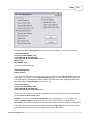
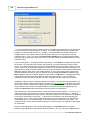
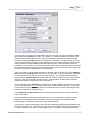
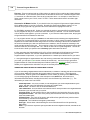
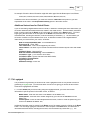
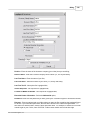
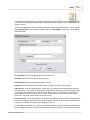
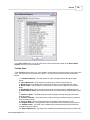
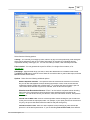
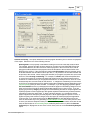
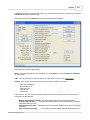
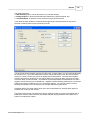
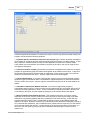
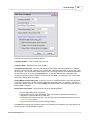
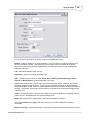
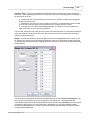
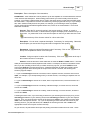
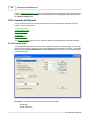
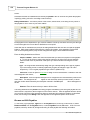
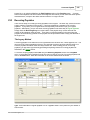
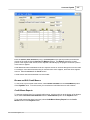
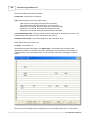
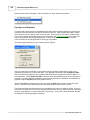
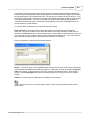
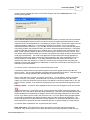
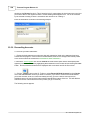
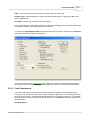
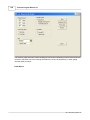
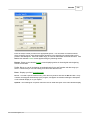
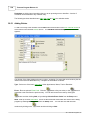
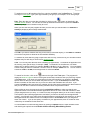
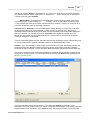
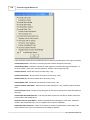
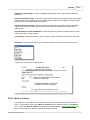
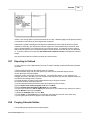
An alternative method of making a backup is using the Backup/Restore function on the Tools menu.
Before performing this function you must make sure that no one else is using the program, if you are
on a network. Then either backup or restore as follows:
2011 Tussman Programs, Inc.