1
Clients and Matters
105
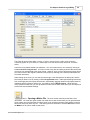
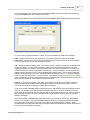
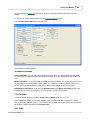
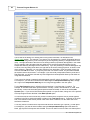
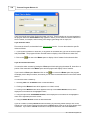
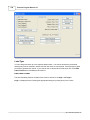
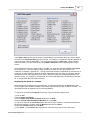
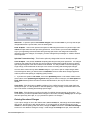
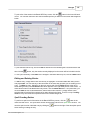
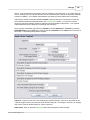
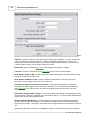
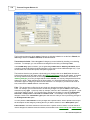
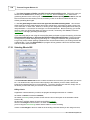
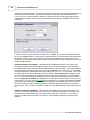
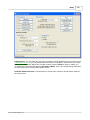
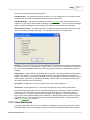
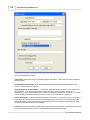
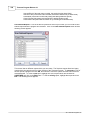
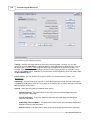
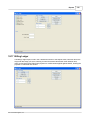
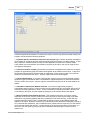
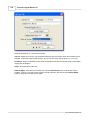
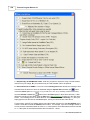
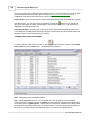
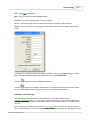
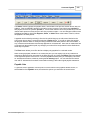
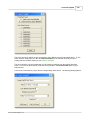
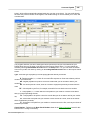
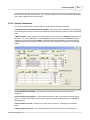
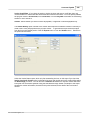
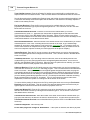
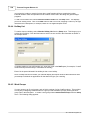
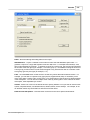
You can generate the list for all files, a Single Client or Matter, or for Selected Files. Use the
Selected Files option to, for example, only list matters for a single responsible attorney.
In the Include box below you can select whether or not to include open files, closed files, collection
files, deleted files, and files on hold. If, for example, you just want a list of matters which are marked
for deletion, uncheck everything except Deleted Files.
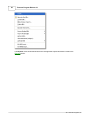
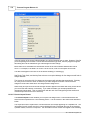
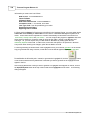
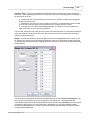
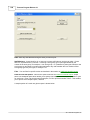
Sort Order
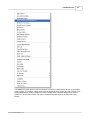
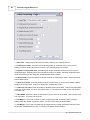
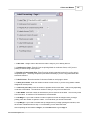
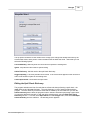
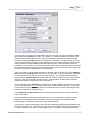
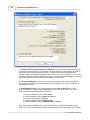
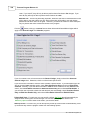
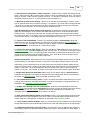
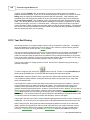
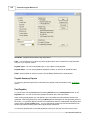
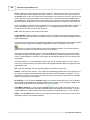
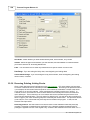
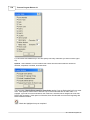
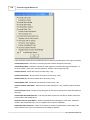
Primary Sort Order - Determines the main order in which matters are listed. In addition to listing in
either client ID, alternate ID, matter ID, or short title order, you can also sort them by any of the
productivity codes in the matter screen, by date opened, fee arrangement, rate schedule, and bill
format. For example, if you want a list showing which matters are assigned to each of the 90 rate
schedules, select Rate Schedule as the primary sort order.
Client Subsort Order - Not applicable when generating a matter list.
Matter Sort Order - If you selected a primary sort order other than by matter ID or short title, this
determines whether the matters for each primary sort group are listed by matter ID or short title.
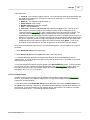
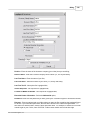
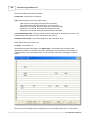
List Options
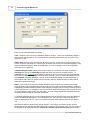
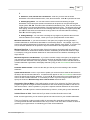
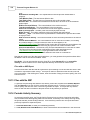
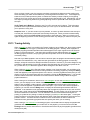
All Info on One Line - If checked, all of the information for each matter and related name (if included)
will be printed on one line, rather than separate lines for each item of information. If the information
selected does not all fit on one line, it will be truncated. This option may be appropriate if you are
printing a very simple client list containing, for example, just the client ID, matter ID and matter title,
and you want to save paper by printing in a more compact format.
New Page for each Category - Indicates whether of not you want to begin a new page for each
primary sort category. For example, if printing a matter list sorted by Responsible Attorney, you may
want to use this option so that in effect you are generating a separate list which can be given to each
attorney listing just their matters.
Line spacing - Enter 1, 2 or 3 to indicate the number of lines you want to skip between each matter.
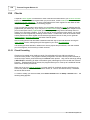
12.15 Matter Labels
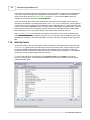
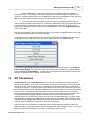
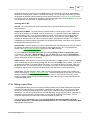
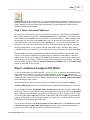
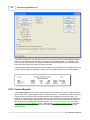
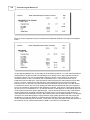
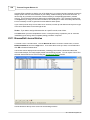
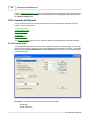
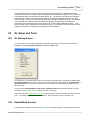
The Matter Labels function can be used to print labels for all or selected matters. While not designed
to be used as mailing labels, they can be used to print file folder or other types of labels.. To generate
matter labels, click on Matters from the Main Menu at the top and select Label and Export from the
submenu.
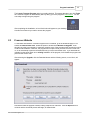
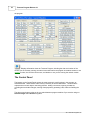
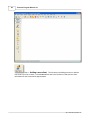
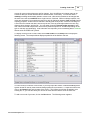
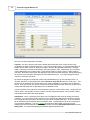
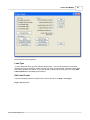
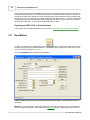
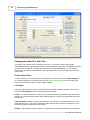
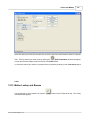
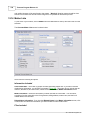
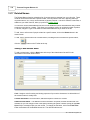
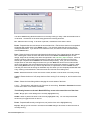
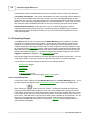
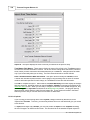
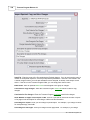
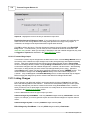
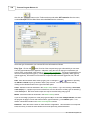
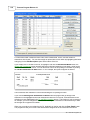
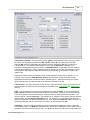
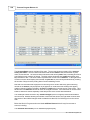
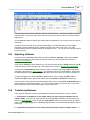
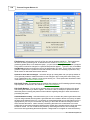
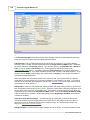
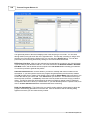
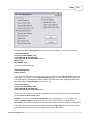
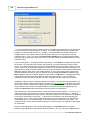
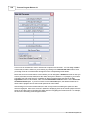
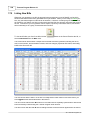
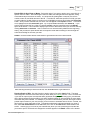
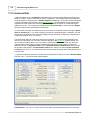
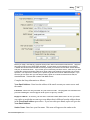
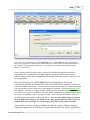
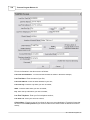
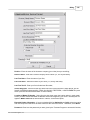
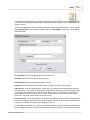
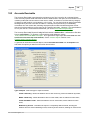
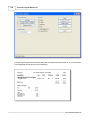
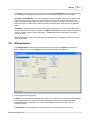
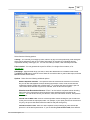
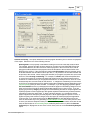
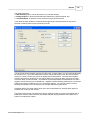
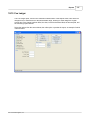
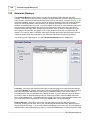
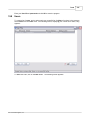
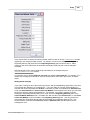
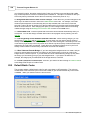
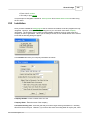
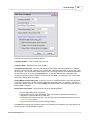
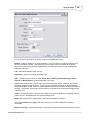
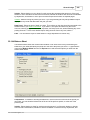
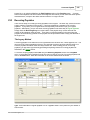
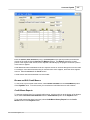
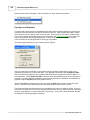
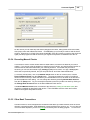
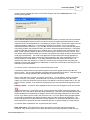
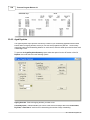
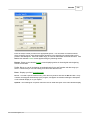
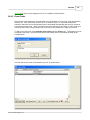
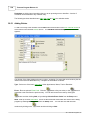
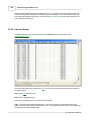
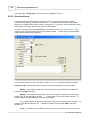
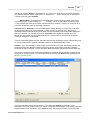
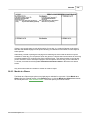
The Matter Labels screen shown below contains a variety of options for generating the labels.
2011 Tussman Programs, Inc.