1
Student Dashboard User Guide
3 Finance Analysis Summary
3.1 What is this report for?
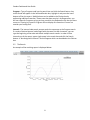
This report displays various financial measures summarized by chartfields and time
periods.
3.2 Mandatory parameters
Rows – Select the item to be displayed along the left side of the crosstab, or the Y-axis
of a chart.
Columns – Select the item to be displayed along the top of the crosstab, or the X-axis of
a chart.
Values – The financial measure to summarize by the selected row and column items.
Subtotals are displayed along the bottom and right sides of the crosstab, except for
when time periods are displayed with Encumbrance and Pre-Encumbrance.
Display – Choose how the data is to be presented on screen. More than one display
type can be enabled.
Period – Select a time frame for the data. You can click on a single period in the right
hand box, or select multiple values by holding down the CTRL or SHIFT key while
clicking. The default level applied is Fiscal Year. To filter by a different time granularity,
select a period type in the left hand box and press the Apply >> button. This is the only
mandatory filter for the report.
3.3 Optional parameters
Department – Choose one or more Departments to filter the report by. To quickly scroll
to a particular Department, highlight any entry in the right hand box and begin typing
the first few numbers of the ID. You can change the scope of the prompt by selecting a
different Department hierarchy level in the left hand box and pressing the Apply >>
button. Please note that even if you select an entire Faculty or VP area, you will only
receive data for those Department IDs you are authorized to view; contact the IT
Support Centre if you are unsure about your security settings. If nothing is selected, the
report will run for all Departments that you have access to.
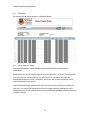
Fund – Click on one or more checkboxes to narrow your search down to specific Fund(s).
If nothing is selected, the report will run for all available Funds.
3.4 Additional Parameters
Less commonly used filters are hidden by default to save space, but they can be
revealed by selecting ON and pressing the Refresh button.
7