1
Student Dashboard User Guide
Program – Type a Program code into the search box and click the Search button. Any
match found will appear in the left hand Results box; highlight it and press the Insert
button to filter the report. Multiple items can be added to the Choices box by
performing additional searches. Please note that data security is by Department; you
will see values for Programs as long as they are within the Department IDs that you have
access to. Filtering by a specific Program will not display all transactions if some are
outside your faculty/unit.
Internal – The Internal code search prompt works the same way as the Program search.
If a series of desired Internal codes begin with the same first few characters, you can
type the beginning of the code and obtain multiple search results. In order to filter
Internals out of the report, type a single space in the search box and click the Search
button. A “Not Assigned to Internal” item will appear which can be added to the Choices
box.
3.5 The Results
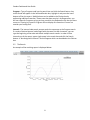
An example of the resulting report is displayed below:
8