1
GETTING STARTED
LIVESCRIBE+ USER GUIDE
PAIRING FOR THE FIRST TIME
The first time you use your smartpen, you need to pair it with your iOS device.
1. On your iOS device, make sure Bluetooth is on.
If not, press Home, tap Settings, tap Bluetooth,
and switch Bluetooth to the On (green) position.
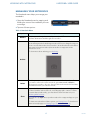
2. With your smartpen tip pointing down, turn
on your smartpen by twisting the middle ring
clockwise; the LED blinks green to indicate it's
in pairing mode.
Tip: If the LED is not blinking green, tap the
Device Pairing icon in the front of your
paper notebook to put the smartpen in
pairing mode.
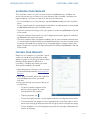
3. On your device, press Home and tap
to
open Livescribe+ — your device automatically
detects your smartpen.
4. Tap Pair when prompted.
After the smartpen connects, the LED on your
icon appears
smartpen turns blue and the
in the top-right corner of the Livescribe+ app. You
do not need to pair with this device again.
Note: If you use your smartpen with an additional iOS device, repeat the pairing
process the first time you use each new device.
RECONNECTING YOUR SMARTPEN TO YOUR DEVICE
Once you pair your smartpen to a device, they connect automatically whenever your
smartpen is turned on and Livescribe+ is active on that device.
The LED on your smartpen turns blue and the smartpen icon appears in the top-right
corner of the Livescribe+ app.
5
Rev AB