1
WORKING WITH COLLECTIONS
LIVESCRIBE+ USER GUIDE
REMOVING TAGS
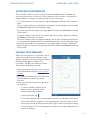
If you no longer want to include a snippet in a collection, you can remove the tag you
assigned to it. If you remove all of the tags assigned to the snippet, a triangle no
longer appears in the top-left corner of the snippet.
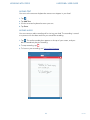
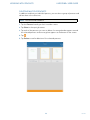
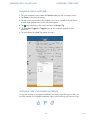
1. Tap your smartpen’s name under the Feeds heading on the Livescribe+ menu.
2. Tap and hold the snippet from which you want to remove the tag.
3. Tap Assign Tag.
4. Tap Favorites, Flagged, or Tagged to remove that tag from the selected snippet.
The check mark disappears from the tag.
5. Tap outside the Assigned Tags panel to close it.
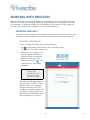
VIEWING YOUR COLLECTIONS
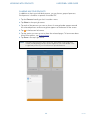
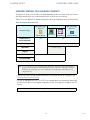
After you assign tags to your snippets, you can view all of the snippets that you assigned
a particular tag.
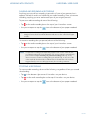
1. Tap
.
2. Under the Collections heading, tap the collection you want to view: Favorites, Flagged,
or Tagged.
3. Interact with your snippets. See Working With Snippets for details.
34
Rev AB