Download ITIL KB Documentation

Transcript
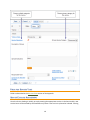
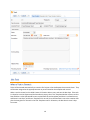
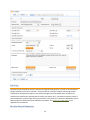
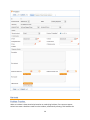
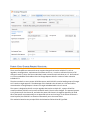
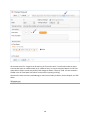
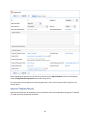
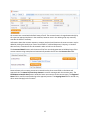
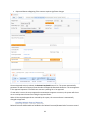
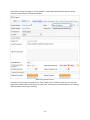
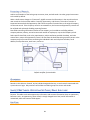
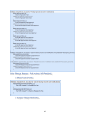
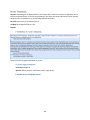
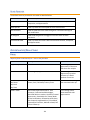
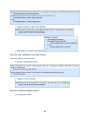
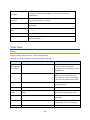
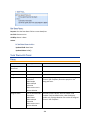
When a customer submits an Incident, the contact fields automatically populate based on the details in
his/her User record. In the default setup, an Incident cannot be submitted on behalf of a user who has
no user record in the system. This may easily be changed by modifying the linked fields from the User
table to enable “non-source” values to be used.
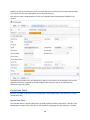
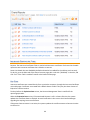
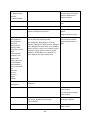
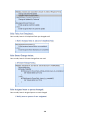
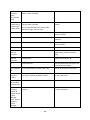
The user selects a category for the Incident from the drop down list "I'm having a problem with...", such
as 'Email' or 'Access Problem', then describes his/her problem in more detail via the Summary and
Description fields.
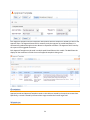
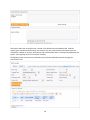
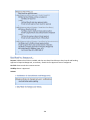
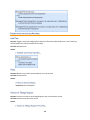
The user is also given two fields to describe the priority of the Incident: Impact and Urgency. Impact
specifies how widespread the Incident is: A user whose desktop computer is malfunctioning would
choose 'Affects Single User', whereas a critical server failure might be classified as 'Affects Company'.
Urgency is a subjective measure of the criticality and time sensitivity of the Incident, and ranges from
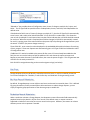
Low to Critical. Both Impact and Urgency are used to automatically determine the official Priority of the
Incident, a field which is hidden from the end user and only editable by staff. See Incident Rules for the
current logic used to set the Priority. (Priority is only set by a rule if the staff user has not already
manually set it).
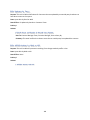
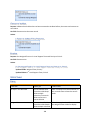
After providing the summary, description, category, impact, and urgency, the user clicks Finish and
receives an automatic email notification when the system creates the record.
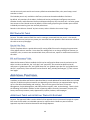
Technician Record Submission
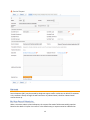
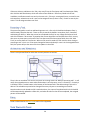
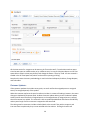
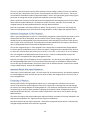
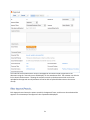
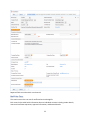
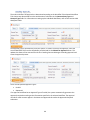
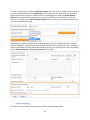
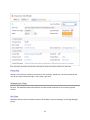
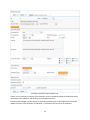
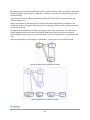
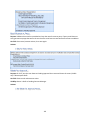
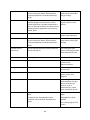
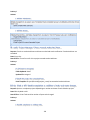
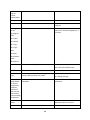
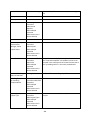
A technician creating an Incident sees additional information relating to the status of the Incident,
including assignee and status fields. Unlike end-users, staff can see an additional section on the details
tab for Configuration Item Information that shows fields relating to a specific Configuration Item. By
default Incidents are created with the "Problem CI Identified?" field set to No, but if a staff person
determines the CI that is the root cause of the Incident, he or she may set this field to Yes and select a
Configuration Item via a linked field set.
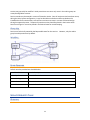
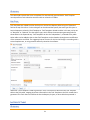
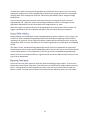
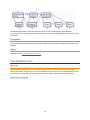
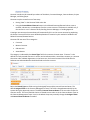
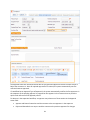
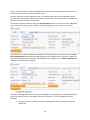
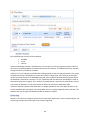
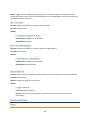
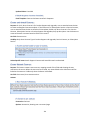
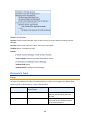
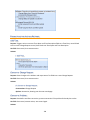
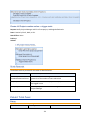
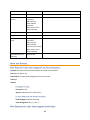
By default, Incidents without a CI identified are assigned to the 1st Level Support Team. Technicians can
also set the assigned team and assigned person manually via drop-down lists in the Work Status tab. If
the Problem CI has been identified, the staffer can set the field "Assign to CI Responsible Team" to Yes
and when the Incident is saved, a rule will detect the change and assign the team responsible for the CI
selected to the Incident. A technician may change the Assigned Team field later, as the rule will only set
the Assigned Team at the time the CI field changes to Yes.
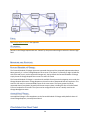
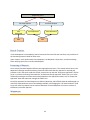
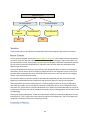
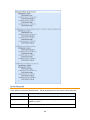
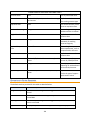
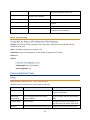
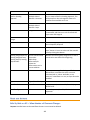
New Incidents are created in a status of Open by default. During creation, a technician may change the
status to Assigned (if he wishes to indicate work has already started on it) or Closed (if he was able to
resolve the issue over the phone and wants to capture the request for reporting purposes).
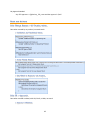
Automatic Emails Sent upon Submission
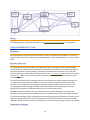
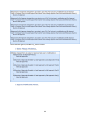
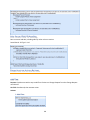
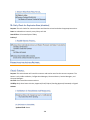
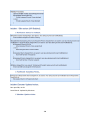
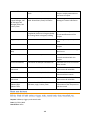
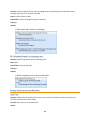
If a Support Staff technician creates a record in a status of Closed an email is sent to the customer telling
him/her how to reopen the Incident. This email is sent by a workflow action and is displayed as a
checkbox that can be turned off by technician users. (This option is set in the workflow options).
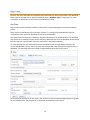
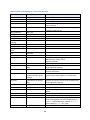
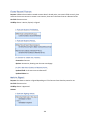
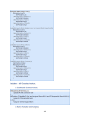
If the status is not Closed when saved, the rule named “Incident - All Creation Actions” will send the
customer an acknowledgement email and will also send an email to either the Assigned Person, if there
is one, or to the Assigned Team if not.
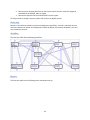
Processing of Records
24