1
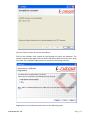
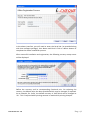
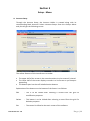
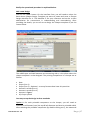
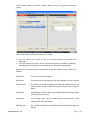
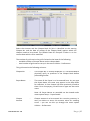
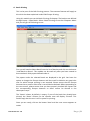
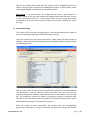
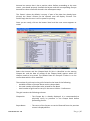
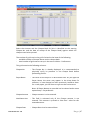
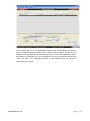
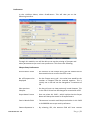
You will need to accordingly specify under the column ‘Print Status’ one of the
above. By default ‘Printed’ is selected assuming that in most cases cheques will
be print successfully. After confirming for all cheques, click on ‘Confirm & Exit’.
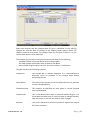
The system handling of the three possibilities as mentioned above is briefly
explained below:
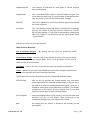
Printed – The cheque is printed correctly and data is recorded
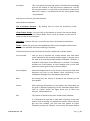
Damaged – The cheque could not be printed properly and the cheque leave is
damaged and is not good for re-use. The system will accordingly not record the
data for the cheque but would mark the cheque leaf as damaged and will not
show on the grid y for preparation of subsequent cheques. In other words, status
of damaged cheques is equivalent to cancelled cheques.
Not Printed – For some reason, the cheque did not print or got printed in a
different paper or for any other reason the cheque leaves were not used, in such
a case, one should mark it as ‘ Not Printed’ which will not record the cheque
information and at the same time the cheque leave will be available for future
printing.
Updation
Incomplete cheques prepared needs to be updated once the rest of the
information is available. Through this module the ‘Incomplete Cheques’ are
updated to make it into a regular cheque.
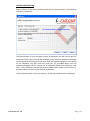
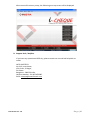
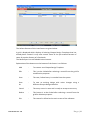
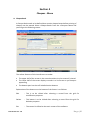
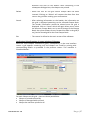
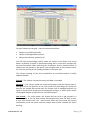
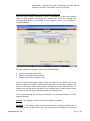
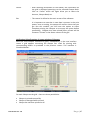
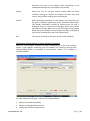
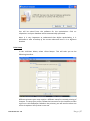
Select <Incomplete Cheques - Updation> from the <Cheques> Menu and you will
get the following screen:
Document Ver: 1.0
P a g e | 50