1
Creating Graphic Displays
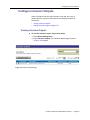
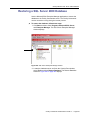
Maintain Layers in AutoCAD Drawings
Use the Edit Object feature to maintain the layers in the AutoCAD
drawings, otherwise the drawing is treated as one object.
!
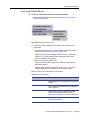
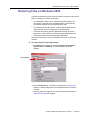
To maintain the layers in the AutoCAD drawings, follow these steps:
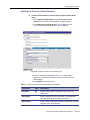
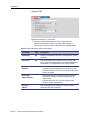
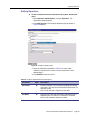
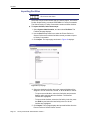
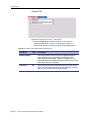
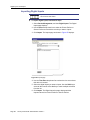
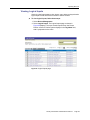
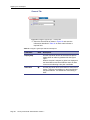
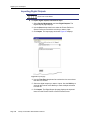
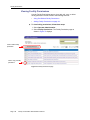
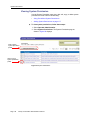
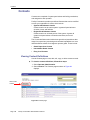
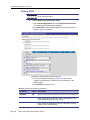
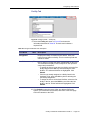
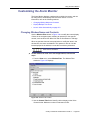
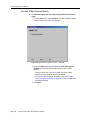
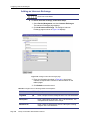
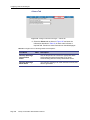
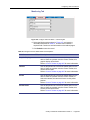
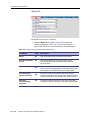
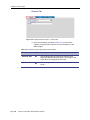
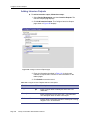
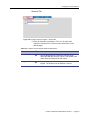
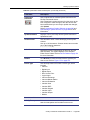
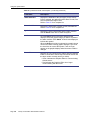
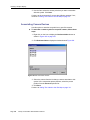
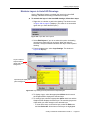
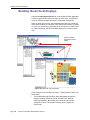
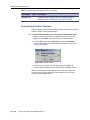
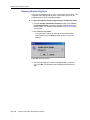
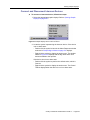
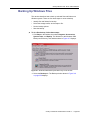
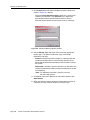
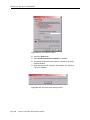
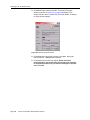
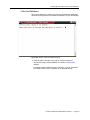
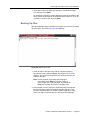
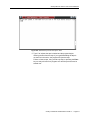
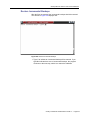
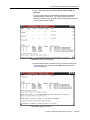
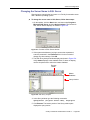
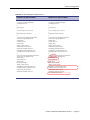
1. Right-click on a border or path in the drawing. The shortcut menu
in Figure 189 on page 315 displays. (This menu is not accessible
again after you select the Edit option.)
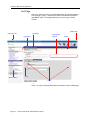
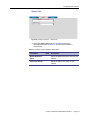
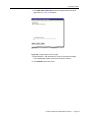
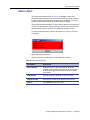
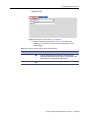
Figure 189. Import DXF menu options
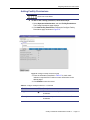
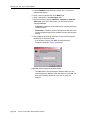
2. Select Edit Objects. If you do not select this option, the drawing
remains as a single object on one layer. When this option is
selected, Facility Commander identifies each layer of the imported
drawing.
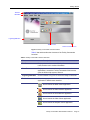
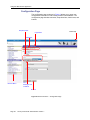
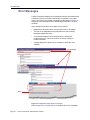
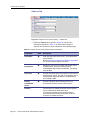
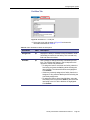
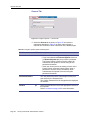
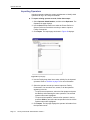
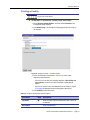
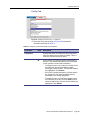
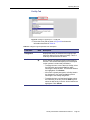
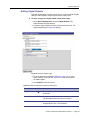
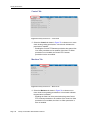
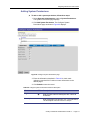
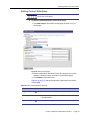
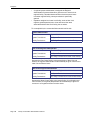
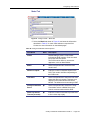
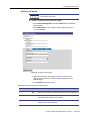
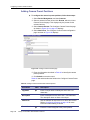
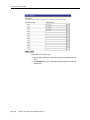
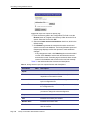
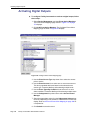
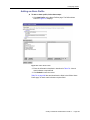
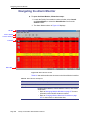
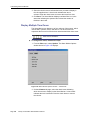
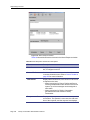
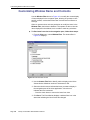
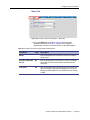
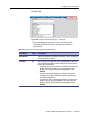
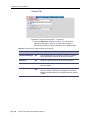
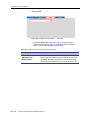
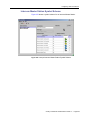
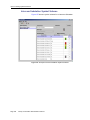
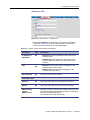
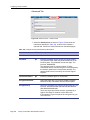
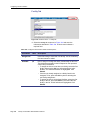
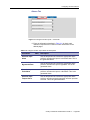
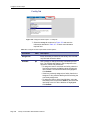
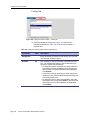
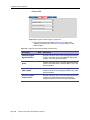
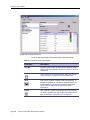
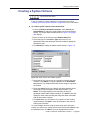
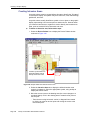
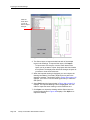
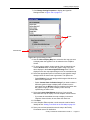
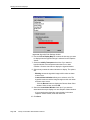
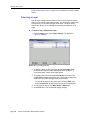
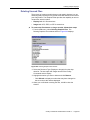
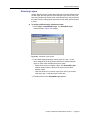
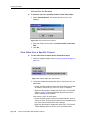
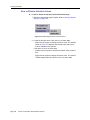
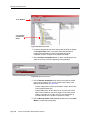
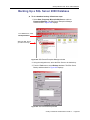
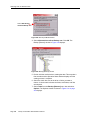
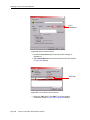
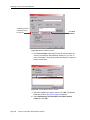
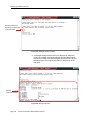
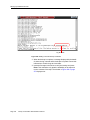
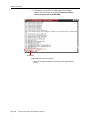
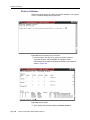
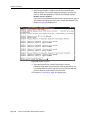
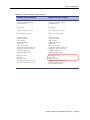
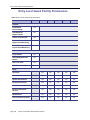
3. From the Layer menu, select Layer Settings. The window in
Figure 190 displays.
Layers created in
Graphics Editor
display with white
background.
Imported layers display with a
yellow background.
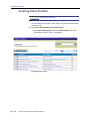
Figure 190. Layer Settings with imported and non-imported layers
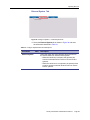
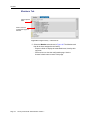
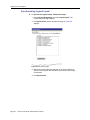
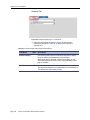
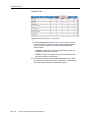
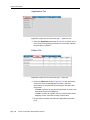
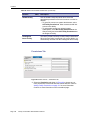
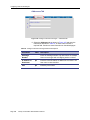
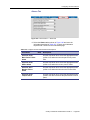
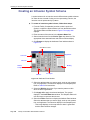
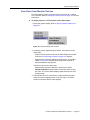
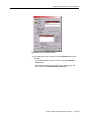
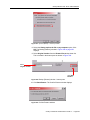
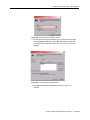
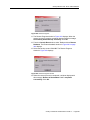
4. To display a layer, select the appropriate Visible check box and
the Graphics Editor displays the selected layer.
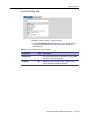
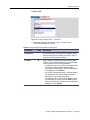
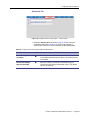
5. To modify a layer, select the appropriate Active check box and the
Graphics Editor displays the active layer. The remaining layers are
visible while you make changes to the selected layer.
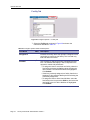
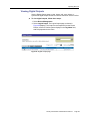
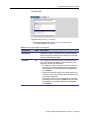
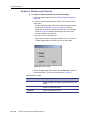
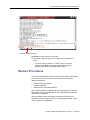
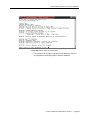
- To view all the items on the active layer, select the Edit menu
and then Select All. All the items on this layer are highlighted.
Facility Commander Administration Guide 2.1
Page 315