1
Simple guide to editing in Audacity - Steeple
24/08/2009 14:29
The recording should now be louder. The -3dB option gives a little ‘headroom’ for further editing of the
track.
This is a quick and efficient way of boosting a weak audio recording’s signal to a useable level. One
downside to using this tool is that it will of course boost any background noise as well.
3.7 Other Effects
Audacity has many built-in effects. Have a play – occasionally it may enhance the recording to add an echo
or a wah-wah! Other plug-ins can be downloaded from Audacity site.
'Reverb' may be a useful addition as it can compliment vocal recordings if used conservatively. Reverb
makes a sound appear that it has been recorded in a room with reflective walls; it adds a variety of subtle
echoes which give the impression of space. Think about how different your voice sounds in a tiled
bathroom as opposed to a living room with furniture and carpets.
It is common practice to record voices in a dampened room (perhaps with curtains (or egg boxes) covering
the walls; the impression of space can then be added later. However, if you are editing a podcast be careful
to use these effects sparingly as they can distort and lessen the overall sound quality of the recording.
4 Saving your project and exporting to a podcast .mp3 format
Obviously it is good practise to save copies of the track as you progress just in case of unexpected events!
The easiest option is to choose ‘Save Project’ (or ‘Save Project As’) from the File menu. Make sure you
save your work in a sensible place and give it a sensible name.
You probably also want to save the sound file in a format that is able to be played back on your device of
choice. WAV is a ‘lossless’ format; it is a Microsoft Windows format but is supported on most platforms.
MP3 is a compressed format and is very common. Unlike WAVs; MP3 files can be played back on iPods
and similar and can be used for podcasting. It is roughly one tenth of the size of a WAV and for this reason
is the ideal format for delivery over the web; podcasts should use this format. MP3 files can be saved at
different ‘bit rates’, the higher the bit rate the better the quality and the larger the file size.
Audacity has a bit rate of 128 which is fine, however, a bit rate of 64 will produce smaller files and may
still sound fine. If space is at a premium then you can experiment with different bit rates. To change the bit
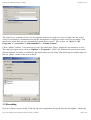
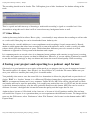
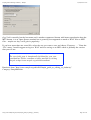
rates use the 'Edit' menu, select ‘Preferences’ then ‘File Formats’, the bit rate is at the bottom under ‘MP3
Export Setup’.
http://www.steeple.org.uk/wiki/Simple_guide_to_editing_in_Audacity
Page 13 of 14