1
Simple guide to editing in Audacity - Steeple
24/08/2009 14:29
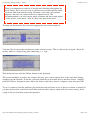
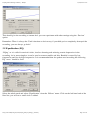
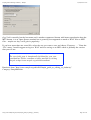
The third method is to replace the offending area with silence (or white noise). Select the blemish as
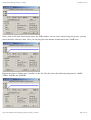
described above. Then select ‘Silence’ from the ‘Generate’ drop down menu.
Accept the default length and press OK.
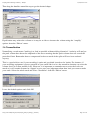
If the silence sounds wrong then try replacing the blemish with white noise. You will probably need to
reduce the volume of the generated noise until it fits in with the rest of the track. This will involve a bit of
trial and error although you should be able to judge the approximate volume by looking at the sound file.
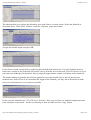
The fourth method is probably the trickiest approach to use and should only be used if the previous
methods have failed. First of all, determine the length of the blemish; you may like to Zoom In to make
sure your calculations are as accurate as possible.
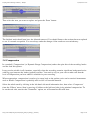
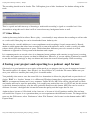
In this case the blemish lasts 5.35-4.70 secs = 0.65secs. Now copy 0.65secs of ambient background noise
from elsewhere in the track – do this by selecting an area and then use the ‘Copy’ button.
http://www.steeple.org.uk/wiki/Simple_guide_to_editing_in_Audacity
Page 8 of 14