1
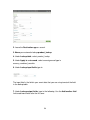
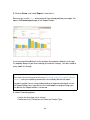
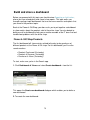
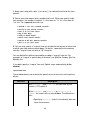
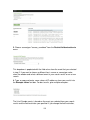
3. The Report Builder opens with the Format report page displayed. If you want
to edit the search itself, click Define report content at the top left. 4. When
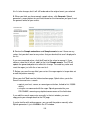
you're done, click Save > Save report (to update the original saved report with
your changes) or Save report as... (to capture your updates in a new saved
report with a different name). You can also select Save results only to just save
the results of this particular run of the report (see "Save report results only,"
below, for more information).
Note: If you run a saved report and it doesn't open in the Report Builder, but
rather runs as a search using the search timeline, then it wasn't actually saved as
a report with specific report formatting parameters. You'll need to save it as a
report following the instructions in the subtopic above.
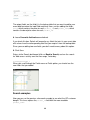
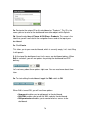
Save report results only
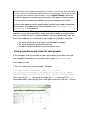
When you're on the Format results page of the Report Builder, you can click
Save > Save results if you want to save the results of a particular run of a report,
so you can review them at a later time. When you do this, you're saving a report
"job," which you can access through the Jobs page.
For more information on managing search and report jobs on the Jobs page see
"Supervise your search jobs" in this manual.
Managing saved report navigation
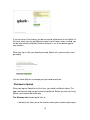
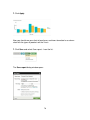
When you save a report, it should appear in one of the menus in the top-level
navigation bar in Splunk Web. In the Search app, for example, saved reports
appear in the Searches & Reports menu by default.
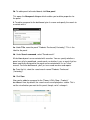
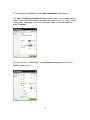
If you have write permissions for an app, you can change this default location,
and even set things up so that reports with particular keywords in their names are
automatically placed in specific categories in the navigation menu (for example,
so that Splunk automatically places reports with the word "website" in their name
in a list of website-related searches and reports in the navigation menu). You can
also move reports that have already been saved to the default list to different
locations in the top-level navigation menu.
257