1
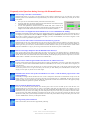
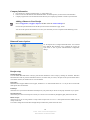
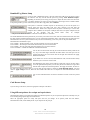
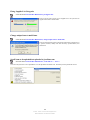
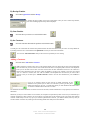
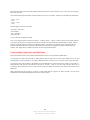
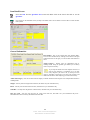
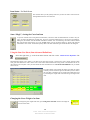
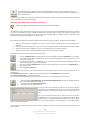
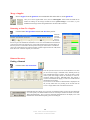
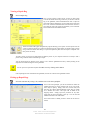
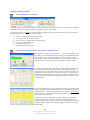
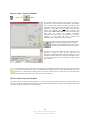
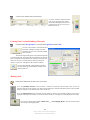
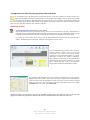
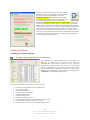
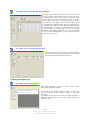
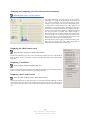
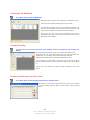
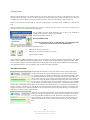
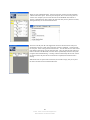
Directly underneath the search field
will display the item you have selected.
To display the details of this item
simply double click on the table of the
item you want to view or use the
QuickLink icon.
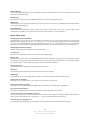
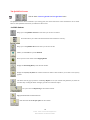
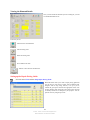
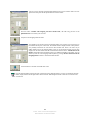
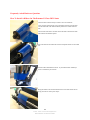
This window gives you a quick
overview of the selected item. To see
more details of this item double click
on the item in the list. You may use the
button ‘Put the Item ___ into the
Shopping Basket’ to sell the item. After clicking this button the actual shopping basket will pop up.
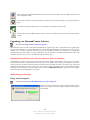
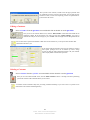
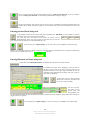
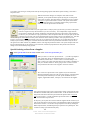
The field to the right of the item description will display the cost code of this item. You may change the cost code in
DiamondCounter configuration setup.
If the item is defined as a Multi-Item you will be able to see how many items of this kind are still on hand or in stock on the far
right. A Unique-Item or Single Item will display the status, if sold or not, instead.
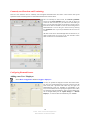
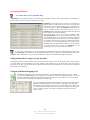
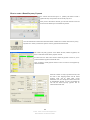
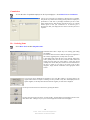
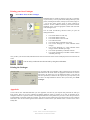
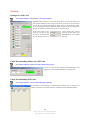
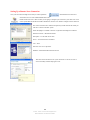
Selecting a Supplier - The Supplier QuickPick Screen
Select the menu QuickPick and then Supplier
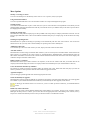
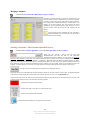
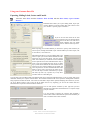
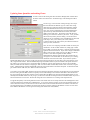
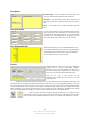
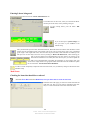
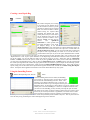
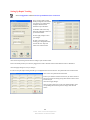
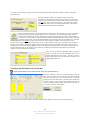
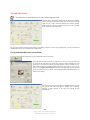
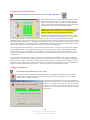
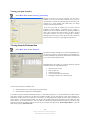
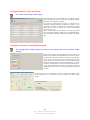
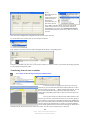
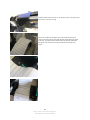
Selecting by Keyword When you start entering a search word into the ‘Search
for’ field DiamondCounter will look for this information in the supplier
database. You may search for a supplier name, supplier city, and contact person
or phone number. The more information you enter, the more accurate and
quicker DiamondCounter will find the targeted supplier. In the end you should either have the supplier you were looking for or at
least a very small selection of suppliers to chose from.
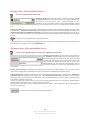
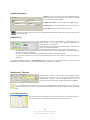
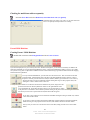
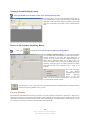
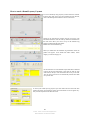
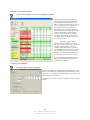
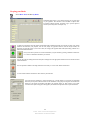
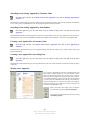
Using the Supplier ‘Function’ There are two checkboxes, which you have the option of using to tell DiamondCounter the
supplier search criteria it should look for. ‘Search for Merchandise Suppliers only’ will find suppliers, which supply actual
merchandise and/or stock. ‘Search for Services Suppliers only’ will search for service suppliers only. If you use a goldsmith or
clock repairperson, they are good examples of a ‘Service Supplier’.
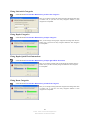
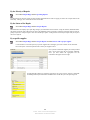
You may clear the search field simply by clicking on this icon.
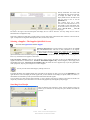
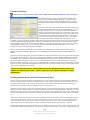
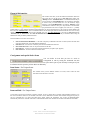
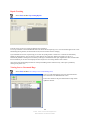
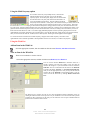
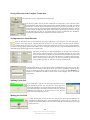
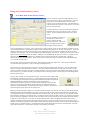
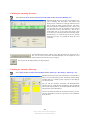
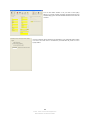
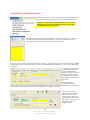
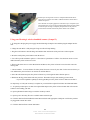
To display the details of the supplier double click on the table of the supplier you want to view or use the QuickLink icon. The
right side of the screen will display the actual supplier that you have selected. It will display the phone number; fax number, email address and web address provide you entered that information about the supplier.
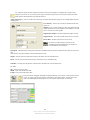
You can launch your email program and send email or view a supplier’s web page by clicking on the letter and world icons
respectively. This allows you to send email or view his/her web page directly from supplier quick pick page.
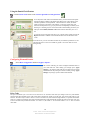
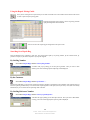
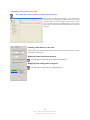
Searching for a Receipt
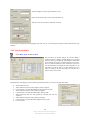
There are different ways of picking a receipt. You may find the receipt by its
number, by an item that is on the receipt or by the customer who made the
purchase.
25
© 2002 - 2008 - InCom Technical Solutions Inc.
DiamondCounter User Manual 9th Edition