1
232
Picture Perfect 4.0
User Manual
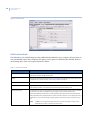
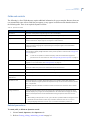
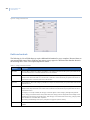
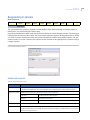
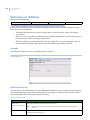
Fields and controls
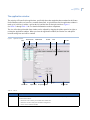
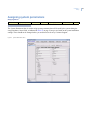
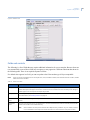
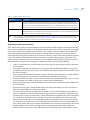
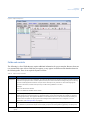
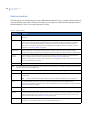
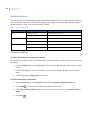
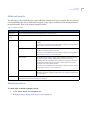
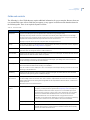
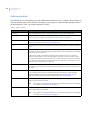
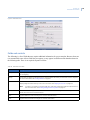
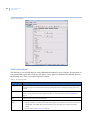
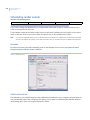
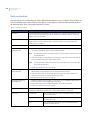
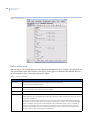
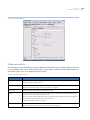
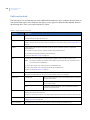
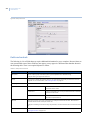
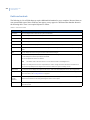
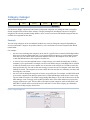
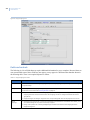
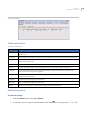
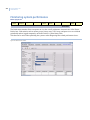
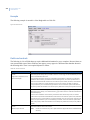
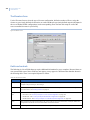
The following is a list of fields that may require additional information for you to complete. Because forms are
user customizable some of these fields may not appear, or may appear in a different order than that shown in
the following table. There is no required sequence to follow.
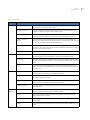
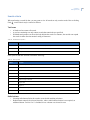
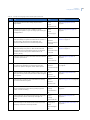
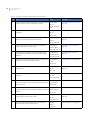
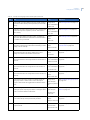
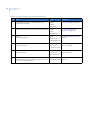
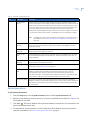
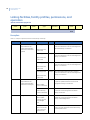
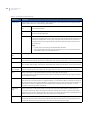
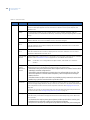
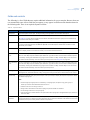
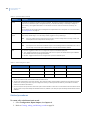
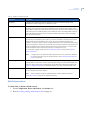
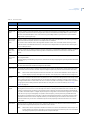
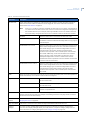
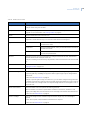
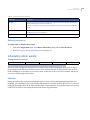
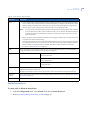
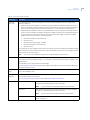
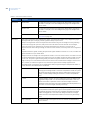
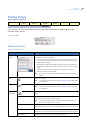
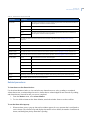
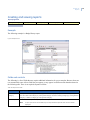
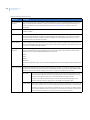
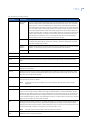
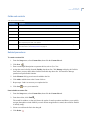
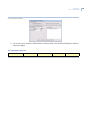
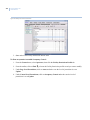
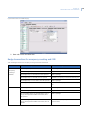
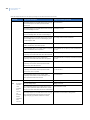
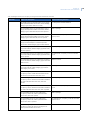
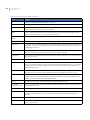
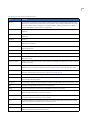
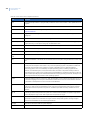
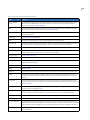
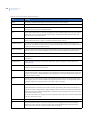
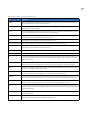
Table 90. Category Manager form fields
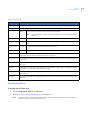
Field name
Description
Assigned
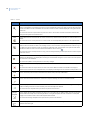
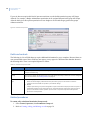
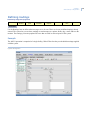
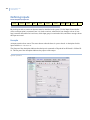
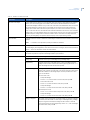
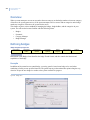
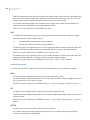
This is a list of all assigned categories in alphabetical order. Categories which have already been assigned,
have their slot number indicated to their left. Active categories, assigned to a temporary category schedule,
have an icon before their slot number.
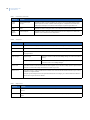
Available
This is a list of all available categories in alphabetical order.
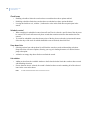
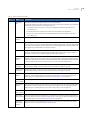
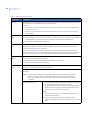
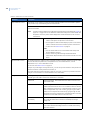
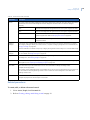
Add
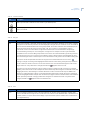
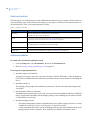
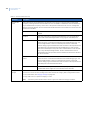
Click on this button to add a permanent category to a slot. The category list on the form will be refreshed and
will display the new category. This button is enabled when an available category and an empty slot number
are selected. By default, the next empty slot number is selected when you select an available category.
Note:
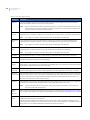
Remove
Double clicking will also move the category from the Available to the Assigned column.
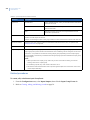
Click on this button to remove a permanent category from a slot. The category list on the Badges form will be
refreshed and will no longer display the removed category slot number. This button is enabled if an active
category or the corresponding slot number is selected.
Note:
Double clicking will also move the category from the Assigned to the Available column.
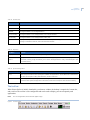
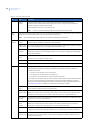
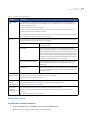
Slot
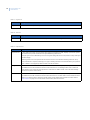
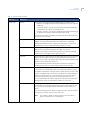
This spin box displays the next available slot. Click the up/down arrow to select a specific slot.
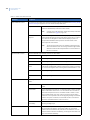
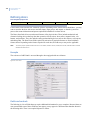
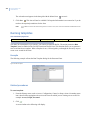
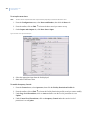
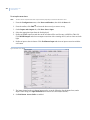
Calendar
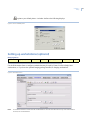
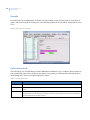
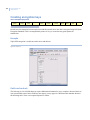
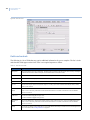
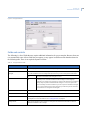
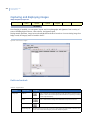
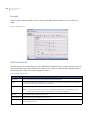
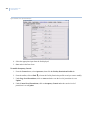
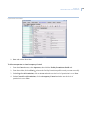
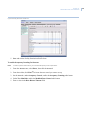
When you click the calendar on the Category Manager, the Category Scheduler displays. From here you may
define the properties of the schedule.
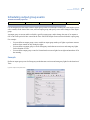
Related procedures
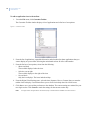
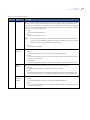
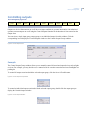
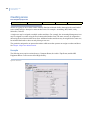
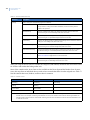
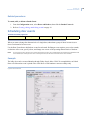
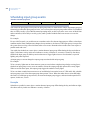
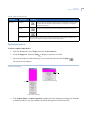
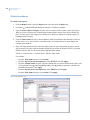
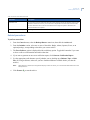
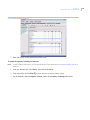
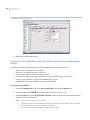
To add a category to the next available slot:
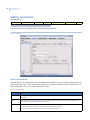
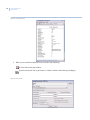
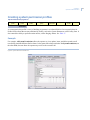
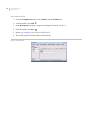
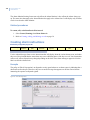
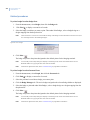
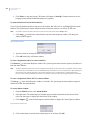
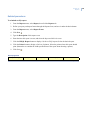
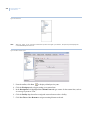
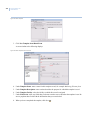
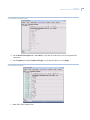
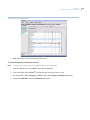
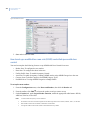
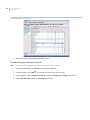
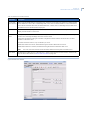
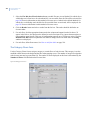
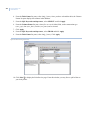
1. Click the Category Manager tab.
A list of all assigned categories, in alphabetical order, will display on the left pane. If a category has
been assigned a slot, the slot number will be displayed beside it. All available categories will display
on the right pane.
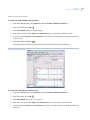
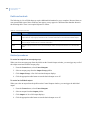
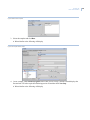
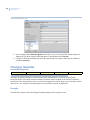
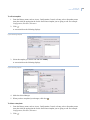
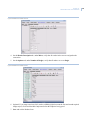
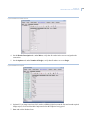
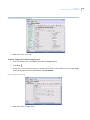
2. Select the desired category from the Available column on the right.
The next available slot will be highlighted.
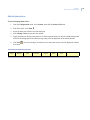
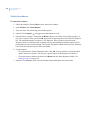
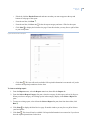
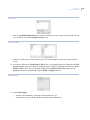
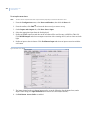
3. Click
or double click the selected category.
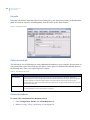
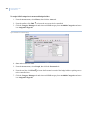
The new category and the slot number to which it was assigned displays in the Assigned column on the
right.