1
Chapter 11
Badge management
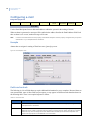
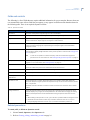
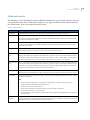
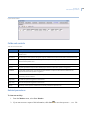
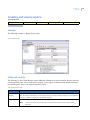
Fields and controls
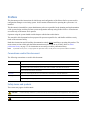
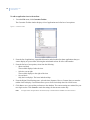
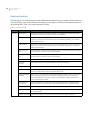
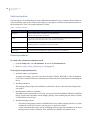
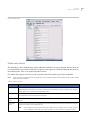
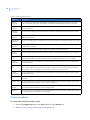
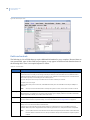
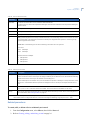
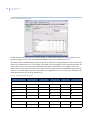
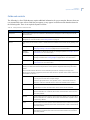
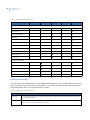
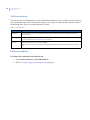
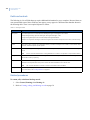
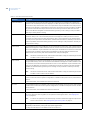
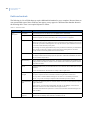
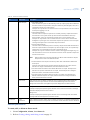
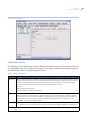
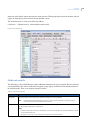
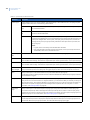
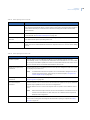
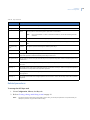
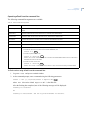
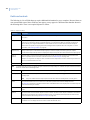
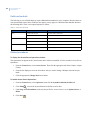
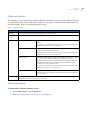
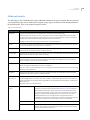
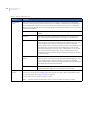
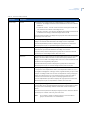
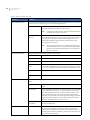
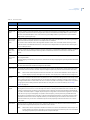
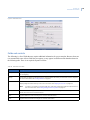
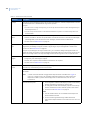
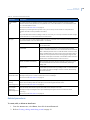
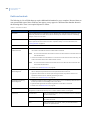
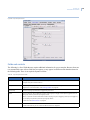
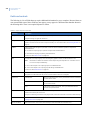
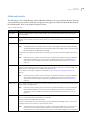
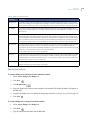
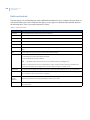
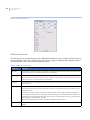
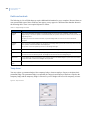
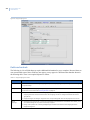
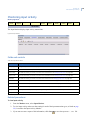
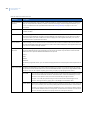
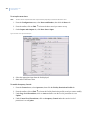
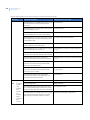
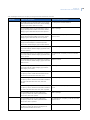
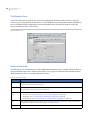
The following is a list of fields that may require additional information for you to complete. Because forms are
user customizable some of these fields may not appear, or may appear in a different order than that shown in
the following table. There is no required sequence to follow.
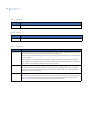
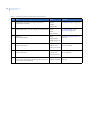
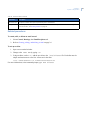
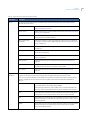
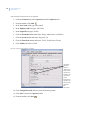
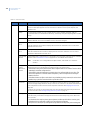
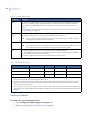
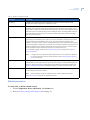
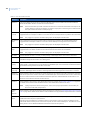
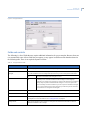
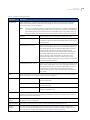
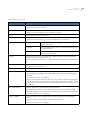
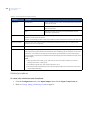
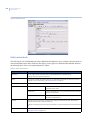
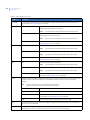
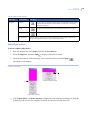
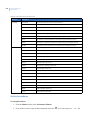
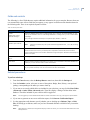
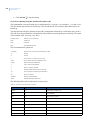
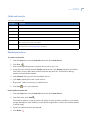
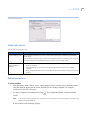
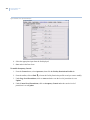
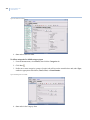
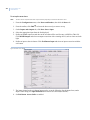
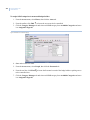
Table 93. Temp Issue form fields
Field name
Description
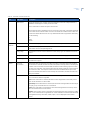
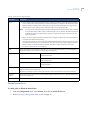
Expires Date
The date the temporary badge expires.
Expires Time
The time the temporary badge expires.
Context
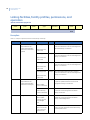
The time zone context in which the badge expires: Host, Micro, or Operator. See Verifying time zones on
page 161.
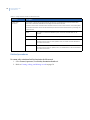
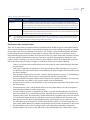
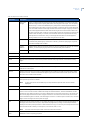
Suspend Badge All of the active badges that are currently assigned to this personnel record are listed. If desired, select which
badge to suspend. By default, the first badge in the list will be suspended.
Related procedures
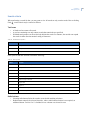
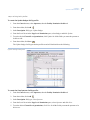
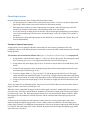
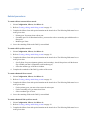
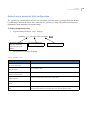
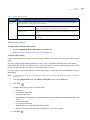
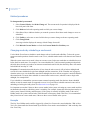
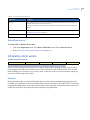
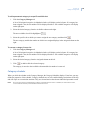
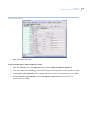
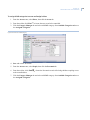
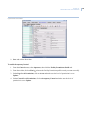
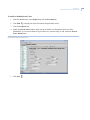
To create a pool of temporary badges:
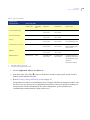
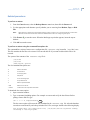
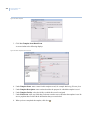
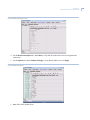
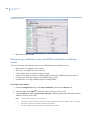
1. Select Access, Badges, then Badges tab.
2. Complete the Badges form. Under Options, click the Temporary button.
3. Press Save
.
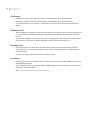
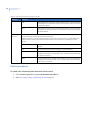
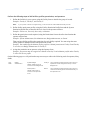
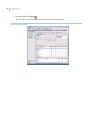
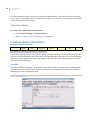
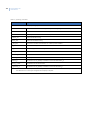
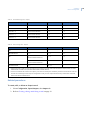
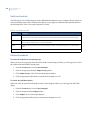
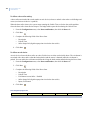
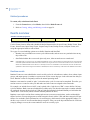
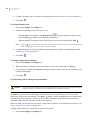
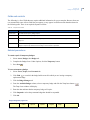
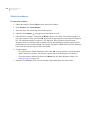
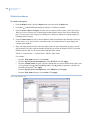
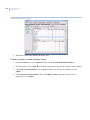
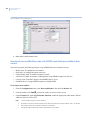
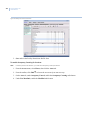
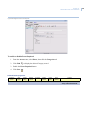
To issue a temporary badge:
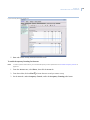
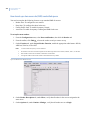
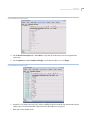
1. Select Access, People, then Personnel tab.
2. Click Find
to search for the badge holder record for which you are issuing a temporary
replacement badge.
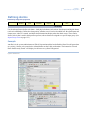
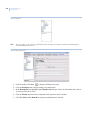
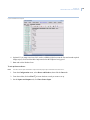
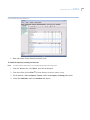
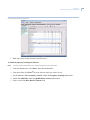
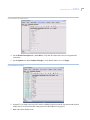
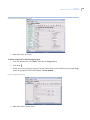
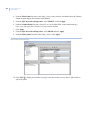
3. Click the Badge Manager tab.
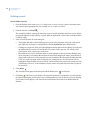
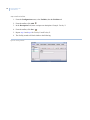
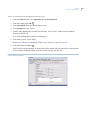
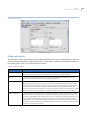
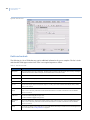
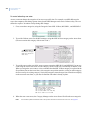
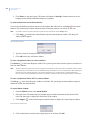
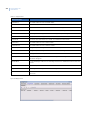
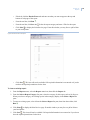
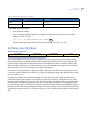
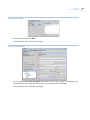
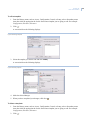
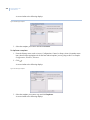
4. From the Available Badges column, select a temporary badge and click the Temp Issue button
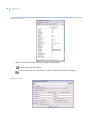
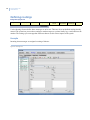
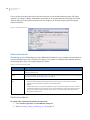
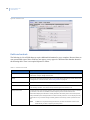
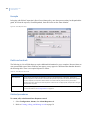
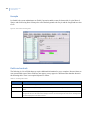
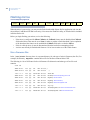
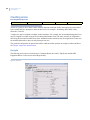
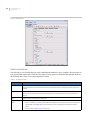
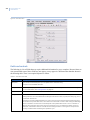
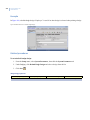
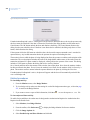
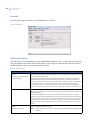
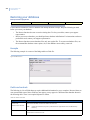
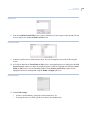
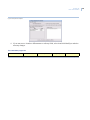
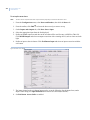
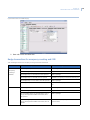
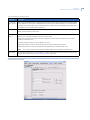
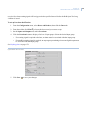
The Temp Issue window will display.
5. Enter the date and time that the temporary badge will expire.
6. Click Suspend to select the permanent badge that should be suspended.
7. Click Ok.
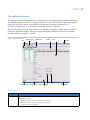
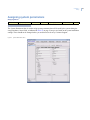
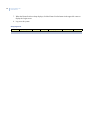
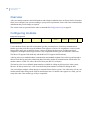
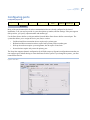
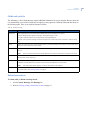
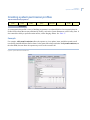
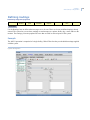
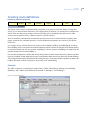
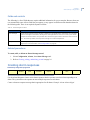
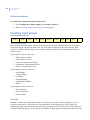
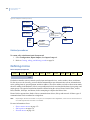
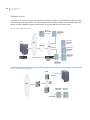
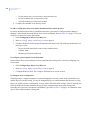
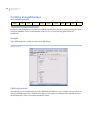
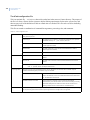
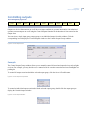
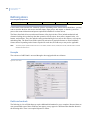
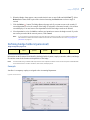
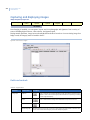
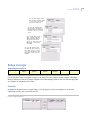
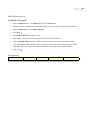
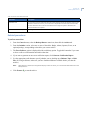
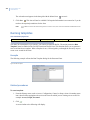
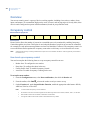
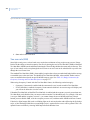
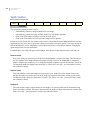
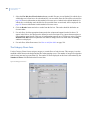
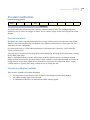
Badge management progress bar
Define badges
Define badge
holders
Capture images
(optional)
Print badges
(optional)
Manage
categories
Manage
badges
Finished!
Proceed to Chapter 12.
.
239