1
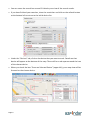
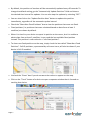
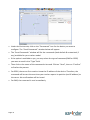
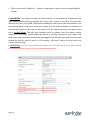
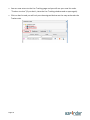
• To obtain details on a particular tracking point, simply click on the corresponding line
under the “Tracking Data” section (lower right side of the window). Detailed
information will appear beneath the map under the “Detail” section.
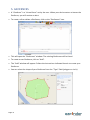
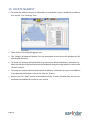
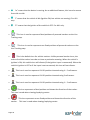
• That particular point will be represented by a green (fixed position) or red (non-fixed
position) on the map. The arrow inside the icon represents the direction of the device
at that time.
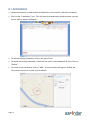
• Click on the “Address” button to display the street address.
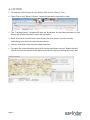
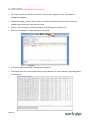
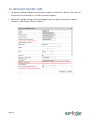
• To view non-fixed positions, check the “Show Non-Fixed Positions” box. Non-fixed
positions are represented by red icons on the map.
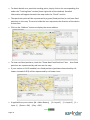
• If your tracker is Cell ID enabled, non-fixed positions (positions determined by cell
towers instead of GPS) will be represented by cell tower icons.
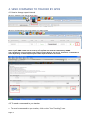
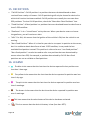
• If applicable to your tracker: [M = Main Battery] [3 = Input 3]
Input 1]
Page 10
[Green = ON] [Grey = OFF]
[2 = Input 2]
[1 =