1
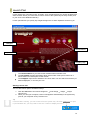
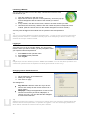
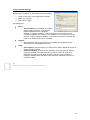
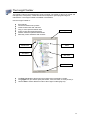
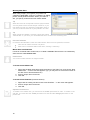
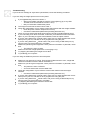
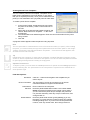
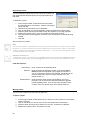
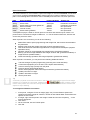
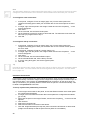
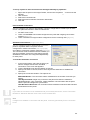
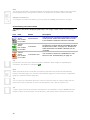
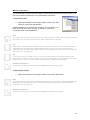
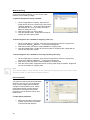
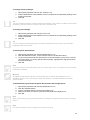
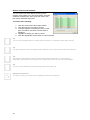
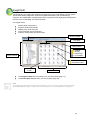
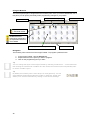
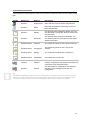
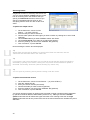
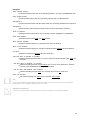
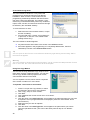
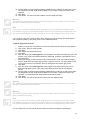
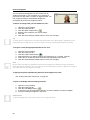
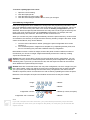
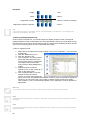
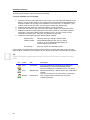
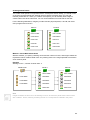
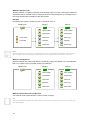
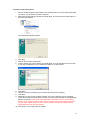
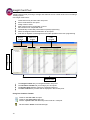
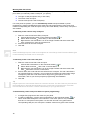
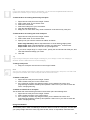
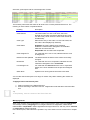
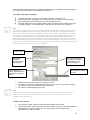
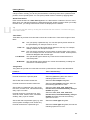
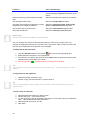
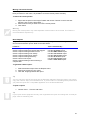
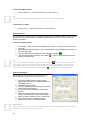
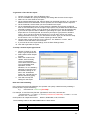
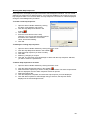
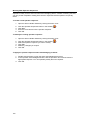
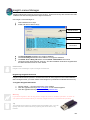
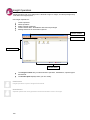
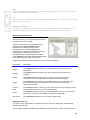
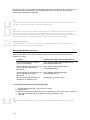
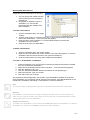
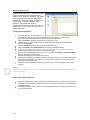
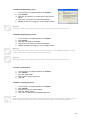
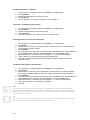
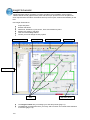
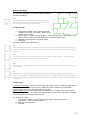
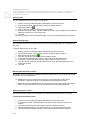
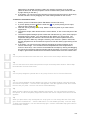
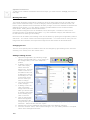
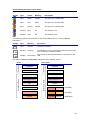
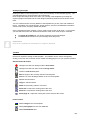
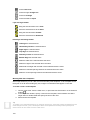
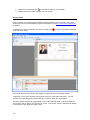
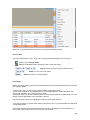
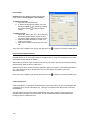
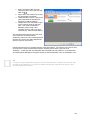
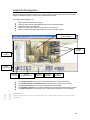
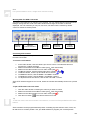
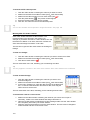
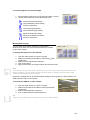
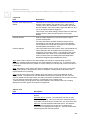
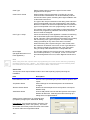
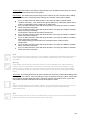
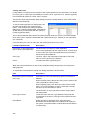
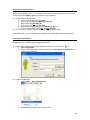
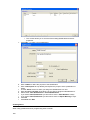
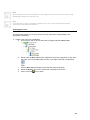
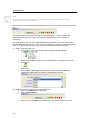
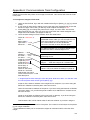
Note For synchronisation to occur, Insight server must be running. Working With The DVR Control Bar The DVR Control Bar lets you manage your cameras. You can switch between live and archival footage, change the time code of the video window and change the number of cameras displayed. For PTZ cameras you can pan, tilt, zoom, iris and focus the camera by remote control or activate a camera preset. Camera Pan/Tilt Camera Zoom/Focus/Iris Timeline Controls Playback Controls Layout Controls Controlling PTZ Cameras You can remotely control compatible PTZ cameras from the DVR Control Bar. To control a PTZ camera: 1. In the video window, click the camera you want to control. The selected camera is enclosed by a yellow rectangle. 2. Make sure the DVR Control Bar is visible (View DVR Control Bar) 3. Make sure the video window is in live video mode (click ) 4. To pan the camera, click the left and right arrow controls ( and ). 5. To tilt the camera, click the up and down arrow controls ( and ). 6. To zoom the camera, click the zoom + and zoom – buttons. 7. To focus the camera, click the focus + and focus – buttons. 8. To adjust the iris of the camera, click the iris + and iris – buttons. Some PTZ cameras support a “tour” mode, where the camera automatically tracks over a preset path. To put a PTZ camera into tour mode: 1. Click the video window containing the camera you want to control. 2. Make sure the DVR Control Bar is visible (View DVR Control Bar) 3. Make sure the video window is in live video mode (click ) 4. Click the tour button ( ). The camera enters tour mode. Tip To exit tour mode, click the tour button a second time, or click one of the pan/tilt/zoom/focus/iris buttons. Some cameras can be programmed with presets. Activating a preset sets the zoom, focus, iris, tilt and zoom to a known position. Use your DVR software to program your camera presets. 143