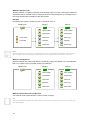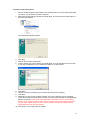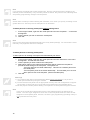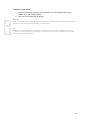
1
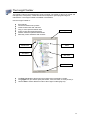
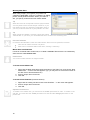
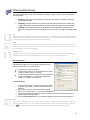
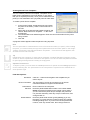
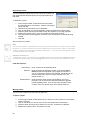
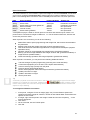
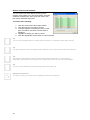
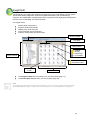
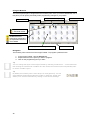
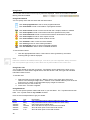
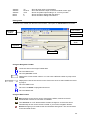
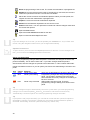
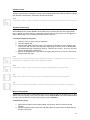
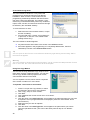
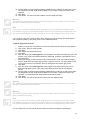
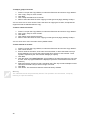
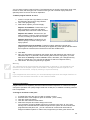
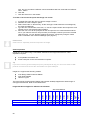
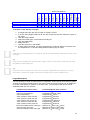
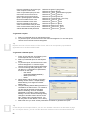
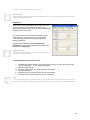
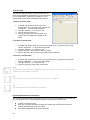
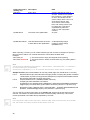
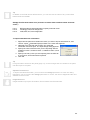
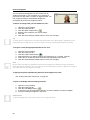
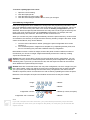
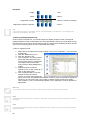
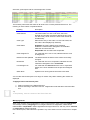
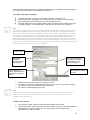
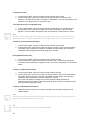
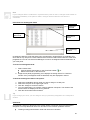
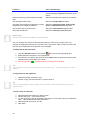
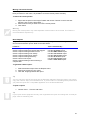
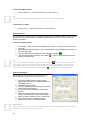
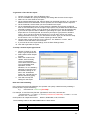
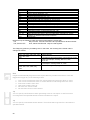
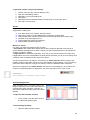
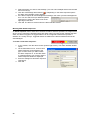
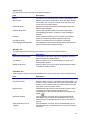
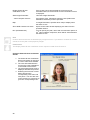
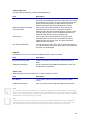
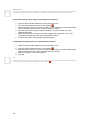
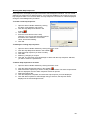
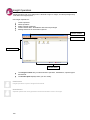
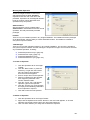
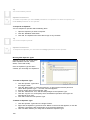
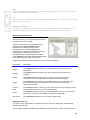
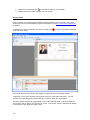
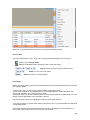
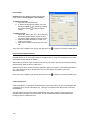
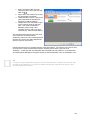
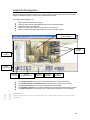
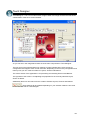
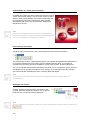
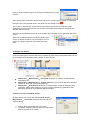
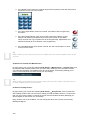
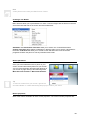
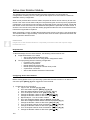
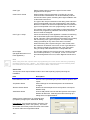
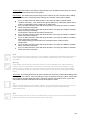
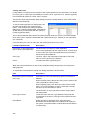
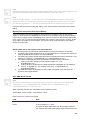
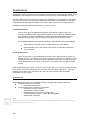
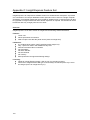
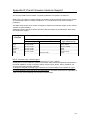
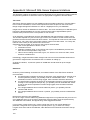
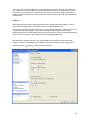
Qualifications Qualifications work by allowing a user access to a particular Door according to the validity of the Qualification and whether the user can otherwise access that door associated with the user. The first 8 Door Lists in the system are reserved for Qualifications. A qualification is associated with each of these door lists. Any Doors assigned to these Door Lists will require a user with a valid Qualification assigned to that Door to be valid in order to get access through that Door. Qualifications can be configured in two ways – Timed or Count. Timed Qualifications: A user can be given a qualification that spans a predefined number of days. For example: A forklift operator might require a particular license that has a duration of one year / 365 days. A Timed Qualification could be used if the forklift operator is only permitted to work within a secure location during the time their license is valid. Timed Qualifications have two special properties - Valid Duration and Expire Warning: Valid Duration is the total number of days that the license is valid for. Expire Warning is set to the number of days prior to expiry that generate an event in Review. Count Qualifications: Users can be given a Count Qualifications to limit a users total number of entries to a defined door list. For example: An employee might pay in advance for 10 days use of an underground car park. Each time the user is granted access to the car park entry their Count Qualification is reduced by 1. Once the count reaches 0 the user will be denied access. When qualifications are in effect, if a door is in any of door lists 1-8, a user who otherwise would have access to that door at that time must also have the appropriate qualification. If the door appears in more than one of these door lists, the user must have all of the associated qualifications to gain access.. Requirements To take advantage of the new qualifications feature, the following criteria must be met: Insight Professional 4.3 or above o Qualifications license key Concept panel with the following configuration: o Firmware v7.70 b46 or above. o 512k Memory Expansion fitted. o Defaulted to the xDoor memory configuration. o In General System Options - Option Q in ELPSZWQ o A permanent connection. Note ANY door assigned to ANY of the first 8 Door Lists requires a Qualification. These Door Lists are reserved for Qualifications. 166