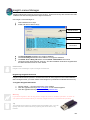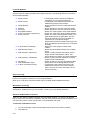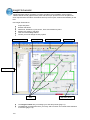
1
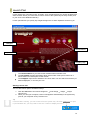
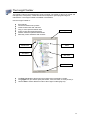
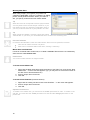
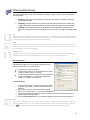
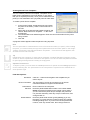
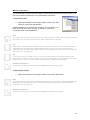
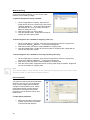
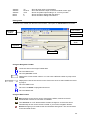
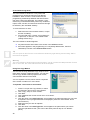
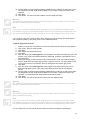
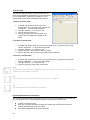
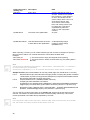
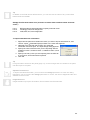
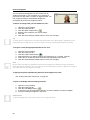
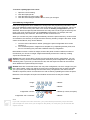
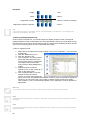
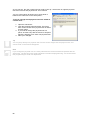
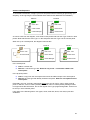
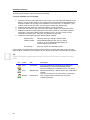
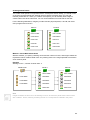
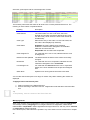
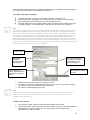
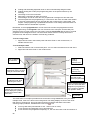
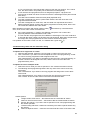
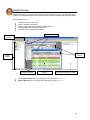
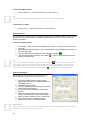
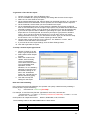
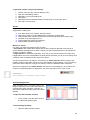
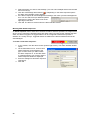
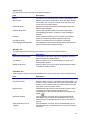
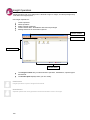
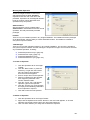
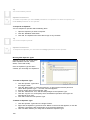
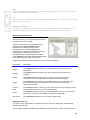
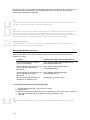
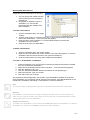
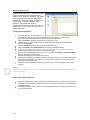
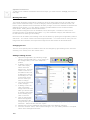
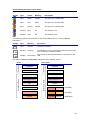
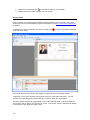
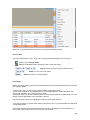
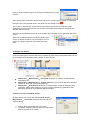
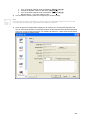
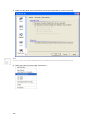
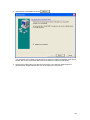
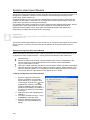
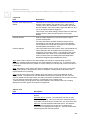
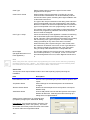
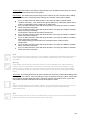
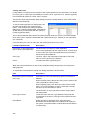
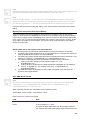
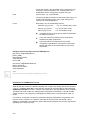
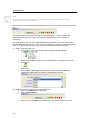
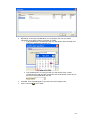
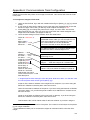
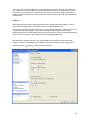
Dynamic User Import Module The Dynamic User Import Module enables automatic user programming of a Concept panel. It is designed for installations where the access-enabled user base changes frequently, like in hotels, clubs, fitness centres, etc. The DUIM module runs as a service on the Insight Server machine and picks up files with the updated user information. These files can be output files from a third party system, and so the update of the user base can run fully automatically. This module was initially conceived for use with a hotel's Property Management System, but the Insight Dynamic User Import Module can also be applied to commercial and industrial applications with its ability to take output from other ERP/HR Systems and update user programming in Insight and Concept panels accordingly. Paid Feature Insight Dynamic User Import Module is a separately licensed module and requires Insight Professional to run. The Dynamic User Import Module is a service that runs in conjunction with Insight on the Insight Server machine. It must be set up to work with the panel(s) in the system before it will run properly. Setting up the Dynamic User Import Module Before attempting to set up the Dynamic User Import Module, it is recommended that the panel or panels have been programmed first. The key panel items relevant to this module are: Panel Name(s) Number of users to be serviced - this will determine the memory configuration in the panel as well as the User Range specified in the Dynamic User Import Module Type of cards used for access User types - When importing .INI files from a Hotel PMS, a User Type will be associated with each floor the panel will service, based on the floor number. When importing .CSV files from ERP/HR systems, a correspondence will be established between User Types in the panel and User Type tokens as they appear in the .CSV file. To Set Up the Dynamic User Import Module: 1. Ensure the Dynamic User Import Service is installed on the Insight Server Machine. To verify this, click on the Insight Task bar Icon on the Insight Server machine. The DUIM service is installed if the menu item ‘DUIM Service Settings’) is enabled. If the service is running, this menu item is checked. 2. Select this menu item (‘DUIM Service Settings’). 3. You will be prompted to log in. Log in as installer to enter the setup. 4. Enter the settings required by the Dynamic User Import Module (see below). 158