1
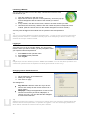
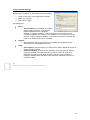
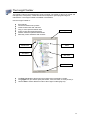
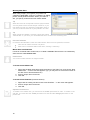
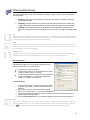
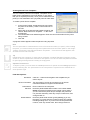
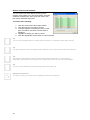
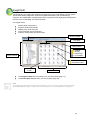
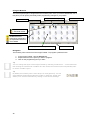
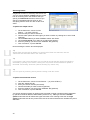
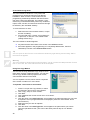
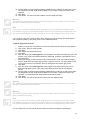
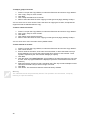
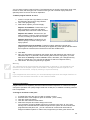
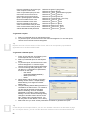
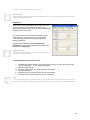
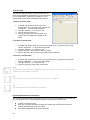
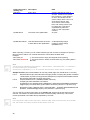
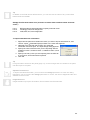
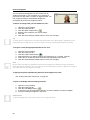
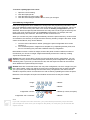
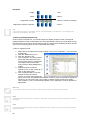
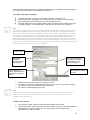
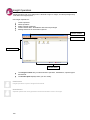
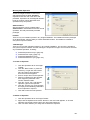
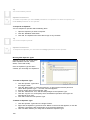
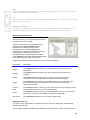
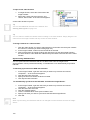
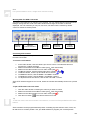
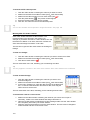
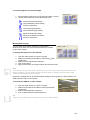
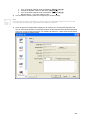
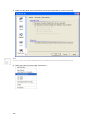
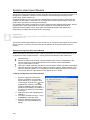
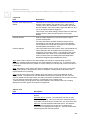
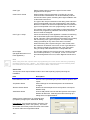
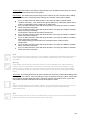
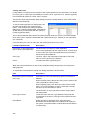
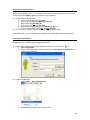
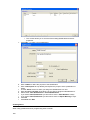
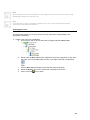
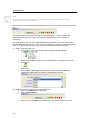
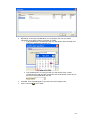
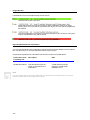
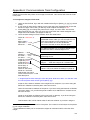
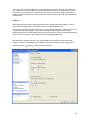
Duplicating Panels You can duplicate a panel that you have already enrolled, and then download the duplicate panel into a physical panel at a later date. To duplicate a panel: 1. In the Insight Toolbar, decide which site will contain the duplicate panel. If necessary, create a new master site or sub-site. 2. Hold down the Control key on the keyboard. 3. Click on the panel you want to duplicate, but do not release the mouse button. 4. Drag the panel onto the site that will contain the duplicate. A plus sign appears. 5. Release the mouse button. (You can release the Control key as well.) 6. The Copy Panel window appears. Enter the correct information for the panel being created. 7. Click OK. The new panel is created. Note The new panel will be created with the name, ID and serial number you specify. After creating the panel, you must manually set up protocol parameters and connection paths. In the Insight Toolbar, right click the new panel and select “Properties…” from the menu that appears, then click the Protocol and Ports tabs. Operator Permissions To duplicate a panel, you must have the create permission for panels, the inspect permission on the panel being copied, and the change permission on the site that will contain the copy. Field Descriptions: Panel Name: Panel ID: Serial Number: Enter a name for the duplicate panel. Enter the panel identification number. This number must match the panel ID specified in the Insight comms task. If you do not know the panel ID (for example, the panel has not yet been delivered), enter any unique number here, and change it later on. Enter the panel serial number (press [Menu], [2] on any terminal). You must enter the number exactly as it appears, including leading zeros. If you do not know the panel serial number, enter any number here, then change it later on. Moving Panels You can move a panel from one site to another site. To move a panel: 1. In the Insight Toolbar, decide which site you want to move the panel to. If necessary, create a new site. 2. Click on the panel you want to move, but do not release the mouse button. 3. Drag the panel onto the site you want to move it into. A special icon appears. 4. Release the mouse button. The panel is moved. 26