1
pitstop.bk Page 143 Thursday, July 24, 2003 4:15 PM
Enfocus PitStop Professional
User Guide
3
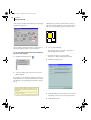
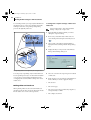
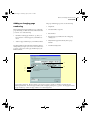
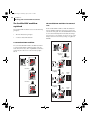
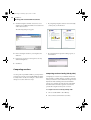
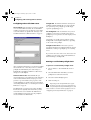
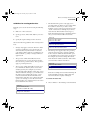
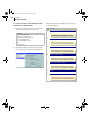
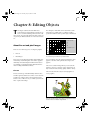
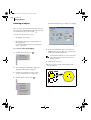
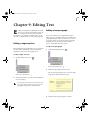
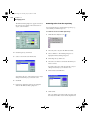
Click at the position on a segment of the path where
you want to add the anchor point.
then disappear. The shape of the path will then
change.
New anchor points will be added to the segment
upon each click.
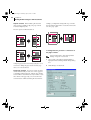
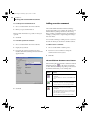
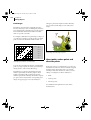
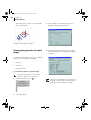
Deleting an anchor point from a path segment changes the
shape of the path.
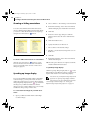
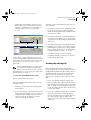
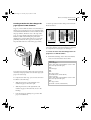
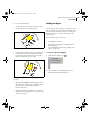
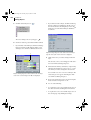
A
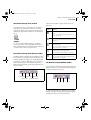
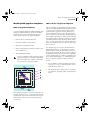
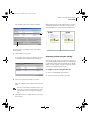
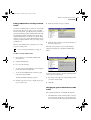
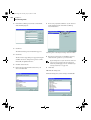
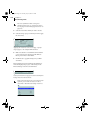
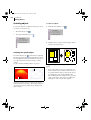
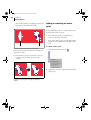
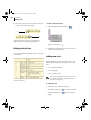
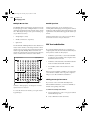
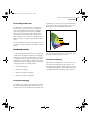
Adding a new anchor point (A) to a path segment.
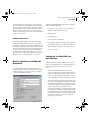
To remove an anchor point:
1
Click the Remove Anchor Point tool (
Masking objects
).
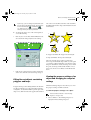
You can create a mask over one or more objects in your
PDF document and release any existing mask.
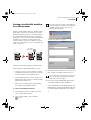
To mask an object:
Shortcut: Choose Edit > PitStop Mask > Make.
1
2
Click the line-art object from which you want to
remove an anchor point.
3
Click the anchor point that you want to remove.
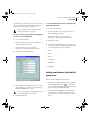
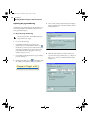
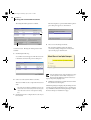
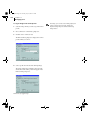
Select at least one object in your PDF document and
one line-art object or text segment to create the
mask with.
The respective anchor point will appear selected
(and display its direction points, if any) and will
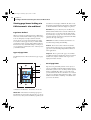
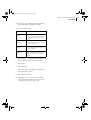
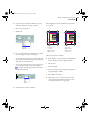
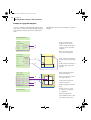
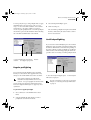
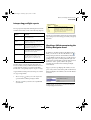
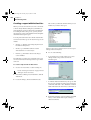
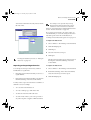
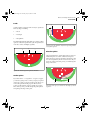
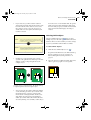
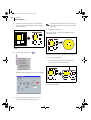
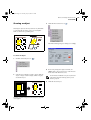
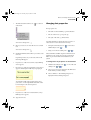
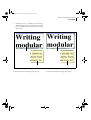
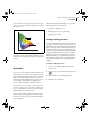
Selecting two objects for masking.
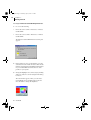
2
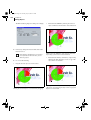
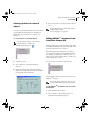
Choose Edit > PitStop Mask > Make.
143