1
pitstop.bk Page 163 Thursday, July 24, 2003 4:15 PM
Enfocus PitStop Professional
User Guide
3
4
5
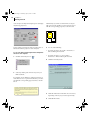
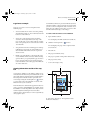
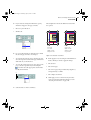
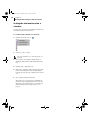
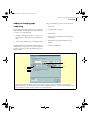
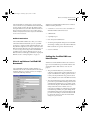
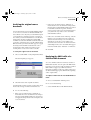
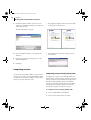
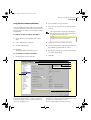
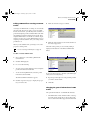
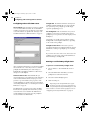
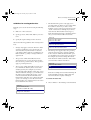
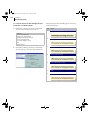
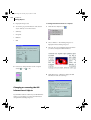
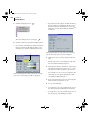
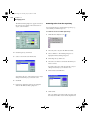
Open the PDF file with Acrobat and choose File >
Document Info > Fonts. (If the file contains more
than a single page and the font you’re interested in
is not on the first page, click List All Fonts.)
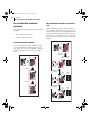
Subsetting fonts
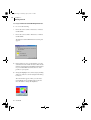
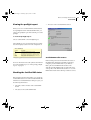
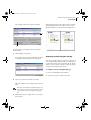
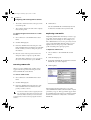
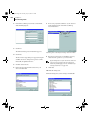
Write down the name of the font, using the exact
spelling, capitalization, and hyphenation of the
name as it appears in the Font Info dialog box.
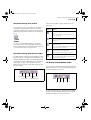
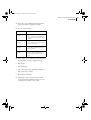
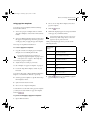
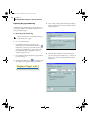
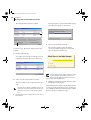
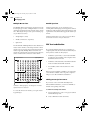
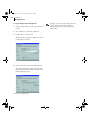
•
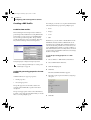
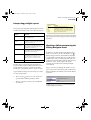
Subset all fonts
•
Subset all except the standard 14 fonts
Click OK to close the dialog box.
•
Subset all fonts that can’t be emulated for viewing
•
Subset all fonts that can be emulated for viewing
Embedding versus subsetting fonts
Embedding fonts
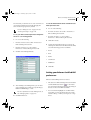
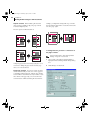
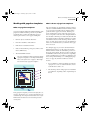
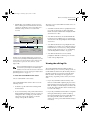
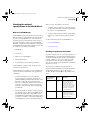
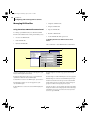
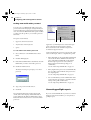
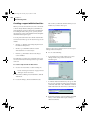
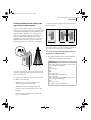
Using the Enfocus PDF Profile Editor, you can specify
in a PDF Profile whether a PDF document should:
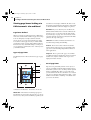
•
Embed all fonts
•
Embed all fonts except the standard 14 fonts
•
Embed all fonts that can’t be emulated for viewing
•
Embed all fonts that can be emulated for viewing
Embedding a font implies that the entire font, i.e. every
single character of the font, is copied into your PDF
document. This is particularly useful if your document
needs to be displayed and printed on a different
computer, which may not have the same fonts installed.
Furthermore, if the entire font is embedded, you can
still edit the text in the PDF document on a computer
that does have the font installed. Note that embedding
an entire font – a standard roman font typically
contains 256 characters – will increase the file size of the
PDF document by 30k to 40k for PostScript Type 1
fonts, or more for TrueType fonts.
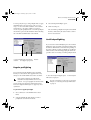
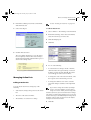
Using the Enfocus PDF Profile Editor, you can specify
in a PDF Profile whether a PDF document should:
Instead of embedding an entire font, you may want to
embed only a subset of the font – i.e. the characters of
the font that are actually used in the text. Subsetting a
font allows you to keep a file as small as possible, which
is recommended especially if you do not plan to add
more text (and hence more font characters) to the file.
Note that when you combine two or more PDF documents that have the same font subset, duplicate character information is not deleted from the merged sets.
This will result in a considerably larger file.
However, if it is not important that readers see the file
in its original fonts, do not embed fonts at all, and let
Acrobat use substitute fonts when necessary. This will
produce the smallest file possible. Naturally, reducing
file size will improve the file transferability.
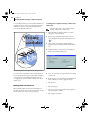
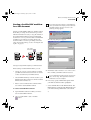
Finding exact font names
A given font can have different names. And the name of
the font which you see in your source application is not
necessarily the same as its “real” internal font name.
For example, the Adobe Type 1 font “Times” as you see
it in your word processing or desktop publishing
program also has a PostScript name: “Times-Roman”.
The same applies to its TrueType counterpart “Times
New Roman”: its name appears in Adobe Acrobat as
“TimesNewRoman” (without spaces).
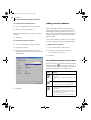
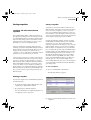
Consequently, if you need to enter a font name manually in one of the dialog boxes of Enfocus PitStop
Professional, it is important that you type the font name
exactly as it is spelled in Adobe Acrobat. You can use a
PDF file to find the exact spelling of the name.
163