1
pitstop.bk Page 69 Thursday, July 24, 2003 4:15 PM
Enfocus PitStop Professional
User Guide
Starting a Certified PDF workflow
for a PDF document
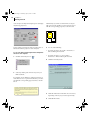
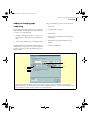
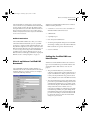
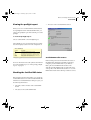
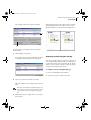
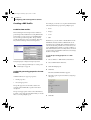
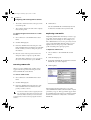
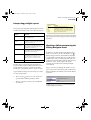
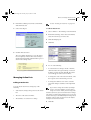
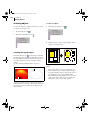
If you have made any changes to your PDF document, you should save it before you start the Certified PDF workflow. If you do not save it, the
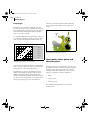
following warning appears.
Starting a Certified PDF workflow for a PDF document
means that you ‘stamp’ the document: You provide it
with the information necessary to enjoy the benefits of
the Certified PDF workflow for that particular PDF
document. As soon as you have started a Certified PDF
workflow for a document, any change made to the
document will be “recorded” per editing session and
can be traced in the edit log. See also “Viewing the edit
log file” on page 75.
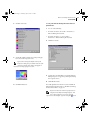
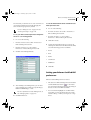
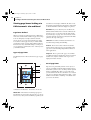
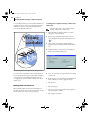
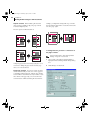
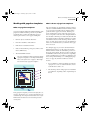
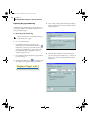
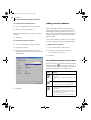
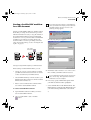
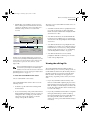
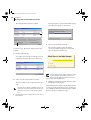
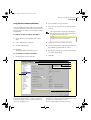
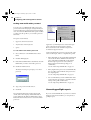
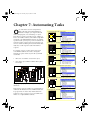
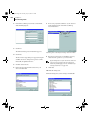
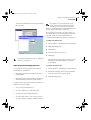
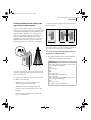
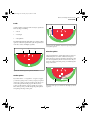
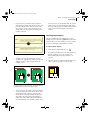
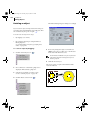
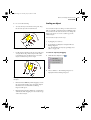
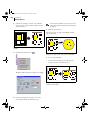
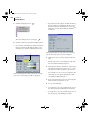
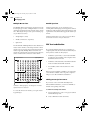
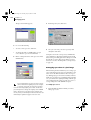
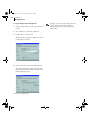
The following dialog box appears.
start Certified
PDF workflow
source file
PDF 1
PDF 1 Certified
Starting a Certified PDF workflow for a PDF document
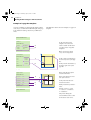
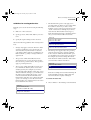
When starting a Certified PDF workflow, you can:
•
•
Specify one or more source documents on which
your PDF document was based and save a reference
to these documents in your PDF document.
3
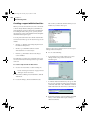
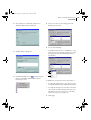
Click Add to add a reference to one or more source
files on which your PDF document was based.
It is recommended to add a reference to the source
file(s) at this stage. This information cannot be
added later on in the workflow.
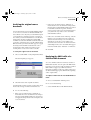
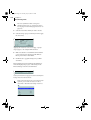
Select a PDF Profile that you want to attach to your
PDF document. The profile is stored in the Certified
PDF document for later use.
4
If necessary, specify a PDF Profile against which
your PDF document should be preflighted:
Enter a session comment. This comment will be
stored in the Certified PDF document.
•
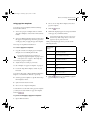
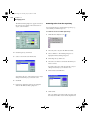
To start a Certified PDF workflow:
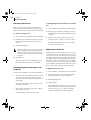
Select a PDF Profile from the PDF Profile list. The
PDF Profile list contains the same PDF Profiles as in
your Enfocus PitStop PDF Profile Control Panel.
1
Open the PDF document for which you want to
start a Certified PDF workflow.
or
2
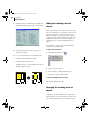
Choose Certified PDF > Start or click the
button.
•
69