1
3. Starting and stopping the GPS (cont’d)
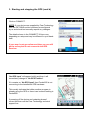
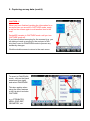
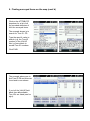
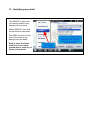
Click on CONNECT.
NOTE: If your device was supplied by Pear Technology
then the OPTIONS section has been preconfigured
by us and should not normally require any changes.
The details shown in the CONNECT VIA box vary
depending on setup and may be different for your handheld.
If your map is not geo-referenced then you can still
do the survey but do not connect to the GPS
Receiver.
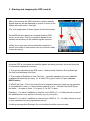
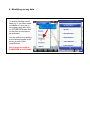
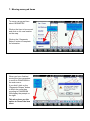
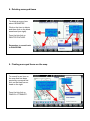
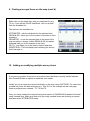
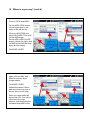
“No GPS Input” will appear briefly and then it will
immediately change to “No GPS Position”.
If it remains on “No GPS Input” then PocketGIS is not
connecting to the handheld’s GPS hardware.
This usually indicates that either another program is
already using the GPS or there is an incorrect setting in
PocketGIS.
If powering off the device and restarting doesn’t
correct this then call the Pear Technology technical
support line.