1
Chapter 9 - Conference Templates – Partial View Mode
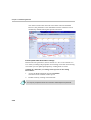
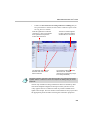
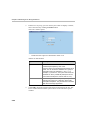
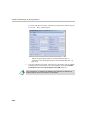
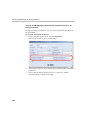
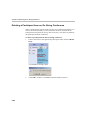
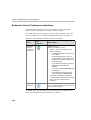
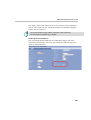
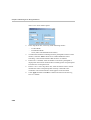
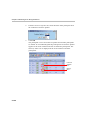
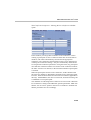
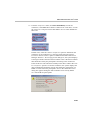
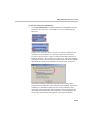
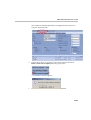
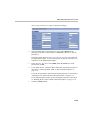
the participant will be viewed in the selected window by all the
participants when the conference starts.
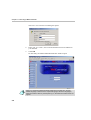
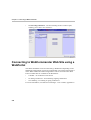
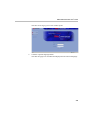
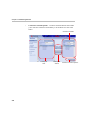
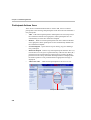
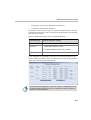
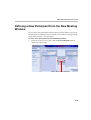
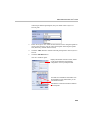
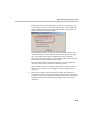
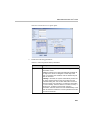
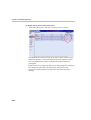
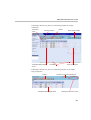
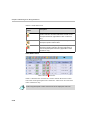
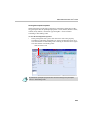
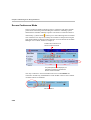
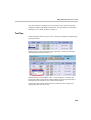
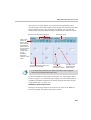
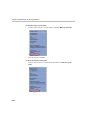
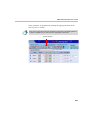
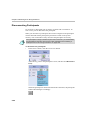
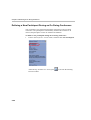
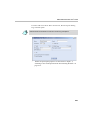
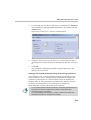
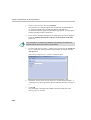
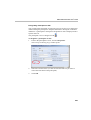
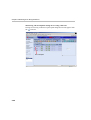
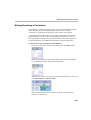
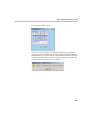
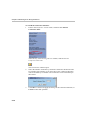
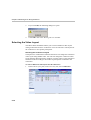
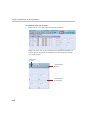
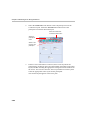
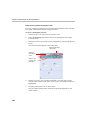
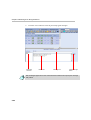
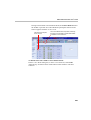
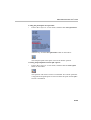
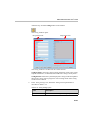
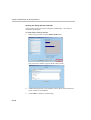
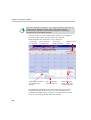
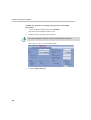
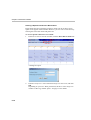
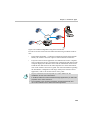
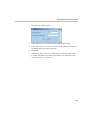
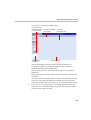
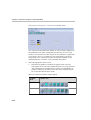
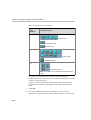
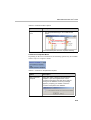
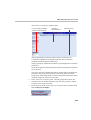
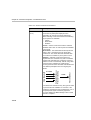
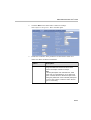
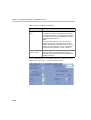
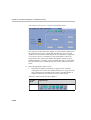
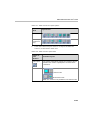
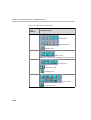
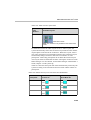
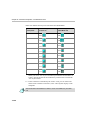
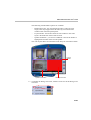
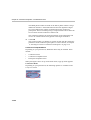
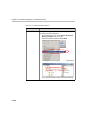
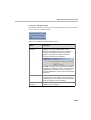
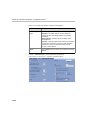
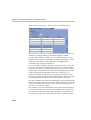
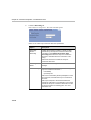
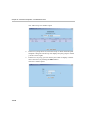
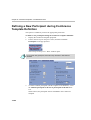
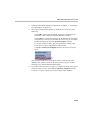
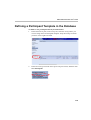
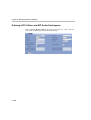
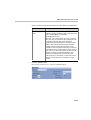
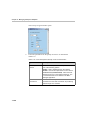
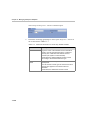
11. Click the Video Layout tab to display the video layout windows.
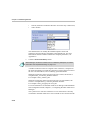
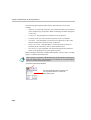
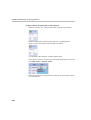
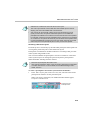
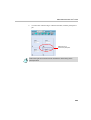
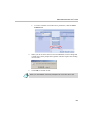
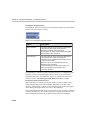
To video force in the particular window where the participant is to be
viewed, click the arrow to display the list of currently defined
participants and select the name of the participant to be seen in this
window.
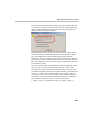
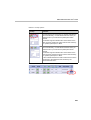
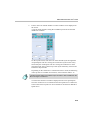
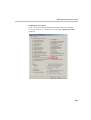
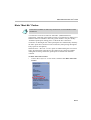
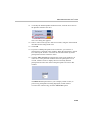
The Black Screen option allows you to display a black screen (to
prevent any participant from being displayed) in that window.
To cancel the video forcing, click the Auto Select option.
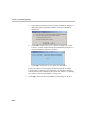
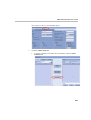
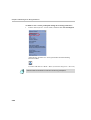
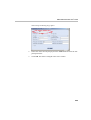
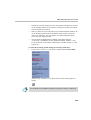
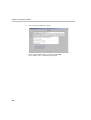
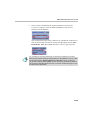
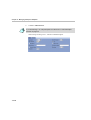
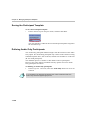
12. On the menu bar click Save to save the Conference template in the
database.
9-16