1
Ver 1.20.2
16 Scan to Office365™
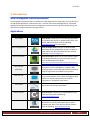
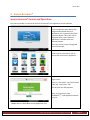
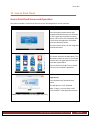
Scan to Office365™ Screens and Operations
This section provides an overview of the Scan to Office365™ application and its operation.
Screen Shot
Description
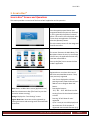
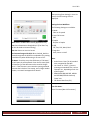
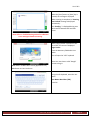
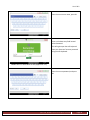
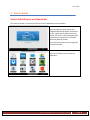
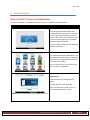
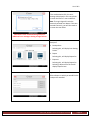
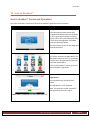
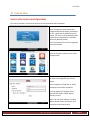
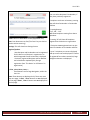
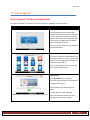
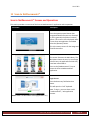
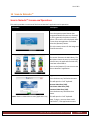
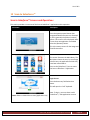
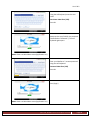
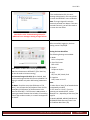
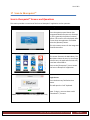
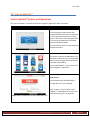
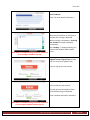
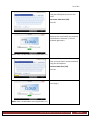
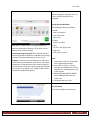
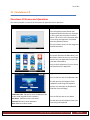
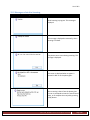
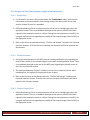
Press the operation panel button that
Integrated Cloud Environment is allocated
to, this is generally the [Other Functions]
button. This screen is then displayed. Note:
If more than one application is available
select the [Browser] button.
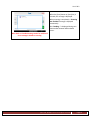
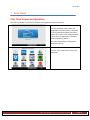
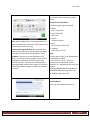
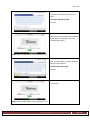
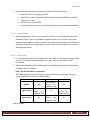
This is the startup screen for the Integrated
Cloud Environment.
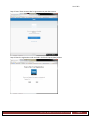
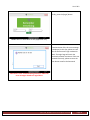
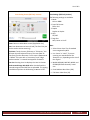
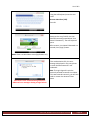
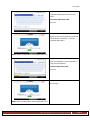
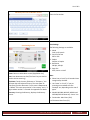
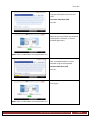
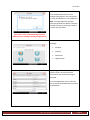
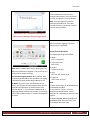
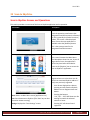
This screen illustrates the Main Menu. The
Main Menu shows the user, by use of large
colorful icons, the applications which they
have been subscribed to.
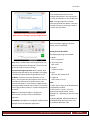
Press on the [Office365™] icon to access
the Scan to Office365™ application.
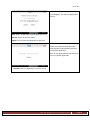
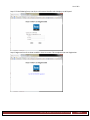
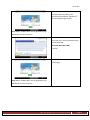
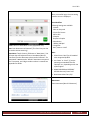
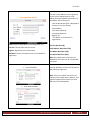
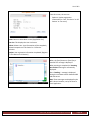
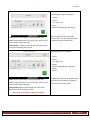
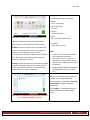
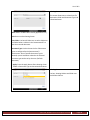
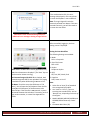
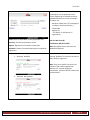
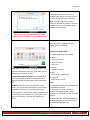
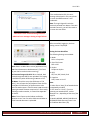
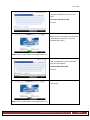
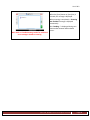
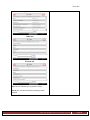
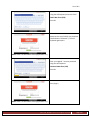
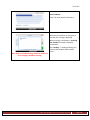
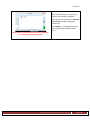
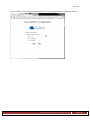
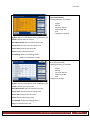
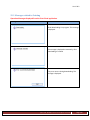
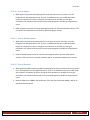
Login Screen:
Enter Domain name by pressing data entry
field next to ‘@’ symbol, this will open the
“soft” keyboard.
Press the data entry field below User
Name:
This will open the “soft” keyboard.
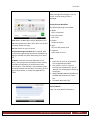
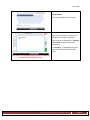
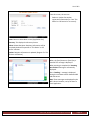
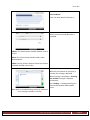
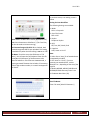
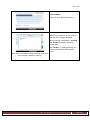
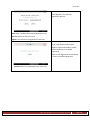
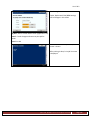
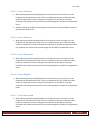
Home: Return to Main Menu screen [Application List]
Note: To log-in, you must have a valid
“Office 365™,” web application account.
Ricoh Americas Corporation
Page 101