1
Miscellaneous Planning and Procedures
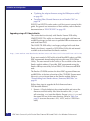
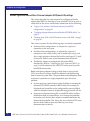
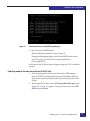
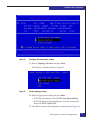
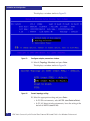
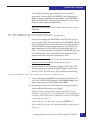
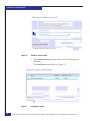
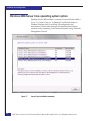
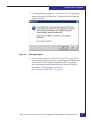
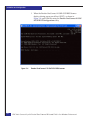
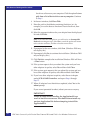
for driver software on your computer. Click the option Let me
pick from a list of device drivers on my computer. Continue
to Step 8.
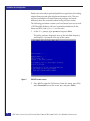
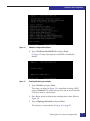
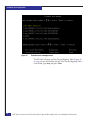
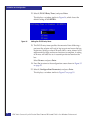
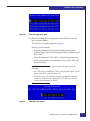
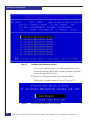
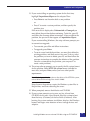
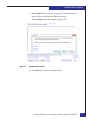
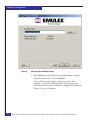
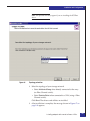
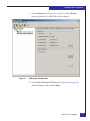
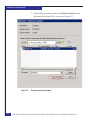
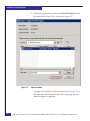
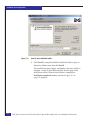
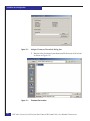
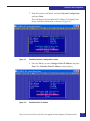
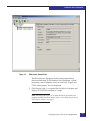
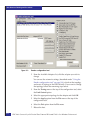
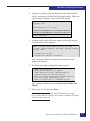
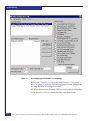
8. In the next window, click Have Disk.
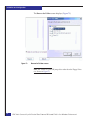
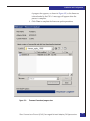
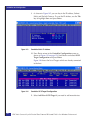
9. Enter the path to the diskette containing the driver (A:\, for
example), or use the browse function to locate the driver; then
click OK.
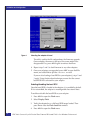
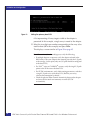
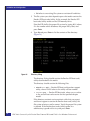
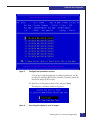
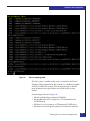
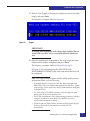
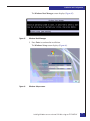
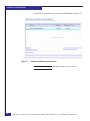
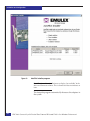
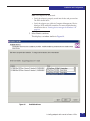
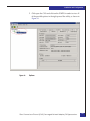
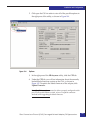
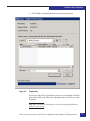
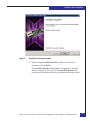
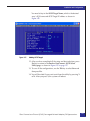
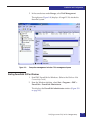
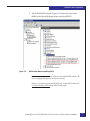
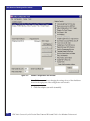
10. Select the appropriate driver for your adapter from the displayed
list and click Next.
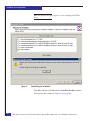
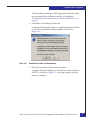
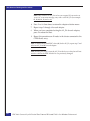
Note: If you select the wrong driver, you will receive an Incompatible
Hardware warming message. Select No to cancel the update and return
to the selection windows, and then select the correct driver.
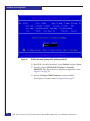
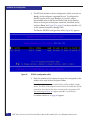
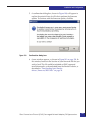
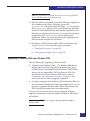
11. If prompted in the next window, click Next. (Windows 2008 may
not display this.)
12. If prompted, click Yes to continue the installation. (Windows 2008
may not display this.)
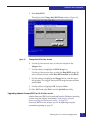
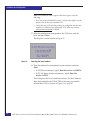
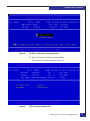
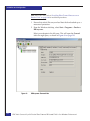
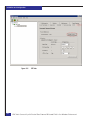
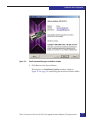
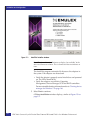
13. Click Finish to complete the installation.Windows 2008 will have
a Close button.
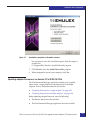
14. If the system requests that you reboot the system and you have
other adapters to update, select No and then click Close.
15. If the system again requests that you reboot the system and you
have other adapters to update, select No and then click Close.
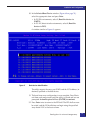
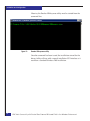
16. If you have other adapters to update, select the next adapter
under SCSI & RAID Controllers and repeat Step 6 through
Step 15.
17. When all adapters have their drivers updated, select Yes to the
reboot prompt.
If you are not promoted to reboot, reboot your server anyway.
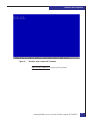
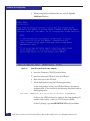
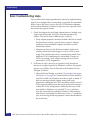
IMPORTANT
Failure to reboot before installing the Application Kit can
result in host blue screen error. You should also uninstall any
previous Application Kits before attempting to install the
Application Kit.
190
EMC Host Connecivity with Emulex Fibre Channel HBAs and CNAs in the Windows Environment