1
426
Command Line
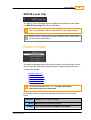
Interactive Mode
--interactive-mode
Interactive Mode lets you type command-line commands to the application
from the Windows CMD prompt interactively. This mode only needs to start
the application once and is therefore faster.
Interactive Mode is useful for testing out the command-line.
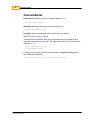
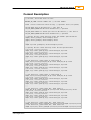
Command :
$ nucoda_film_master --interactive-mode
INFO Set current user to "Default".
Interactive mode. Type --quit to exit.
>
>--list
Projects:
1: PROJ1
- D:\Nucoda\2014_1\projects\PROJ1
2: PROJ1.export
- D:\Nucoda\2014_1\projects\PROJ1.export
3: PROJC
- D:\Nucoda\2014_1\projects\PROJC
>-p PROJ1 --import-folder S:\media\images\testsequences\timeline_tests\CLIP-A-DIR
INFO Opening project "PROJ1" from "D:\Nucoda\2014_1\projects\PROJ1".
INFO Batch Import (running) : "Importing" - importing directory 0 of 1 (0)
INFO Batch Import (running) : "Importing" - importing directory 1 of 1 (100)
INFO Batch Import (completed) : "Importing" - importing directory 1 of 1 (100)
>--quit
At the interactive mode prompt (>), you can type any valid command-line
command and see the result immediately.
Use --quit to exit interactive mode.
Listing Information
--list
List projects, or compositions within projects.
--capture-list
List details to list captured material
--clip-list [s]
List details of clips in composition
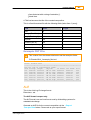
Any item listed includes an index. You can use this index when
performing remove operations.
Listing Projects
--list
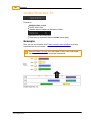
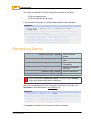
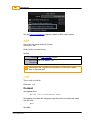
To list projects available, use the command --list :
© 2014 Digital Vision
UM-2014.1-07