1
8
Components — Alphabetical List
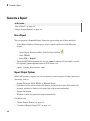
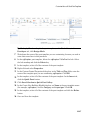
1
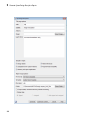
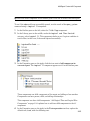
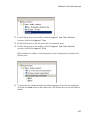
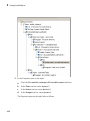
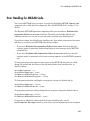
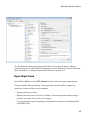
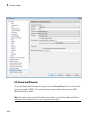
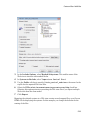
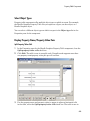
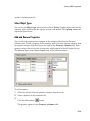
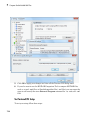
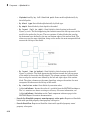
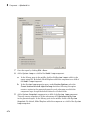
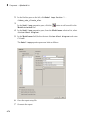
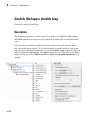
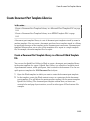
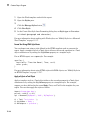
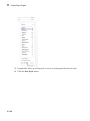
select the appropriate property level in the text box on the left.
2
In the text box on the right, select the property that you want to add and click
Add.
• To delete a property, select the property name and click Delete.
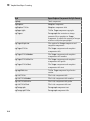
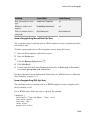
%<SplitDialogParameters> is a unique property for Simulink Summary Tables,
where the object type is Block. This property generates multiple summary tables,
organized by block type. Each Summary Table group contains the dialog box parameters
for that block.
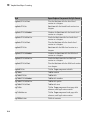
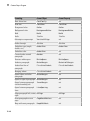
Some entries in the list of available properties (such as Depth) are “virtual” properties
that you cannot access using the get_param command. The properties used for property/
value filtering in the block and System Loop components must be retrievable by the
get_param. Therefore, you cannot configure your Summary Table to report on all blocks
of Depth == 2.
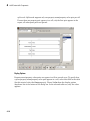
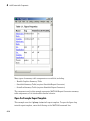
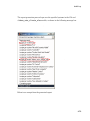
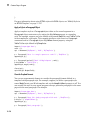
You can create multiple values for a property in a Simulink Summary Table. For
example, to report on blocks of type Inport, Outport and Constant:
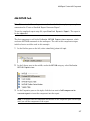
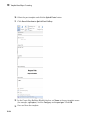
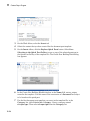
1
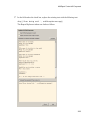
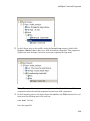
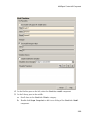
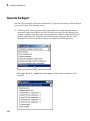
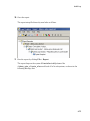
Check the Search for Simulink property name/property value pairs box.
2
Make sure that you set Property Name to BlockType.
3
Type the following text into the Property Value field:
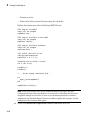
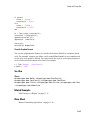
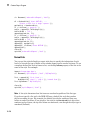
\<(Inport|Outport|Constant)\>
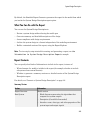
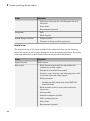
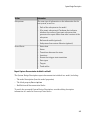
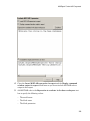
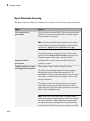
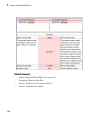
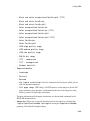
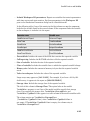
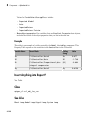
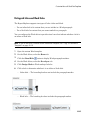
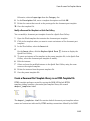
Remove empty columns: Removes empty columns from the table.
Transpose table: Changes the summary table rows into columns in the generated
report, putting the property names in the first column and the values in the other
columns.
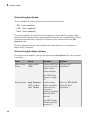
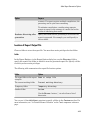
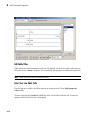
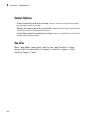
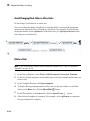
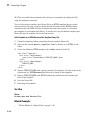
Object Rows
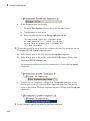
• Insert anchor for each row: Inserts an anchor for each row in the summary table.
• Report On:
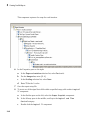
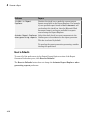
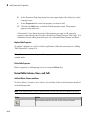
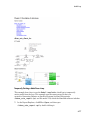
• Automatic list from context: Reports on all blocks in the current context, as
set by the parent component.
8-142