1
Reconfiguring Answer Delay or Force Delay
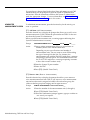
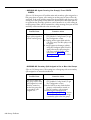
You can change the current setting for the Answer Delay or Force Delay
option at any time.
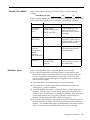
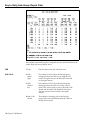
ANSWER DELAY
The Answer Delay is the number of seconds CMS lets a call ring before
connecting it to a voice announcement unit if no agent is available to service
the call.
Think of Answer Delay as a trade-off between the time a customer spends
listening to ringing and the time the customer spends on hold. You can use a
different Answer Delay value for each line group, depending on the type of
lines in the group and the amount of time the caller is likely to wait before an
agent is available.
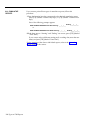
The initial setting for Answer Delay is 5 seconds, the approximate length of
time from the beginning of one ring to the beginning of the next. Consider
these factors when choosing an Answer Delay value for a line group:
• Someone begins paying for a call as soon as the line is answered. If calls
are likely to be on hold before an agent is available, you can increase the
Answer Delay value in order to decrease the amount of time on hold and
the cost of the call.
• You may want to increase the Answer Delay value if you know callers
have to wait for an agent. Callers may be less inclined to hang up if they
wait a little longer for CMS to answer the call but spend less time on hold.
FORCE DELAY
The Force Delay option controls the transfer of calls to and from the voice
announcement unit. If Force Delay is on for a particular line group, calls that
arrive for that line group will not be transferred to an agent until callers have
heard the entire message, even if an agent is available. This means that calls
may be queued up waiting to hear the delay message even when agents are
available.
When Force Delay is on, the Answer Delay setting for that line group is
ignored by CMS; that is, calls to that line group are transferred to the line
group’s voice announcement unit as soon as it is available. If Force Delay is
off, the caller will be transferred to an agent as soon as one becomes
available.
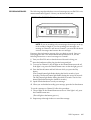
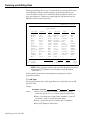
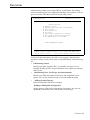
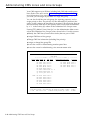
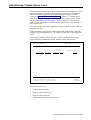
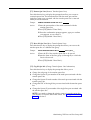
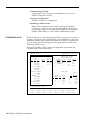
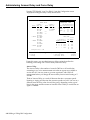
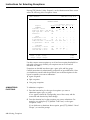
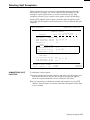
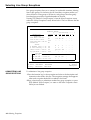
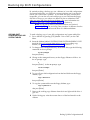
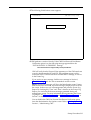
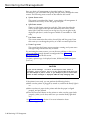
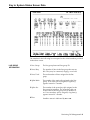
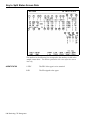
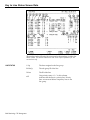
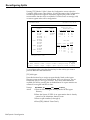
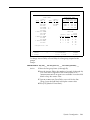
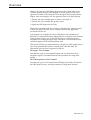
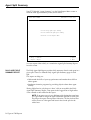
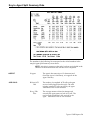
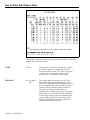
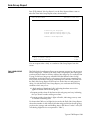
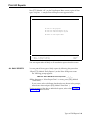
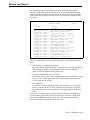
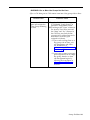
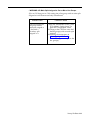
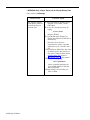
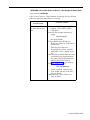
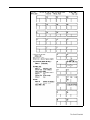
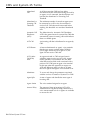
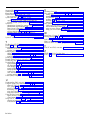
Pressing [F2] (labeled “Ans/Forc Delay”) from the Configuration screen selects
the Configure Delay screen. A box appears around the Answer/Force Delay
area of the screen and a prompt appears, as shown in the following example
of a Configure Delay screen.
5-40 Dynamic Reconfiguration