1
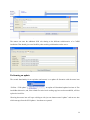
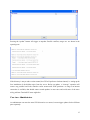
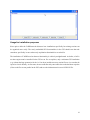
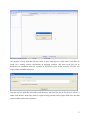
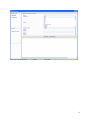
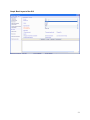
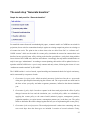
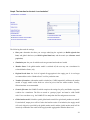
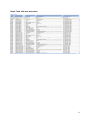
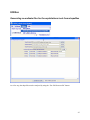
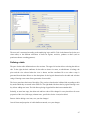
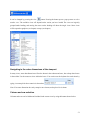
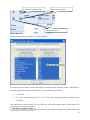
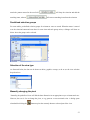
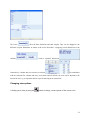
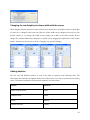
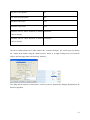
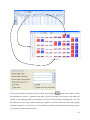
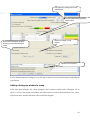
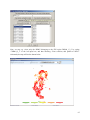
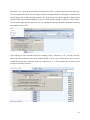
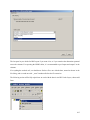
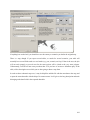
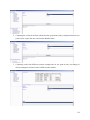
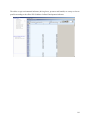
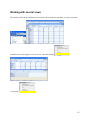
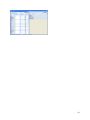
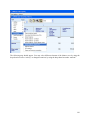
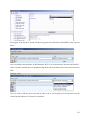
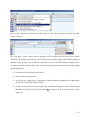
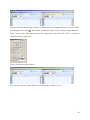
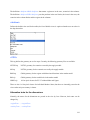
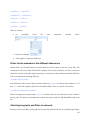
The task: Collect meta information The task scans the GDX files from the different tasks and collects Meta information (user, date of execution etc.) from there and shows it in a table. Besides the result directory stored in the settings, the task performs a “passive crawl” such that it will collect information on all files in the result directory which could technically be generated by the tasks. Settings as base year or simulation year in the interface are not taken into account. The processing depends on availability of the META symbol in the GDX file. Using the new GUI with files based on older version of CAPRI could lead to situations where files are not included in the reporting system. The following information is provided: Member State: the Member State for which Meta information is provided. Depending on the task, the program may have run for that Member State separately (e.g. CAPREG) or along with other Member States (e.g. CAPMOD) Work step: the task run as reported in the GDX file. #: logical order of the work steps. Steps with a higher order build on results of steps with a lower one. Consequently, results from steps with a higher order should be younger then those from steps with a lower order. Item: the different types of Meta data provided. Content: actual Meta data for the item. File name and SVN status: the GDX file from which the meta information is loaded, plus information about its status in the SVN versioning system. “Modified” means that the file in the local copy was modified since the last update and was not committed afterward. “Out of date” means that a newer version is available on the server. “Conflicting” means that an updated version of the file is available to the local copy, but that the file was modified. “Not under version control” means that the file is not handled by the version system. It allows checking the internal consistency, i.e. if results entering certain work steps are outdated. In that case, the line with the date stamp is shown in red. The scroll down boxes above the table can be used to select in the table. The first entry (.*) selects all items. Clicking on the table columns allows sorting. 33