1
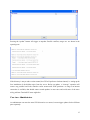
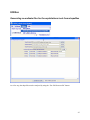
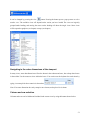
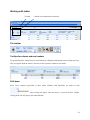
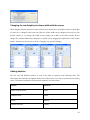
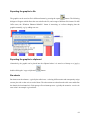
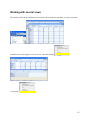
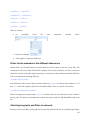
The new tool is structured according to the underlying logic and file. Tabs in the bottom line let the user
select tables, or the different collections of items for regions, activities, products or dim5 (such as
premium schemes or trading partners).
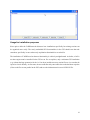
Defining a table
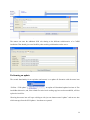
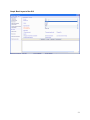
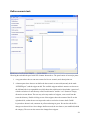
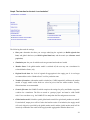
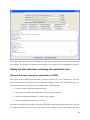
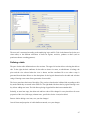
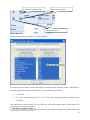
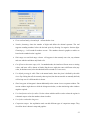
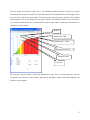
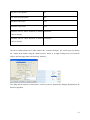
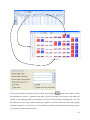
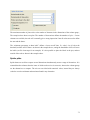
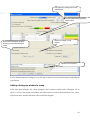
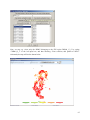
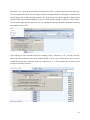
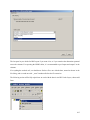
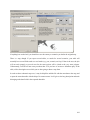
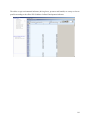
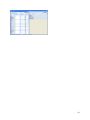
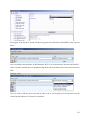
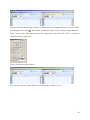
The pane for the table definition shows four sections. The upper left section allows selecting the table to
edit. To the right, the basic attributes for the table are shown: its name, to which theme it belongs, the
pivot and the view selected when the view is shown, and the coordinate file to use when a map is
generated from the data. Below are the descriptions for the logical dimensions for the table and selection
strings. Entering a new name allows generation of a new table.
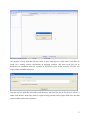
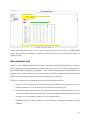
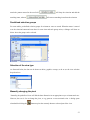
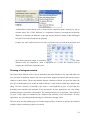
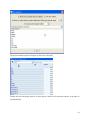
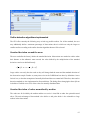
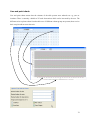
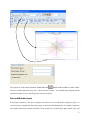
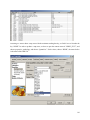
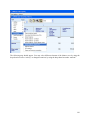
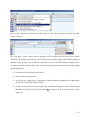
The lower part relates the items of the tables. They can be selected on the left hand side according to their
key under which they are stored in the GDX file. The right hand side shows the key again. Entering a new
key allows adding new items. The link allows placing a hyperlink for that item to another table.
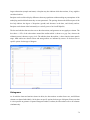
Probably, at some later stage, the editor tool and Java code will be changed in a way that allows for more
properties of the view (hide empty columns/rows, specificities for the views)to be edited.
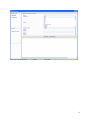
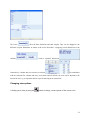
Beware: before editing a new item, save your last changes!
Once all items and properties of a table had been entered, save your changes.
47