1
Chapter 5. - Using the 3D Viewer
QuickScene2.0
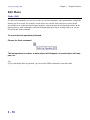
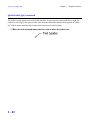
The Place
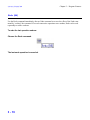
Snapshot Icon
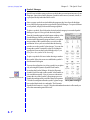
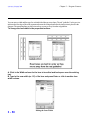
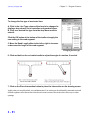
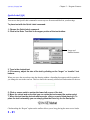
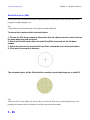
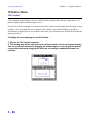
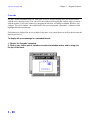
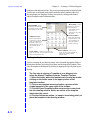
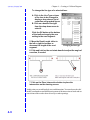
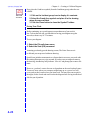
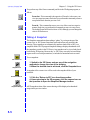
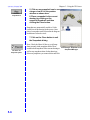
5. Click on any snapshot icon to see
a larger view of it in the preview
window as shown here.
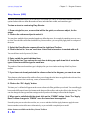
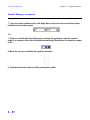
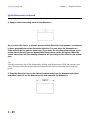
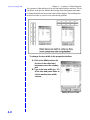
6. Place a snapshot in the current
drawing by clicking on the
snapshot thumbnail and then
clicking the Place button.
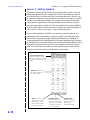
Snapshots are automatically scaled to 1/8 the
overall size of the drawing on the screen. Once
placed, a snapshot can be selected in the diagram
and then moved and re-sized.
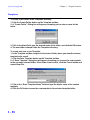
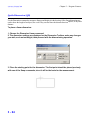
7. Click on the Close button to exit
the Snapshots dialog.
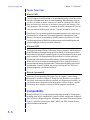
The Show All
Snapshots Option
5-6
Note: Check the Show All box to see all snapshots currently in the snapshots folder. These
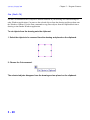
Previewing a Snapshot in the
would include snapshots of the current drawing as
Snapshot Manager.
well as any snapshots taken of other drawings.
Select any snapshots you want to delete and click