1
Chapter 3. - Program Features
QuickScene2.0
Symbol Manager continued
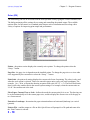
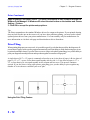
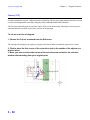
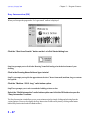
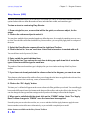
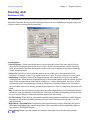
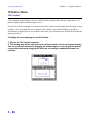
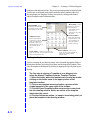
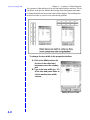
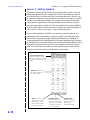
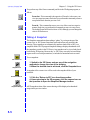
Select symbols for placement and choose from the various symbol options on the Symbol Manager dialog box.
To display the Symbol Manager click on the button labeled Symbols on the left-side toolbox. To return to the
standard toolbox when you are finished placing symbols click on the Close button at the bottom of the Symbol
Manager.
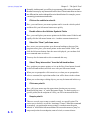
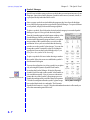
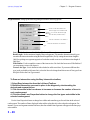
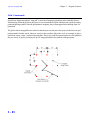
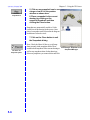
Current Symbol Group Shows the currently selected
folder. Any symbols shown in the
list below are located under this
folder.
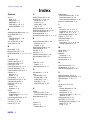
Symbol List - Shows all
the symbols available in
the selected folder.
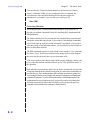
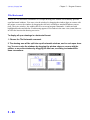
- Causes all
symbols to be mirrored
about either a vertical
line or a horizontal line
when they are placed.
Mirror
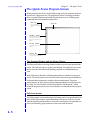
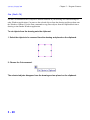
Dynamic Scale -
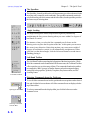
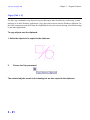
Symbol Color -
Press this button when
you want to dynamically
change the size (or scale)
of symbols as you place
them in the drawing.
Click on this button
to select a color to be
applied to any
symbol being placed.
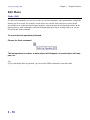
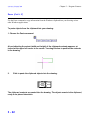
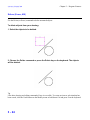
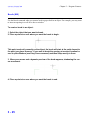
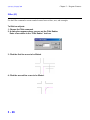
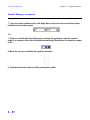
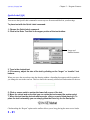
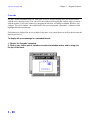
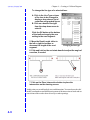
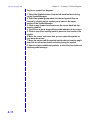
To place a symbol in a diagram:
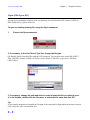
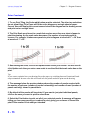
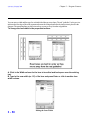
The first step to placing a symbol in your diagram is to select the desired symbol from
the Symbol Manager list.
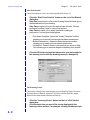
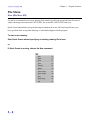
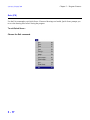
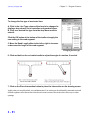
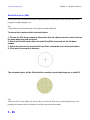
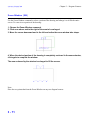
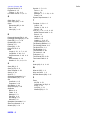
1. Select the Symbols button from the left-hand toolbox to bring up the Symbol Manager
(or select it from the Draw menu).
3 - 55